


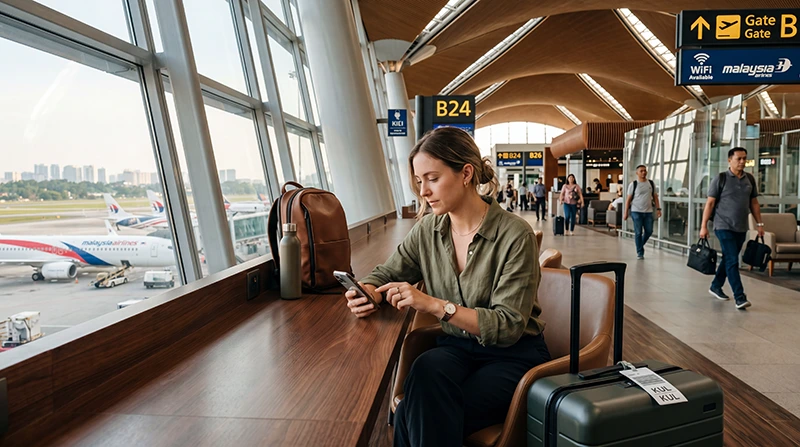

Kuala Lumpur Airport Wi-Fi can cover messages, bookings and basic browsing inside KLIA, but it is not an internet plan for the journey into the city. Network names and login steps can change, so verify the current service at the terminal.
NoveSIM travel eSIMs are data-only. We do not provide a Malaysian number, conventional calls or SMS.
Quick answer: Connect only to the official Kuala Lumpur Airport network shown on KLIA signage, open a webpage to display the login portal and avoid sensitive transactions. Activate mobile data or download the complete onward route before leaving the terminal.
Top Malaysia eSIMs


Connect to Kuala Lumpur Airport Wi-Fi
- Check the official passenger-network name on terminal signage.
- Select it in Wi-Fi settings and wait for the login screen.
- Open a normal webpage if the portal does not appear automatically.
- Complete the current access steps and test a fresh page.
- Forget the network afterwards if the phone should not reconnect automatically.
Ask airport staff when several similar hotspots appear. A familiar-looking network name is not enough to prove that the access point is genuine.
Fix a missing or stalled login portal
Switch Wi-Fi off and on, forget the network and reconnect. Temporarily pause a VPN, Private Relay or manual DNS setting only when it prevents the captive portal from loading. Restore normal security settings after login.
Do not proceed through certificate warnings. If the airport network is congested, move to another public area or use mobile data.
Use KLIA Wi-Fi safely
- Verify the network through airport signage or staff.
- Avoid banking, password changes and payment details on open Wi-Fi.
- Do not expose an eSIM QR code or activation information.
- Keep device sharing and automatic open-network connections disabled.
Internet for the trip into Kuala Lumpur
After arrivals, internet may be needed for KLIA Ekspres information, buses, ride-hailing pickup points and accommodation messages. Terminal 1 and Terminal 2 are separate, so confirm the terminal before following a transport instruction.
Airport Wi-Fi ends outside the terminal. Save the address, booking reference and first route offline before beginning the journey.
eSIM or airport SIM after landing?
An eSIM suits travellers who want to prepare data before the flight and connect without visiting a counter. An airport SIM can suit someone who wants shop assistance or a Malaysian number, but passport registration, queues and opening hours affect the arrival process.
Compare the Malaysia eSIM plans with the Kuala Lumpur Airport SIM guide. Price alone does not account for validity, data allowance or time spent at the counter.
Test mobile data before leaving KLIA
- Enable the travel eSIM.
- Select it for Mobile Data.
- Turn on Data Roaming for that line.
- Disable automatic switching to the home SIM.
- Switch off Wi-Fi and load a webpage.
If the eSIM registers but data does not load, keep Network Selection on Automatic and check the APN. NoveSIM uses data.esim when manual entry is required.
Troubleshooting after arrival
A Wi-Fi problem and an eSIM problem should be tested separately. First disconnect from Wi-Fi; then confirm that the travel profile, data line and roaming are enabled. Use Airplane Mode for 30 seconds and retest.
Do not delete the eSIM. Use the Malaysia troubleshooting guide or contact NoveSIM Support with safe screenshots and the order number.
Related Articles
- Best internet option for Malaysia
- Best SIM card for Malaysia
- Install a Malaysia eSIM
- Malaysia data planning
FAQ
Does Kuala Lumpur Airport have free Wi-Fi?
Passenger Wi-Fi is available, but use the current network and access instructions displayed by the airport.
Why does the Kuala Lumpur Airport login page not appear?
Reconnect and open a browser. VPN, private-relay or DNS settings can prevent the captive portal from loading.
Is airport Wi-Fi enough for getting into Kuala Lumpur?
No. It does not cover the train, bus, taxi or ride-hailing journey. Prepare mobile data or offline directions.
Should I buy a SIM at KLIA or use an eSIM?
Use an eSIM for prepared arrival data; choose an airport SIM when counter assistance or a Malaysian number is more important.
Final Recommendation
Use only the verified Kuala Lumpur Airport network and treat it as temporary terminal access.
Prepare and test mobile data before leaving arrivals, especially for ride-hailing or a late transfer.
Keep the destination address and first route offline so the trip can continue even if connectivity is interrupted.