


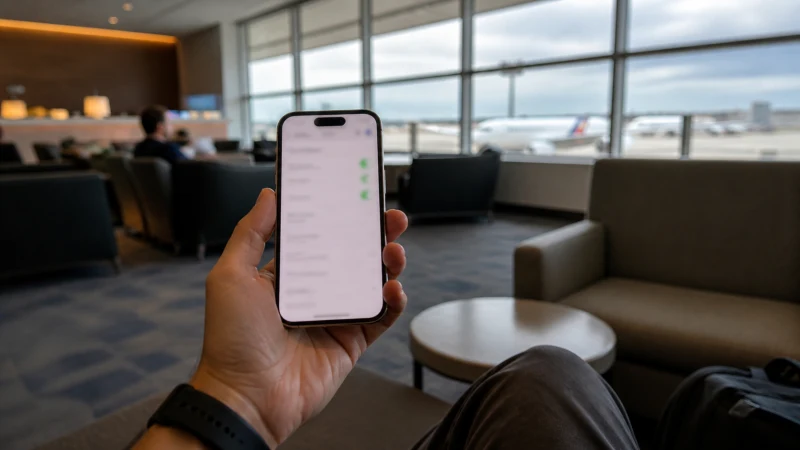

An unlocked compatible iPhone can keep the usual number active while a separate Puerto Rico eSIM carries travel data.
The exact handset matters more than the name printed on the box. Before using a Puerto Rico eSIM on iPhone, confirm that the model is unlocked, supports eSIM and can keep the travel line selected for mobile data.
Our Puerto Rico eSIM is designed for mobile internet during the trip. Leave conventional calls and texts on the relevant home or local line while apps use travel data. The phone can retain its normal number and route data through the Puerto Rico eSIM, subject to the handset and home operator.
Quick answer: When using a Puerto Rico eSIM on iPhone, confirm the exact unlocked handset supports eSIM, label both lines and keep the Puerto Rico line selected for travel data.
Top Puerto Rico eSIMs

Puerto Rico eSIM
Fixed
1 GB, 7 days4.00$2 GB, 15 days7.00$3 GB, 30 days9.00$Unlimited
Unlimited, 1 day4.00$Unlimited, 3 days10.00$Unlimited, 5 days15.50$
Handset checks before using a Puerto Rico eSIM on iPhone
For a closer look, read How to Use a Puerto Rico eSIM on Android and Slow Mobile Data in Puerto Rico? Practical Fixes.
Install the eSIM on secure Wi-Fi and follow the activation timing shown with the purchased plan. Adding the profile and starting its validity are not always the same event.
On an iPhone, label the new line Puerto Rico, keep the installation details accessible and avoid switching it on early by assumption. The order supplied with the plan should take priority.
Install the eSIM on reliable Wi-Fi
For a closer look, read Internet in San Juan for Tourists and Does WhatsApp Work in Puerto Rico?.
On an iPhone, check which line is selected before a call, message or hotspot session. Conventional service on the home SIM can still create roaming charges even when the data connection uses the eSIM.
The home number can remain active for incoming service while the Puerto Rico eSIM handles data, subject to the phone and home operator. Online messaging continues through the selected data line. A saved route and a charged phone remain useful if reception changes.
Label the home and travel lines clearly
On iPhone, open Cellular or Mobile Service and label the two lines clearly. Keep the home line available for its usual number if required, but choose the Puerto Rico eSIM for Cellular Data and turn off Cellular Data Switching.
For the next step, see Mobile Internet for a Puerto Rico Road Trip and Staying Connected on a Solo Trip to Puerto Rico.
Check the default voice line separately from the data line. Changing the data selection should not alter the number used for ordinary calls and SMS, although the home operator’s roaming rules still apply to that service.
Select the Puerto Rico line for mobile data
Install the profile on reliable Wi-Fi, then follow the activation timing supplied with the plan. After arrival, select the Puerto Rico eSIM for Cellular Data and confirm that a webpage loads without Wi-Fi before relying on it for the onward journey.
Related practical detail is available in Local SIM vs eSIM in Puerto Rico: Which Is Better? and Can Tourists Use 4G and 5G in Puerto Rico?.
Take a screenshot of the line labels and the Cellular Data selection after setup. This makes it easier to confirm which SIM is carrying data without changing unrelated iPhone settings during troubleshooting.
Test calls, messages and data separately
- Save the first address, booking reference and one useful contact.
- Confirm the exact handset is unlocked and supports eSIM.
- Keep installation details where another device can display them.
- Carry enough battery power for the longest planned transfer.
- Pause automatic updates, cloud backup and video downloads.
For iPhone setup, review the live Puerto Rico eSIM plans shortly before travel, paying attention to validity, data allowance, networks and tethering. Use the Puerto Rico destination guide to continue planning the rest of the itinerary.
Check Data Roaming and APN only when needed
If mobile data stops while using a Puerto Rico eSIM on iPhone, confirm signal, the enabled eSIM and the selected mobile-data line. Data Roaming should be on for the Puerto Rico eSIM and off for the home line. Allow automatic network selection to register, try aeroplane mode and one restart, then verify data.esim only if manual APN entry is required. Do not delete the eSIM unless NoveSIM support specifically requests it.
For a connection issue while travelling, more focused help is available in Wi-Fi at Luis Muñoz Marín International Airport: An Arrival Guide.
Keep the installed profile during troubleshooting
On an iPhone, menu names vary between phone brands and software versions, but the underlying checks are consistent: the handset must be unlocked, eSIM support must be present for that exact model, and the Puerto Rico profile must be selected for data. Keep the home line available for its number if needed, with roaming disabled on that line.
Related Articles
- Internet in Rincón for Tourists
- Useful Apps for Travelling in Puerto Rico
- Internet in Puerto Rico for Tourists: A Practical Guide
- How Much Mobile Data Do You Need for a Puerto Rico Trip?
FAQ
What should be prepared first?
Before the connection is needed, confirm the handset, first transfer and any task that cannot wait. Install on secure Wi-Fi and keep key information offline.
Does a Puerto Rico eSIM include a local number?
No. For the traveller, remember that our Puerto Rico travel plans are data-only and do not include a Puerto Rican number, ordinary voice minutes or carrier SMS.
Where can I check the supported networks for Puerto Rico?
Open the exact live Puerto Rico plan before purchase. The live plan page remains the final reference for networks and included features.
Should the eSIM be removed if data stops?
No. When troubleshooting, check the active line, Data Roaming, network selection and APN data.esim first, then contact NoveSIM support before removing an installed profile.
Final Recommendation
Using a Puerto Rico eSIM on iPhone starts with an unlocked, compatible handset and the correct data-line selection. Keep the usual SIM available for its normal number, but prevent it from taking over mobile data or roaming unexpectedly.