


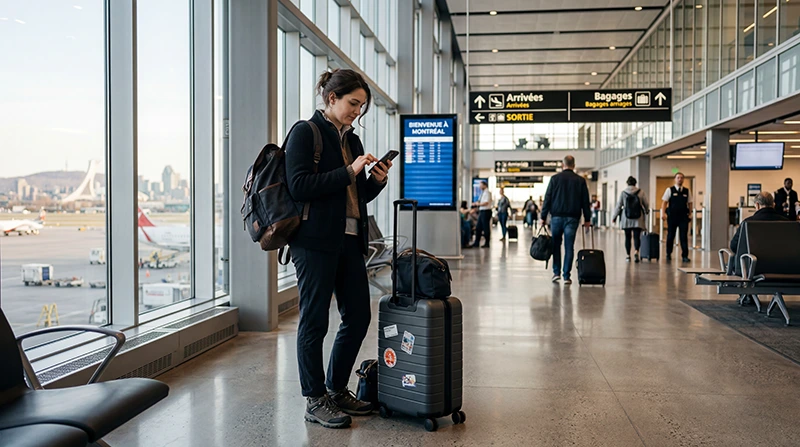

Internet at Montreal Airport is available through the terminal’s official .YUL Wi-Fi. It can get you online after landing at Montréal–Trudeau (YUL), but it is not a connection for the journey into the city. Decide before you fly whether you will use roaming, a physical SIM or a travel eSIM once you leave the terminal.
That distinction matters when you need to message your pickup, find a booking confirmation or load directions while collecting your bags. Use the airport connection for those first tasks; save the address and route offline as a fallback in case sign-in or your onward mobile connection takes longer than expected.
A NoveSIM travel eSIM is an option for mobile data beyond YUL if your phone supports eSIM and is unlocked. Our plans are data-only: we do not provide a Canadian number, conventional calls or carrier SMS. Internet calling and messaging apps can use your data connection.
Quick answer: At YUL, join .YUL Wi-Fi, open a browser, authenticate with your email address and start a session. The airport’s current instructions say each free session lasts up to 60 minutes and you can start another. Before leaving the terminal, test your chosen mobile-data line with Wi-Fi switched off.
Top Canada eSIMs


How to connect to the airport’s Wi-Fi
- On your phone, choose the network named .YUL Wi-Fi.
- Open a browser and follow the airport’s sign-in page.
- Accept the terms and authenticate using your email address.
- Start the free browsing session. If you need more time after its 60-minute limit, open a new session.
These steps and the time limit come from Montréal–Trudeau Airport, which updated its help page in September 2026. If the sign-in page does not appear, reopen your browser and check that you joined the official network rather than a similarly named one. Do not assume a Wi-Fi session will remain available after you leave the terminal.
Which connection should you use after landing?
For a short stop inside YUL, Wi-Fi may be all you need. For a pickup, city transfer or onward travel, choose a cellular option before you reach the exit. Your home carrier’s roaming can be convenient, but check its Canada charges and allowance rather than assuming your domestic plan applies.
If you want a Canadian number or carrier calls and SMS, YUL lists physical SIM sellers in the public Arrivals area. The Montreal Airport SIM-card guide explains the named kiosks, where to find them and what to confirm before paying. A public Arrivals kiosk is not a dependable option for someone remaining airside in transit.
If data alone is sufficient, compare the exact allowance, validity and supported networks of a Canada travel eSIM before departure. Install it while you still have a reliable connection and keep the activation instructions available offline. Check the plan’s start conditions; do not assume that installation and activation happen at the same time.
Test mobile data before you leave YUL
- Turn aeroplane mode off and select the line you intend to use for mobile data.
- If you are using a travel eSIM, follow that plan’s instructions for data roaming and network selection.
- Switch Wi-Fi off temporarily and load a website, your pickup message and the first leg of your route over cellular data.
- If mobile data fails, reconnect to .YUL Wi-Fi to review your order details or contact support before starting the transfer.
A successful page load over Wi-Fi does not prove that your eSIM or new physical SIM is working. Test with Wi-Fi off while you are still in the terminal. If the eSIM has not connected, use the Canada eSIM troubleshooting steps rather than deleting the installed profile.
Prepare for the trip beyond the airport
Save your accommodation address, pickup instructions and first map route before take-off. An internet connection is most useful at the exact moment you leave Arrivals, when you may need to locate a driver or change a transport plan. For a longer itinerary, the Canada tourist-internet guide covers the broader choice between roaming, local service and travel eSIMs.
Related Articles
FAQ
Is Wi-Fi free at Montréal–Trudeau Airport?
Yes. The airport says a .YUL Wi-Fi sign-in provides up to 60 minutes of free browsing. You can start a new session if you need more time.
How do I sign in to .YUL Wi-Fi?
Select .YUL Wi-Fi, open a browser, accept the airport’s terms and authenticate with your email address. Then start a browsing session.
Will airport Wi-Fi work during my transfer into Montreal?
Do not rely on the terminal’s Wi-Fi for the journey after you leave YUL. Test your roaming, local SIM or eSIM over cellular data before you exit, and keep your first route saved offline.
Can I buy a physical SIM after landing at YUL?
YUL lists SIM kiosks in the public Arrivals area. Check the current opening hours, package inclusions and total price, and have the line tested before leaving the counter. Airside transit passengers should not assume they can reach the kiosks.
Final Recommendation
For internet immediately after landing at Montreal Airport, use the official .YUL Wi-Fi to retrieve bookings and communicate while you are inside the terminal. Treat its free 60-minute session as an arrival bridge, not as your connection into the city.
Choose your onward option before departure: confirm roaming costs, plan a physical-SIM purchase in public Arrivals if you need a Canadian number, or prepare a compatible data-only Canada eSIM if mobile data is enough. With Wi-Fi off, test the chosen line before walking out of YUL.
Keep your first Montreal address and route offline so a delayed connection does not prevent you from reaching your pickup or accommodation.