


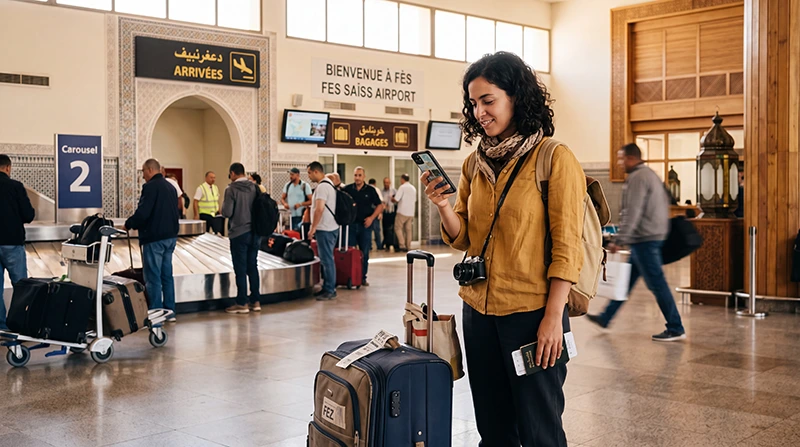

If you are arriving at Fes Saiss Airport, internet access is useful immediately after landing. You may need mobile data for WhatsApp, airport transfers, riad communication, taxi booking, Google Maps, booking confirmations and family updates.
Fes Saiss Airport is a common arrival point for travelers visiting Fes, Meknes, Volubilis and northern Morocco. Mobile coverage around the airport is usually good to very good, but airport WiFi may not be enough once you leave the terminal.
Quick answer: the easiest way to get internet at Fes Airport is to install a Morocco travel eSIM before departure, then enable Data Roaming after arrival and use mobile data where local coverage is available.
Top Morocco eSIMs

Morocco eSIM
Fixed
1 GB, 7 days€ 3.522 GB, 15 days€ 5.723 GB, 30 days€ 7.93Unlimited
Unlimited, 1 day€ 4.40Unlimited, 3 days€ 11.45Unlimited, 5 days€ 18.49
Africa eSIM
Fixed
1 GB, 7 days€ 10.132 GB, 15 days€ 18.933 GB, 30 days€ 26.42Unlimited
Unlimited, 1 day€ 13.65Unlimited, 3 days€ 39.19Unlimited, 5 days€ 64.73Best Internet Options at Fes Airport
| Option | Best For |
|---|---|
| Morocco eSIM | Tourists who want mobile data immediately after landing |
| Airport WiFi | Basic backup internet inside the terminal |
| Local SIM card | Longer stays or local number needs |
| International roaming | Emergency use, often expensive |
| Hotel or riad WiFi | Backup after reaching accommodation |
Why You Need Internet After Landing in Fes
- Contact your airport transfer driver.
- Message your hotel or riad.
- Use WhatsApp with your existing number.
- Open booking confirmations.
- Use Google Maps from the airport.
- Check taxi or transport options.
- Navigate toward Fes medina or Ville Nouvelle.
- Avoid expensive roaming data charges.
Best Option: Morocco eSIM Before Arrival
A Morocco eSIM is one of the easiest ways to get internet at Fes Airport because you can install it before your trip. After landing, you only need to select the eSIM for Mobile Data and enable Data Roaming.
This is especially helpful if you arrive late, have a transfer waiting or need to contact your riad before entering the Fes medina.
Fes Airport WiFi vs Morocco eSIM
| Feature | Morocco eSIM | Airport WiFi |
|---|---|---|
| Works after leaving the terminal | Yes, where coverage is available | No |
| Useful for taxi and transfer | Yes | Limited |
| Works in Fes city | Yes | No |
| Useful for medina navigation | Yes | No |
| Best as main travel internet | Excellent | Backup only |
Mobile Coverage at Fes Airport
| Area | Expected Mobile Coverage |
|---|---|
| Arrival hall | Good to Very Good |
| Baggage claim | Good to Very Good |
| Outside terminal | Very Good to Excellent |
| Taxi and transfer pickup area | Very Good to Excellent |
| Road to Fes city | Good to Very Good |
| Ville Nouvelle | Very Good to Excellent |
| Fes medina | Good to Very Good, with indoor variation |
Buying a SIM Card at Fes Airport
Local SIM cards may be available at airports or mobile operator shops, but availability, queues, opening hours, registration requirements and setup time can vary.
If you want to avoid waiting after landing, buying and installing a Morocco eSIM before departure is usually more convenient.
Morocco eSIM vs Local SIM Card at Fes Airport
| Feature | Morocco eSIM | Local SIM Card |
|---|---|---|
| Buy before travel | Yes | No |
| Physical SIM needed | No | Yes |
| Airport queue | No | Possible |
| Works after landing | Yes, after settings are enabled | After purchase and activation |
| Keep home SIM active | Yes | Depends on phone |
| Local phone number | Usually no | Usually yes |
How to Use eSIM at Fes Airport
- Buy your Morocco eSIM before travel.
- Install it while connected to WiFi before departure.
- After landing at Fes Airport, open your phone settings.
- Select the Morocco eSIM for Mobile Data.
- Enable Data Roaming on the eSIM.
- Turn off Data Roaming on your primary SIM.
- Keep Network Selection on Automatic.
- Use APN data.esim if manual setup is required.
Recommended Phone Settings at Fes Airport
| Setting | Recommended Value |
|---|---|
| Mobile Data | Morocco eSIM |
| Calls | Primary SIM |
| SMS | Primary SIM |
| Data Roaming on eSIM | ON |
| Data Roaming on Primary SIM | OFF |
| Automatic Data Switching | OFF |
| Network Selection | Automatic |
| APN | data.esim if required |
APN Settings for Fes Airport eSIM
Most phones configure APN settings automatically. If mobile data does not work after arrival at Fes Airport, enter the APN manually.
| Field | Value |
|---|---|
| APN | data.esim |
| Username | Leave blank |
| Password | Leave blank |
| Authentication | None |
How Much Data Do You Need for Fes?
| Trip Type | Recommended Data |
|---|---|
| Airport arrival only | 1 GB or less |
| Weekend in Fes | 3–5 GB |
| One-week Fes trip | 5–10 GB |
| Fes plus day trips | 5–10 GB |
| Fes plus wider Morocco trip | 10–20 GB |
| Hotspot or remote work | 20 GB+ |
Internet for Airport Transfers to Fes Medina
Many visitors stay in riads inside or near Fes medina. Mobile data is useful because drivers may need to coordinate meeting points, and some riads are located in narrow streets where exact directions matter.
Before leaving the airport, save your riad name, address, phone number and check-in instructions offline.
Can You Keep Your Home SIM Active?
Yes. Most modern Dual SIM phones allow you to keep your home SIM active while using your Morocco eSIM for mobile data.
- Use the Morocco eSIM for internet.
- Keep your home SIM for calls and SMS.
- Receive verification codes if supported by your home carrier.
- Use WhatsApp with your existing number.
- Avoid roaming data charges on your primary SIM.
Does WhatsApp Work at Fes Airport?
Yes. WhatsApp works with mobile data and WiFi at Fes Airport where internet access is available. Your WhatsApp account remains linked to your existing phone number, even if your Morocco eSIM is data-only.
Can You Use Hotspot After Landing?
Yes. Most smartphones allow hotspot sharing with an eSIM where mobile coverage is available. This can be useful if another traveler needs internet after landing.
Hotspot can use data quickly, so choose a larger data plan if you plan to share your connection often.
Common Internet Problems at Fes Airport
- Airport WiFi is slow or requires login.
- Data Roaming is not enabled on the eSIM.
- The wrong SIM is selected for Mobile Data.
- Automatic Data Switching is turned on.
- APN settings are missing.
- Network Selection is set manually.
- Indoor signal is weaker in some airport areas.
- The phone does not support eSIM.
What to Do If Internet Does Not Work
- Check whether the issue is airport WiFi or mobile data.
- If WiFi is weak, switch to your Morocco eSIM.
- Check that the Morocco eSIM is turned ON.
- Select the Morocco eSIM for Mobile Data.
- Enable Data Roaming on the eSIM.
- Turn off Data Roaming on your primary SIM.
- Turn off Automatic Data Switching.
- Restart your phone.
- Turn Airplane Mode ON for 30 seconds, then OFF.
- Keep Network Selection on Automatic.
- Set APN to data.esim if required.
Related Fes and Morocco Internet Guides
- Morocco eSIM
- Best eSIM for Fes
- Internet in Fes for Tourists
- Best eSIM for Morocco
- Buy eSIM for Morocco
- Mobile Internet in Morocco
- How Much Data Do You Need for Morocco?
- Best Network in Morocco
- Morocco eSIM APN Settings
FAQ
Is there internet at Fes Airport?
Yes. You can use airport WiFi where available or mobile data with a Morocco eSIM, local SIM card or roaming plan.
What is the best internet option at Fes Airport?
For most tourists, the easiest option is a Morocco travel eSIM because it can be installed before departure and used after landing where mobile coverage is available.
Can I buy a SIM card at Fes Airport?
Local SIM cards may be available at airport kiosks or shops, but availability, queues and setup requirements can vary. An eSIM avoids the need to buy a physical SIM card after landing.
Does eSIM work at Fes Airport?
Yes. A Morocco eSIM can work at Fes Airport where supported local mobile network coverage is available.
Can I use WhatsApp at Fes Airport?
Yes. WhatsApp works with airport WiFi or mobile data, and your account stays linked to your existing phone number.
What APN should I use for Fes Airport eSIM?
If manual APN setup is required for a NoveSIM Morocco eSIM, use data.esim.
Final Recommendation
For most tourists, the best way to get internet at Fes Airport is to install a Morocco travel eSIM before departure and use it for mobile data after landing. It is useful for airport transfers, riad communication, maps, WhatsApp, taxi coordination and your first hours in Fes.
Enable Data Roaming on the eSIM after arrival, select the Morocco eSIM for Mobile Data, keep Network Selection on Automatic, turn off Data Roaming on your primary SIM and use data.esim as the APN if manual setup is required.