


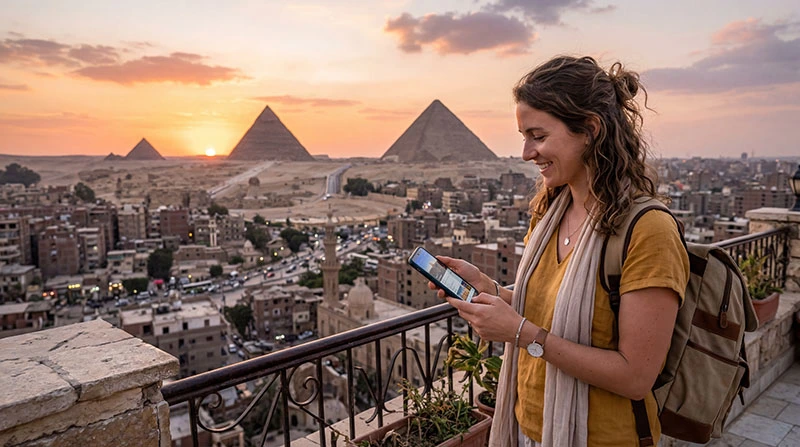

For a Cairo visit, mobile internet is the connection between your hotel and the places you want to see. Hotel Wi-Fi may cover your evening, but it does not follow you when a driver asks which entrance you are at or you need to check a changed meeting point.
Build your plan around the actual itinerary: a Downtown hotel, a day in Giza and a return journey are different locations, not one continuous Wi-Fi zone. Save the full addresses and tickets before setting out.
Our NoveSIM Egypt eSIM provides mobile data on a compatible, unlocked phone. We do not provide an Egyptian number, conventional calls or SMS; a local operator line may suit you better if those are required.
Quick answer: Use an Egypt data package for maps, transport apps and messages around Cairo and Giza, with hotel Wi-Fi for large downloads. Before each sightseeing day, save the correct venue, entry details, hotel address and return meeting point. Choose a local SIM instead if you need conventional local calls, and do not treat city-wide coverage as a guarantee inside every building.
Top Egypt eSIMs

Egypt eSIM
Fixed
1 GB, 7 days€ 4.462 GB, 15 days€ 7.143 GB, 30 days€ 9.82Unlimited
Unlimited, 1 day€ 4.91Unlimited, 3 days€ 11.60Unlimited, 5 days€ 18.74
Africa eSIM
Fixed
1 GB, 7 days€ 10.262 GB, 15 days€ 19.193 GB, 30 days€ 26.78Unlimited
Unlimited, 1 day€ 13.83Unlimited, 3 days€ 39.72Unlimited, 5 days€ 65.60Pick service by what you need outside the hotel
If you mainly need messaging, booking information and navigation, a travel eSIM can cover those tasks without changing a physical SIM. Check the allowance, validity and supported network of the Egypt eSIM plan before purchase.
If you need to phone restaurants or businesses on ordinary Egyptian numbers, ask a local operator about voice service. Data-only is not the same as “all calls included”, and an app’s messaging function does not guarantee that its voice or video features will work on every connection.
Home-carrier roaming is another option when Egypt is included in a suitable package. Check the full-trip cost and the out-of-bundle rules instead of assuming a European allowance extends to Egypt. The Egypt internet-options comparison explains the country-level alternatives.
Cairo and Giza: save the right place, not just its name
Be precise when sharing locations. The Egyptian Museum in Downtown Cairo and the Grand Egyptian Museum in Giza are different destinations. A vague message such as “meet at the museum” can be a bigger problem than a slow connection.
The Ministry of Tourism and Antiquities identifies the Egyptian Museum in Downtown Cairo, while the official tourism site places the Grand Egyptian Museum near the Giza Plateau. Use your actual booking confirmation to select the venue and entry point.
- Save the full hotel name, street address and map pin. Keep a written version you can show to a driver.
- Open tickets before leaving Wi-Fi and check whether the issuer permits an offline copy or requires live access.
- Agree a specific return meeting point with your guide or driver, not only a time.
- If the group splits up, make sure the other adults have both the saved meeting information and a way to contact you.
A screenshot of a map pin is useful but cannot provide live traffic, a new ride booking or a changed pickup instruction. Keep mobile data available for those tasks.
Will mobile internet work everywhere in Cairo?
Do not read “Cairo covered” as a measured speed promise for your hotel room, a museum interior or a crowded street. Reception depends on your operator or eSIM partner, the handset, indoor construction and current network load. We have not tested each sightseeing location.
If a message will not send indoors, try again near an exit or in an open public area where it is safe to stop. If a webpage works but one app does not, investigate the app rather than immediately replacing the whole data plan.
You do not need separate Cairo and Giza packages when both locations are within your Egypt plan’s coverage. For an itinerary continuing to Luxor or the Red Sea, select validity for the entire stay and check reception expectations for those later destinations separately.
Hotel Wi-Fi and offline maps have different jobs
Use a working hotel connection to download tickets, update apps and upload a day’s photographs. Test it from your room if you will depend on it for an important call; reception at the lobby desk does not establish the quality at your bed or desk.
Where downloads are available, save a map area that includes both your accommodation and the day’s destinations. Google’s offline-map guidance notes that offline walking and public-transport directions are unavailable, and driving has no live traffic or alternative routes. An offline map is a fallback, not a replacement for every navigation function.
Public Wi-Fi in a café or hotel may require a login. Confirm the network with staff, and do not upload identity documents or enter account passwords into an unfamiliar portal just to get a connection.
Size the data allowance around your habits
Messages, occasional searches and ride bookings are a different workload from video feeds or automatic photo backup. The length of a Cairo stay alone does not determine the number of gigabytes you need.
Check the mobile-data counter after your first full day. Use that observed amount to estimate the remaining days and leave room for travel changes. If the counter was already running before Egypt, reset it or note the starting value so you do not mistake past usage for holiday usage.
Turn off cloud photo uploads and large automatic downloads on cellular data if they are not needed. If you will hotspot another phone or laptop, include that device’s updates and streaming in the estimate and check the package’s sharing terms.
Keep the correct SIM supplying data
Label the travel line clearly and select it for mobile data. Follow its data-roaming instructions; on NoveSIM, roaming must be enabled for the travel line. Keep home-line data roaming and automatic switching off to reduce the risk of unintended home-carrier data use.
If you retain the home line for verification messages, check its roaming conditions. Turning off that line’s data does not by itself make conventional calls free. App accounts already registered to your home number usually do not need to be re-registered merely because you change the data connection.
For a failed connection, check validity, allowance and the selected line before changing APN settings. The Egypt troubleshooting guide covers the sequence. Keep an installed eSIM profile unless support specifically instructs otherwise.
Related Articles
- Getting connected for your Cairo Airport pickup
- Choosing an eSIM for a Cairo trip
- Practical mobile internet settings across Egypt
FAQ
Is hotel Wi-Fi enough for sightseeing in Cairo?
It can handle preparation and evening downloads, but not live ride requests or messages once you leave its range. Use mobile data for those tasks and keep tickets, addresses and meeting points saved offline.
Do I need a different eSIM for Giza?
Not if your Egypt package supports service in both locations. Check its network and validity; reception can still differ between an outdoor pickup point and a building interior.
Can I call an Egyptian business with a NoveSIM travel eSIM?
Our eSIM does not include conventional calls or an Egyptian number. Use a supported internet contact method or separate voice service if the business requires an ordinary phone call.
How do I avoid using all my data on holiday photographs?
Disable automatic cloud uploads on mobile data and upload over trusted hotel Wi-Fi instead. Check the phone’s usage counter to identify other background apps consuming the allowance.
Final Recommendation
For internet in Cairo, prioritise a data connection that follows the day’s route and saved information that survives an outage. Match the plan to the whole trip, including Giza and any onward destinations.
Before leaving the hotel, verify the venue name, ticket requirements and return meeting point. Keep mobile data for changes, while using Wi-Fi for the heavier downloads.
Keep the travel line clearly labelled and the hotel address saved. If reception drops during sightseeing, you will still know where to meet your driver and how to get back.