


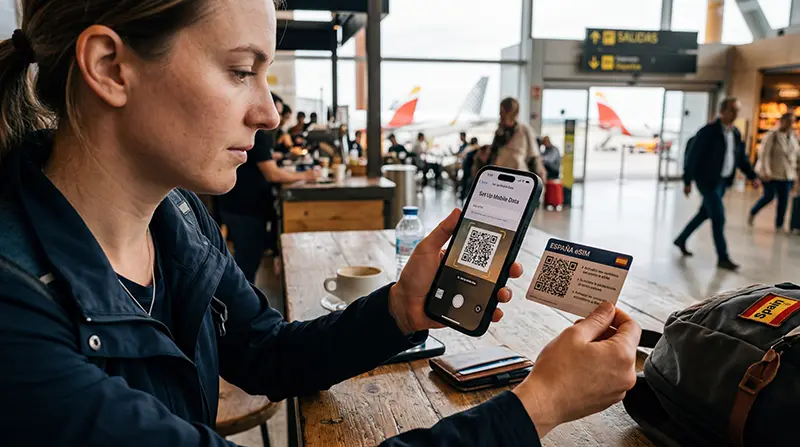

Spain eSIM installation is easiest before departure while you have reliable Wi-Fi, but turn the profile into the active mobile-data line only when the plan instructions tell you to do so. Add it to the unlocked, eSIM-compatible phone that you will carry in Spain.
On iPhone, the relevant menu is normally under Settings → Mobile Data or Cellular → Add eSIM. On Android, the wording varies by manufacturer, but look under Connections, Network & Internet or SIM Manager.
NoveSIM travel eSIMs are data-only. They do not provide a Spanish number, voice minutes or SMS. You can keep using WhatsApp and other internet-based services through the eSIM’s mobile data.
Quick answer: Connect the travel phone to Wi-Fi, add the NoveSIM profile using the supplied QR code or manual details, label the line clearly, and keep it installed. In Spain, select it for mobile data, enable data roaming on that line and wait a few minutes for network registration.
Top Spain eSIMs

Spain eSIM
Fixed
1 GB, 7 days€ 1.772 GB, 15 days€ 3.553 GB, 30 days€ 4.44Unlimited
Unlimited, 1 day€ 2.22Unlimited, 3 days€ 4.88Unlimited, 5 days€ 7.99
Europe Extra eSIM
Fixed
1 GB, 7 days€ 2.222 GB, 15 days€ 3.553 GB, 30 days€ 4.44Unlimited
Unlimited, 1 day€ 2.66Unlimited, 3 days€ 5.32Unlimited, 5 days€ 8.87Europe+ eSIM
Fixed
1 GB, 7 days€ 2.662 GB, 15 days€ 3.993 GB, 30 days€ 5.32Unlimited
Unlimited, 1 day€ 2.66Unlimited, 3 days€ 6.21Unlimited, 5 days€ 10.20Spain eSIM installation checks before you begin
Compatibility and carrier-unlocked status are separate checks. A phone can support eSIM but still reject another provider’s profile when it is locked. Regional versions of the same model can also differ.
- Find the complete model number in the phone’s About screen.
- Confirm that the model appears on the NoveSIM compatible-device list.
- Look for Add eSIM, Add Mobile Plan or Download SIM in the network settings.
- Confirm with the original carrier that the handset is unlocked.
- Update the phone software before travelling if an update is already available and you have time to test it.
Keep the order email and installation details available. If the QR code is displayed on the phone that will receive the eSIM, open it on another device or use the manual installation details when available.
When should you install and activate it?
Installation downloads the eSIM profile to the phone. Activation or plan validity may begin at installation or when the profile first connects to a supported network, depending on the selected plan. Read the plan instructions before scanning the code.
The safest routine is to install at home on stable Wi-Fi, keep the line labelled and available, and wait until arrival before making it the mobile-data line unless your order instructions say otherwise. Do not repeatedly scan the QR code: some activation codes are designed for a single installation.
How to install a Spain eSIM on iPhone
Apple’s exact labels can vary with language and iOS version, but the normal QR-code route is:
- Connect the iPhone to Wi-Fi.
- Open Settings.
- Tap Mobile Data or Cellular.
- Tap Add eSIM.
- Choose Use QR Code, then scan the code supplied with your NoveSIM order.
- Follow the onscreen prompts and label the new line NoveSIM Spain.
- Keep your primary SIM selected for calls and messages if you still need that number.
If the QR code is in an email on the same iPhone, supported iOS versions may allow you to press and hold the code and choose the eSIM option. Otherwise, display it on another screen or enter the supplied details manually.
How to install a Spain eSIM on Android
Android manufacturers use different menu names. On Samsung Galaxy phones the route commonly begins with Settings → Connections → SIM Manager; on Pixel and other Android phones it may begin with Settings → Network & Internet → SIMs.
- Connect the Android phone to Wi-Fi.
- Open the SIM or mobile-network settings.
- Tap Add eSIM, Add Mobile Plan or Download a SIM.
- Scan the NoveSIM QR code or choose the option to enter the activation information manually.
- Complete the download and label the profile NoveSIM Spain.
- Leave the profile installed even if you will not use it until arrival.
If none of these options appears, recheck the exact regional model and carrier lock instead of forcing the installation.
Activate mobile data after arriving in Spain
An installed profile does not guarantee that the phone is using it for internet access. Complete these settings after arrival:
- Turn on the NoveSIM Spain line.
- Select it as the preferred SIM for mobile data.
- Enable Data Roaming on the NoveSIM line.
- Disable automatic mobile-data switching if it could move data back to your home SIM.
- Leave network selection on automatic and wait several minutes.
On iPhone, these controls are under the selected line in Mobile Data or Cellular. On Android, open the installed eSIM under SIM Manager or Mobile Network. Availability of partner networks and 5G depends on the plan, phone, location and local coverage.
Keep your main SIM without using its roaming data
A compatible dual-SIM phone can keep the usual number active for incoming calls or verification messages while NoveSIM supplies data. Select NoveSIM as the data line and switch off data roaming for the home SIM. Your home operator may still charge for calls or messages, so check its tariff separately.
WhatsApp normally remains registered to the existing telephone number when the data source changes. For details, see using WhatsApp in Spain.
APN settings for a NoveSIM Spain eSIM
Most phones receive the APN automatically. If your NoveSIM instructions or support require manual entry, use the following value:
| Field | Value |
|---|---|
| APN | data.esim |
Leave other fields unchanged unless NoveSIM support provides specific values. The full menu paths are available in the Spain eSIM APN guide.
If installation fails
- Confirm that the phone has a stable Wi-Fi connection.
- Check whether an eSIM profile with the expected label is already installed.
- Verify compatibility, regional model and carrier-unlocked status.
- Restart the phone and return to the Add eSIM menu.
- Use the manual details supplied with the order if QR scanning is unavailable.
- Contact NoveSIM support with the order number, device model and a screenshot of the error.
Do not delete an installed eSIM unless support tells you to do so. Deletion can remove the profile without making the original QR code reusable.
If the eSIM is installed but has no internet
This is usually a settings or network-registration problem rather than an installation failure. Confirm that NoveSIM is selected for mobile data, data roaming is enabled on that line and the APN is correct. Then toggle Airplane Mode briefly or restart the phone.
If the connection still fails, follow the complete Spain eSIM troubleshooting sequence. Keep screenshots of the data-line selection, roaming setting and APN for support.
Related Articles
- Spain eSIM Plans
- Compatible eSIM Devices
- Spain eSIM APN Settings
- Spain eSIM Troubleshooting
- Using WhatsApp in Spain
FAQ
Can I install my Spain eSIM before travelling?
Yes. Stable home Wi-Fi makes installation easier, but check when the selected plan’s validity begins before scanning the QR code.
Why is the eSIM installed but not providing data?
The phone may still be using the primary SIM, data roaming may be off, or the APN may be missing. Select NoveSIM for mobile data, enable roaming on that line and use data.esim if manual APN entry is required.
Can I use the same instructions on iPhone and Android?
The sequence is similar, but menu names differ. iPhone uses Mobile Data or Cellular settings; Android may use Connections, Network & Internet, SIM Manager or Mobile Network.
Should I delete the profile and scan the QR code again?
No. Keep the installed profile and contact support before deleting it because the original installation code may not be reusable.
Final Recommendation
Complete the Spain eSIM installation on the phone you will carry, using stable Wi-Fi and the details supplied with your NoveSIM order. Confirm compatibility and unlocked status before you begin.
After arrival, choose NoveSIM for mobile data, enable roaming on that line and keep automatic network selection enabled. Use data.esim only when manual APN entry is required.
Keep the profile installed if anything goes wrong. Most connection problems can be resolved by correcting the data-line, roaming or APN settings without repeating the installation.