


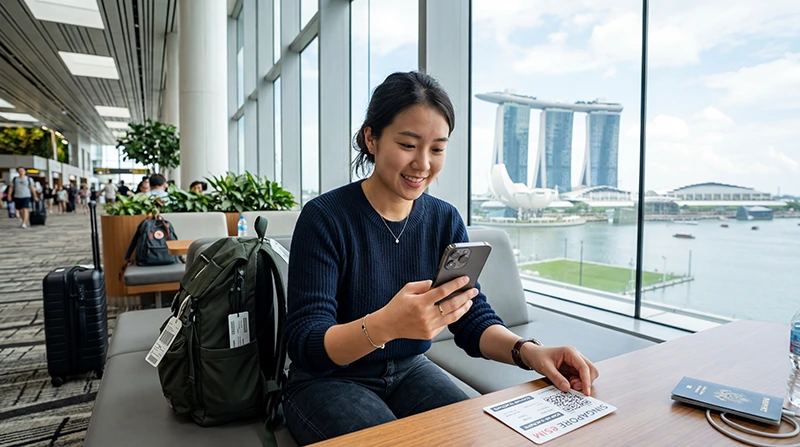

To install Singapore eSIM service, add its profile to the phone. This does not necessarily start mobile service immediately, and it is separate from selecting the eSIM as the active data line after arrival.
The safest time to install is before departure, using stable private Wi-Fi. This gives you time to resolve compatibility, carrier-lock or QR-code issues without depending on airport connectivity.
NoveSIM plans are data-only. The installed profile provides mobile internet but does not include a Singapore number, ordinary calls or SMS.
Quick answer: Confirm that the exact phone is eSIM-compatible and unlocked, connect it to Wi-Fi, open the SIM or mobile-network settings, choose Add eSIM, and scan the supplied QR code. Label the new line clearly, keep it off for mobile data until the intended activation point, and do not delete it if it shows “activating” before reaching Singapore.
Top Singapore eSIMs


Install Singapore eSIM service safely
Check the phone before installation
- The exact device model and regional variant must support eSIM.
- The phone must be carrier-unlocked.
- The operating system should be current enough to expose the eSIM controls.
- There must be capacity for another stored or active profile.
- The QR code must be readable on a second screen or printed page.
Use the Singapore eSIM compatibility checklist if any of these points is uncertain. Buying another profile will not bypass a carrier lock or unsupported model.
Install on iPhone
- Connect the iPhone to reliable Wi-Fi.
- Open Settings > Cellular or Mobile Service.
- Tap Add eSIM.
- Choose Use QR Code and scan the installation code.
- Follow the prompts to add the cellular plan.
- Label the line Singapore Data so it cannot be confused with the home SIM.
- Keep the home line as the default voice line unless you deliberately want another arrangement.
- Do not select the travel line for data until the plan instructions say it is safe to activate.
If the QR code is displayed on the same iPhone, use the supported manual-entry details or another screen rather than taking an unclear screenshot.
Install on Samsung and other Android phones
Android menu names vary. Samsung commonly places the control under Settings > Connections > SIM manager; Pixel devices commonly use Settings > Network & internet > SIMs.
- Connect to Wi-Fi and open the phone’s SIM or mobile-network menu.
- Choose Add eSIM, Add mobile plan or Download a SIM.
- Select the QR-code option and scan the supplied code.
- Approve the profile download and wait for the phone to finish adding it.
- Rename the profile Singapore Data.
- Leave mobile data assigned to the current line until arrival unless the plan states otherwise.
What “activating” before arrival means
A newly installed profile may remain on an activating or searching state when its supported network is not available in the country of installation. That alone does not prove failure. Do not delete the eSIM: many QR codes are designed for one installation and cannot simply be rescanned.
Wait until Singapore, then follow the Singapore activation steps. If the profile was removed, contact support with the order information before attempting another installation.
Prepare dual SIM correctly
Keeping the home line active can preserve access to its number, verification SMS and ordinary calls. To avoid home-network data charges, disable data roaming on that line and turn off automatic mobile-data switching.
After landing, select the Singapore eSIM for mobile data and enable roaming on that travel line when required. The separation is important: roaming may need to be on for the travel eSIM but off for the home SIM.
If the QR code will not install
- Confirm that the phone has internet access over Wi-Fi.
- Check that the QR code belongs to this order and has not already been installed.
- Verify the carrier-lock status and exact model compatibility.
- Restart the phone once and reopen the Add eSIM menu.
- Use the supplied manual activation details if available.
- Stop repeated attempts when the phone says the code is already used; contact support instead.
Installation errors happen before a usable profile appears. If the profile exists but has no data in Singapore, use Singapore eSIM troubleshooting instead.
Related Articles
- Check Singapore eSIM Compatibility
- Activate a Singapore eSIM
- Singapore eSIM APN Settings
- Fix a Singapore eSIM
FAQ
Should I install my Singapore eSIM before flying?
Yes. Install it over reliable Wi-Fi before departure, but follow the plan instructions about when to enable the line or start using data.
Does installation start the plan validity?
That depends on the plan. Some begin on first supported-network connection, while others use a different rule. Check the product instructions rather than assuming.
Can I scan the same QR code twice?
Do not rely on it. Many eSIM installation codes are single-use, so never delete a successfully added profile merely because it is not yet connected.
Can I keep my physical SIM while using the eSIM?
Usually yes on a dual-SIM phone. Select the eSIM for data, keep the home line only for required number services and disable roaming on the home line.
Final Recommendation
Install the Singapore eSIM over dependable Wi-Fi before departure after confirming the exact device and unlock status.
Label the lines clearly, preserve the new profile and delay data selection until the intended activation point.
Once in Singapore, activate and test the eSIM rather than repeating the installation process.
Install Singapore eSIM service once, retain the profile, and use data.esim only if later APN troubleshooting requires it.