


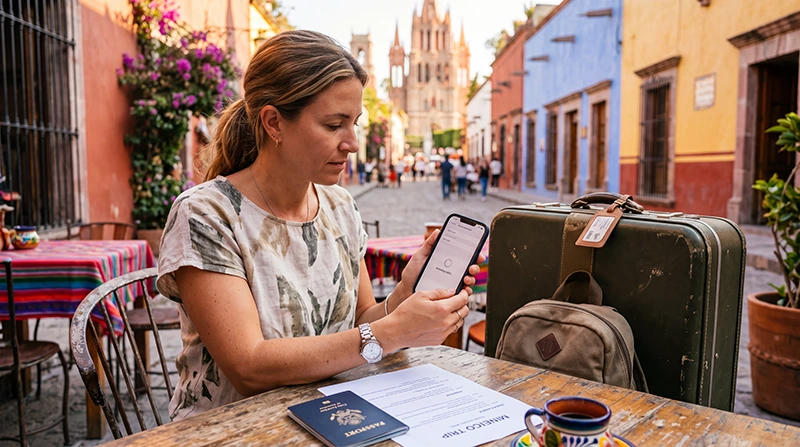

Installing a Mexico eSIM is one of the easiest ways to prepare your phone for travel before arriving in Mexico.
Instead of buying a physical SIM card after landing, you can install your eSIM using a QR code while connected to WiFi and start using mobile data after arrival.
Quick answer: To install a Mexico eSIM, connect your phone to WiFi, open your mobile network settings, choose Add eSIM, scan your QR code, follow the instructions, and label the plan as Mexico or Travel. After arriving in Mexico, select the eSIM for mobile data and enable data roaming.
Top Mexico eSIMs

Mexico eSIM
Fixed
1 GB, 7 days€ 3.552 GB, 15 days€ 5.323 GB, 30 days€ 7.10Unlimited
Unlimited, 1 day€ 3.55Unlimited, 3 days€ 8.43Unlimited, 5 days€ 13.31
North America eSIM
Fixed
1 GB, 7 days€ 3.992 GB, 15 days€ 7.103 GB, 30 days€ 9.76Unlimited
Unlimited, 1 day€ 5.77Unlimited, 3 days€ 15.09Unlimited, 5 days€ 24.85Central America eSIM
Fixed
1 GB, 7 days€ 7.102 GB, 15 days€ 11.543 GB, 30 days€ 15.53Unlimited
Unlimited, 1 day€ 6.66Unlimited, 3 days€ 16.42Unlimited, 5 days€ 26.18Before Installing Your Mexico eSIM
Before starting installation, make sure your phone is ready.
- Your phone supports eSIM
- Your phone is unlocked
- You have a stable WiFi connection
- You have received your QR code
- Your eSIM plan includes Mexico
- Your phone battery is sufficiently charged
If your phone is locked to your mobile carrier, a travel eSIM may not work correctly.
When Should You Install Your Mexico eSIM?
It is best to install your Mexico eSIM before departure while connected to WiFi.
Most travel eSIMs activate when they connect to a supported network in Mexico, which means you can usually install the eSIM before your trip and use it after arrival.
Always check your provider’s activation rules, because some plans may start validity immediately after installation.
Important: Do Not Delete Your eSIM
After installing your eSIM, do not delete it from your phone.
Most eSIM QR codes can only be used once. If you delete the eSIM, you may not be able to reinstall it with the same QR code.
If something is not working, troubleshoot the settings first or contact support before deleting the eSIM.
How to Install Mexico eSIM on iPhone
Install your eSIM while connected to WiFi.
- Open Settings.
- Tap Cellular or Mobile Service.
- Tap Add eSIM.
- Select Use QR Code.
- Scan your eSIM QR code.
- Follow the on-screen instructions.
- Label the eSIM as Mexico or Travel.
- Choose your primary SIM for calls and SMS if needed.
- Choose the Mexico eSIM for mobile data after arrival.
Once installed, your eSIM will appear under your cellular plans.
How to Install Mexico eSIM on Android
Android menus vary by brand and model, but the process is usually similar.
- Open Settings.
- Tap Connections or Network & Internet.
- Open SIM Manager or SIMs.
- Tap Add eSIM, Add mobile plan, or Download a SIM.
- Choose Scan QR Code.
- Scan your eSIM QR code.
- Follow the setup instructions.
- Label the eSIM as Mexico or Travel.
- Select the eSIM for mobile data after arrival.
On Samsung devices, the option is usually found under Settings → Connections → SIM Manager.
On Google Pixel devices, the option is usually found under Settings → Network & Internet → SIMs.
How to Install Mexico eSIM Manually
If your QR code does not scan, some providers offer manual installation details.
Manual installation may require:
- SM-DP+ address
- Activation code
- Confirmation code if provided
Enter these details exactly as provided in your eSIM email.
After Installation: What to Do Next
After your eSIM is installed, it may not provide internet until you arrive in Mexico and connect to a supported local network.
When you arrive:
- Turn on the Mexico eSIM.
- Select it for mobile data.
- Enable data roaming on the eSIM.
- Wait for network connection.
- Restart your phone if needed.
Recommended Mexico eSIM Settings
| Setting | Recommended Option |
|---|---|
| Mobile Data | Select Mexico eSIM |
| Data Roaming | ON for Mexico eSIM |
| APN | data.esim |
| Primary SIM | Calls and SMS if needed |
| Auto Data Switching | OFF |
How to Set eSIM for Mobile Data
After arriving in Mexico, make sure your phone uses the eSIM for internet.
On iPhone
- Open Settings.
- Tap Cellular or Mobile Service.
- Tap Cellular Data.
- Select your Mexico eSIM.
- Turn Allow Cellular Data Switching OFF.
On Android
- Open Settings.
- Tap Connections or Network & Internet.
- Open SIM Manager or SIMs.
- Select your Mexico eSIM for Mobile Data.
- Turn auto data switching OFF if available.
How to Enable Data Roaming
Most travel eSIMs require data roaming to be enabled on the eSIM line.
On iPhone
- Open Settings.
- Tap Cellular or Mobile Service.
- Select your Mexico eSIM.
- Turn Data Roaming ON.
On Android
- Open Settings.
- Tap Connections or Network & Internet.
- Tap Mobile Networks.
- Select your Mexico eSIM if needed.
- Turn Data Roaming ON.
Mexico eSIM APN Settings
Most eSIMs configure APN automatically, but if mobile data does not work, use the following APN:
| Setting | Value |
|---|---|
| APN | data.esim |
| Username | Leave blank |
| Password | Leave blank |
After entering APN settings, restart your phone or turn airplane mode on for 30 seconds.
Can You Install eSIM Before Traveling to Mexico?
Yes.
In most cases, installing your eSIM before travel is recommended.
This allows you to:
- Avoid airport SIM card queues
- Prepare everything on WiFi
- Arrive ready to connect
- Keep your primary SIM in your phone
- Start using mobile data shortly after landing
Will Installing an eSIM Affect Your Current SIM?
No.
Installing a travel eSIM does not remove your existing SIM or change your primary phone number.
You can usually keep your primary SIM active for calls and SMS while using the Mexico eSIM for mobile data.
Will WhatsApp Keep Working?
Yes.
WhatsApp keeps your existing phone number when using a Mexico eSIM.
Your eSIM provides mobile data, while WhatsApp continues to work with your current account.
Common Installation Problems
| Problem | Possible Fix |
|---|---|
| QR code does not scan | Increase screen brightness, use another device to display QR, or enter details manually |
| Add eSIM not visible | Check if phone supports eSIM and is unlocked |
| Installation stuck | Use stronger WiFi and restart phone |
| eSIM installed but no internet | Select eSIM for mobile data, enable roaming, check APN |
| Deleted eSIM by mistake | Contact support before trying to reinstall |
What If Installation Fails?
If installation fails, check:
- Your WiFi connection
- Your phone compatibility
- Your phone unlock status
- Whether the QR code was already used
- Whether the eSIM was previously installed
If the QR code was already used, contact support before attempting another installation.
Frequently Asked Questions
Can I install a Mexico eSIM before travel?
Yes. It is recommended to install your eSIM before departure while connected to WiFi.
Do I need WiFi to install an eSIM?
Yes. You need a stable internet connection, usually WiFi, to install the eSIM profile.
Should I delete the eSIM if it does not work?
No. Do not delete the eSIM unless support tells you to do so, because many QR codes can only be used once.
Does installing an eSIM affect my current SIM?
No. Your current SIM can remain active while the eSIM is used for mobile data.
What APN should I use for Mexico eSIM?
Use APN: data.esim unless your provider gives different instructions.
Final Recommendation
Installing a Mexico eSIM is easiest when done before your trip while connected to WiFi. Scan the QR code, label the eSIM clearly, and keep it installed on your phone.
After arriving in Mexico, select the eSIM for mobile data, enable data roaming, and use APN data.esim if mobile data does not connect automatically.