


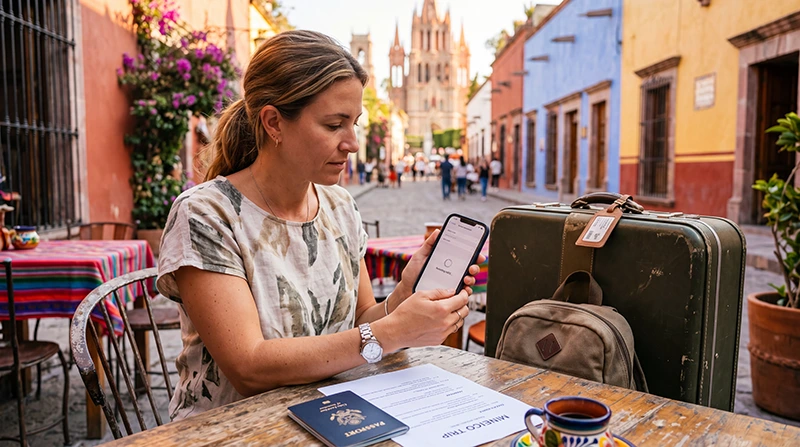

To install a Mexico eSIM, add the supplied profile through your device’s SIM settings using the QR code or manual details. Check the purchased plan’s instructions first: installing the profile, starting its validity and connecting to mobile data can be separate events.
Use reliable internet for installation at the time permitted by those instructions. Before leaving for Mexico, save your installation details and first destination offline so you can find them without mobile data.
NoveSIM travel eSIMs are data-only. They do not provide a Mexican telephone number, conventional calls or carrier SMS; internet messaging and calling apps use the data connection.
Quick answer: Confirm compatibility and when validity starts, then install the profile on reliable Wi-Fi when the plan permits. In Mexico, enable the travel line, select it for mobile data and apply its Data Roaming setting as instructed. Keep home-line data roaming and automatic data switching off if you do not intend to use home-carrier data. Turn Wi-Fi off briefly and load a webpage to check the connection.
If you have not purchased yet, compare the allowance and duration on our Mexico eSIM plans page. Buying a plan and installing its profile are different steps.
Top Mexico eSIMs

Mexico eSIM
Fixed
1 GB, 7 days€ 3.642 GB, 15 days€ 5.913 GB, 30 days€ 7.28Unlimited
Unlimited, 1 day€ 3.64Unlimited, 3 days€ 8.64Unlimited, 5 days€ 13.65
North America eSIM
Fixed
1 GB, 7 days€ 4.092 GB, 15 days€ 7.283 GB, 30 days€ 10.01Unlimited
Unlimited, 1 day€ 5.91Unlimited, 3 days€ 15.47Unlimited, 5 days€ 25.47Central America eSIM
Fixed
1 GB, 7 days€ 7.732 GB, 15 days€ 12.283 GB, 30 days€ 16.38Unlimited
Unlimited, 1 day€ 6.82Unlimited, 3 days€ 16.83Unlimited, 5 days€ 26.84Before You Scan the QR Code
- Check the exact model and regional version on our eSIM-compatible devices page, and confirm that the device is carrier-unlocked.
- Check how many SIM lines your device can keep active together.
- Confirm that the purchased plan includes Mexico and read its validity and activation instructions.
- Have reliable Wi-Fi, sufficient battery and access to the installation email.
- Keep the QR code confidential. Display it on another screen if your installation method requires scanning.
When Should You Install Your Mexico eSIM?
Read what starts the validity of your particular plan before installing it. Do not assume that the countdown always begins on arrival or that leaving the line switched off postpones it.
If the instructions allow advance installation without starting validity prematurely, install before departure while dependable Wi-Fi is available. If installation starts the countdown, schedule it around your trip. Follow any separate deadline for installing or activating the purchased plan.
How to Install on iPhone
- Connect to reliable Wi-Fi at the installation time allowed by your plan.
- Open Settings → Cellular or Mobile Service.
- Choose Add eSIM → Use QR Code and scan the supplied code.
- Follow the prompts to download the profile, then label it “Mexico” or “Travel”.
- Review the default voice and data lines. Keep your usual voice line only if you intend to use it, and check its roaming charges.
- Check that the new profile appears in your SIM list. Select it for mobile data when you are ready to connect in Mexico.
Menu names and available installation methods vary by iOS version and provider. Apple’s official eSIM setup instructions explain the supported methods. Adding a travel profile does not transfer your existing number to NoveSIM.
How to Install on Android
- Connect to reliable Wi-Fi when installation is permitted by the plan.
- Open Settings and find Connections or Network & Internet.
- Open SIM Manager or SIMs, then choose the option to add or download an eSIM.
- Scan the supplied QR code and follow the download prompts.
- Label the profile “Mexico” or “Travel” and check that it appears in the SIM list.
- Review the preferred lines for calls and mobile data, and disable automatic data switching if available and unwanted.
Android menus differ by manufacturer, software and regional version. If no add-eSIM option appears, recheck the exact device’s support before attempting another scan.
If You Need Manual Installation
Use manual installation only if your order includes the required details. Enter the supplied SM-DP+ address, activation code and any requested confirmation code exactly as provided. These download credentials are different from an APN.
If scanning reports that the code has already been used, check whether the profile is already installed. Do not keep rescanning or delete an existing profile to start again; contact NoveSIM Support if its status is unclear.
Activate the Data Connection After Arrival
- At an included destination in Mexico, leave Airplane Mode and enable the installed travel eSIM.
- Select that eSIM as the line for Mobile Data or Cellular Data.
- Apply Data Roaming on the travel line as specified in your plan instructions.
- Keep data roaming off on the home line if you do not intend to use it. Disable automatic mobile-data switching where available.
- Start with automatic network selection and allow the device to register.
- Briefly turn Wi-Fi off and load a small webpage. Confirm that it loads, then check a map or messaging app.
A signal indicator does not prove that mobile data works. Your plan must also include your location, be within its validity and have data available. Registration and speed depend on the permitted partner network, device and local coverage.
Check the Settings on the Correct SIM Line
| Setting | What to check |
|---|---|
| Mobile Data | Mexico travel eSIM selected when connecting in Mexico |
| Travel-line Data Roaming | Set according to the purchased plan’s instructions |
| Home-line Data Roaming | Off if home-carrier data is not intended |
| Automatic data switching | Off where available if you want to prevent fallback to home-carrier data |
| Network selection | Automatic initially |
| NoveSIM APN | data.esim, only when manual entry is required |
On iPhone, open the travel line under Cellular or Mobile Service to find its Data Roaming control. On Android, check the selected SIM in the mobile-network settings before changing roaming; the control’s location varies by device.
When to Enter the NoveSIM APN
Leave automatically supplied settings in place when data works. If your NoveSIM instructions require manual APN entry, use data.esim with username and password blank on the NoveSIM line. This is not a universal setting for every provider’s Mexico eSIM.
Check the selected data line, plan validity and balance before editing APN settings. If you make an instructed change, test a webpage again. Avoid repeated resets or changing several settings at once.
Keep Your Regular Number Without Unplanned Data Use
Installing a travel eSIM does not itself replace your existing number. Whether both lines can stay active depends on the device and supported SIM combination. Review the defaults after installation rather than assuming they stayed unchanged.
Keeping your home line active can still incur charges for calls, SMS or voicemail under your home carrier’s tariff. Turning its data roaming off does not make those services free. Existing messaging accounts can use the travel data connection without switching to a Mexican number.
If Installation or Connection Fails
For a missing profile, check the installation email, download status and SIM list. For an installed profile with no network or no data, use our Mexico eSIM troubleshooting guide, which separates these symptoms.
Keep the installed eSIM while checking the problem. Do not delete it unless NoveSIM Support instructs you to do so; the same QR code may not allow another installation. Share order details and the exact error privately with Support, keeping QR codes and activation credentials out of public screenshots.
Related Articles
FAQ
Can I install a Mexico eSIM before travelling?
Yes, if the purchased plan’s instructions permit it. First check whether installation starts validity, whether arrival registration starts it, or whether another activation rule applies. Schedule installation accordingly and use reliable internet.
How do I activate an eSIM for Mexico on my phone?
After installing according to the plan instructions, enable the travel line in Mexico, select it for mobile data and apply its Data Roaming setting as instructed. Check validity and remaining data, then test a webpage with Wi-Fi off.
Should Data Roaming be on for the Mexico eSIM?
Apply the setting specified for your purchased travel plan. Check that you are changing the travel line, and keep home-line data roaming off if you do not intend to use home-carrier data. Review automatic data switching separately.
What APN should I use with NoveSIM in Mexico?
When manual APN entry is required for your NoveSIM profile, use data.esim with username and password blank. Leave working automatic settings alone and follow the supplied instructions.
Should I delete the eSIM if it has no internet?
No. Keep the installed profile, check the selected data line and plan status, and follow the troubleshooting guide. Delete it only if NoveSIM Support specifically instructs you to do so.
Final Recommendation
Check compatibility and the purchased plan’s validity rules before installing your Mexico eSIM. Download the profile on reliable Wi-Fi at the permitted time and keep the installation details private.
In Mexico, select the travel line for mobile data, apply its instructed roaming setting and check the home line and automatic data switching. Confirm the connection by loading a webpage with Wi-Fi off.
If the test fails, keep the profile installed and work through the diagnosis for your symptom before changing advanced settings.