


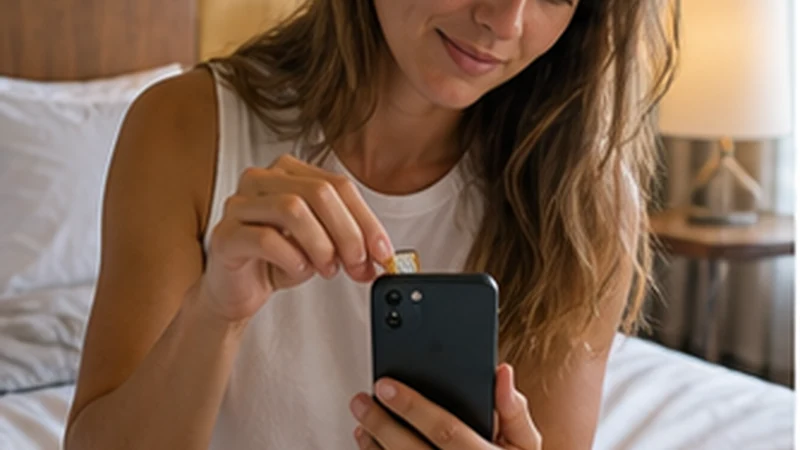

Install an eSIM for Tanzania over dependable private Wi-Fi before the travel day, provided the plan’s activation instructions permit advance installation. This gives you time to resolve compatibility, QR-code or device-setting problems before departure.
Installation adds an eSIM profile to the phone. It does not always mean that plan validity has started or that the device has registered on a Tanzanian partner network.
NoveSIM Tanzania plans are data-only and do not provide a Tanzanian number, traditional calls or SMS. A compatible dual-SIM phone can normally keep the home line for its number while the eSIM supplies mobile data.
Quick answer: Confirm the exact phone is eSIM-compatible and carrier-unlocked, install the profile over Wi-Fi, label it clearly and wait until arrival to apply the travel-data settings specified for the plan.
Top Tanzania (United Republic of) eSIMs

Tanzania (United Republic of) eSIM
Fixed
1 GB, 7 days10.50$2 GB, 15 days17.50$3 GB, 30 days24.00$Unlimited
Unlimited, 1 day11.50$Unlimited, 3 days20.50$Unlimited, 5 days29.50$
Before You Install an eSIM for Tanzania
- Check the exact handset model on the compatible-device list.
- Confirm that the phone is not locked to another carrier.
- Read when the selected plan’s validity begins.
- Connect to stable private Wi-Fi and charge the phone.
- Keep the QR code private and available on another screen or printed securely.
Regional versions of the same phone family may have different eSIM support. The Tanzania compatibility guide explains the difference between device eligibility and local network coverage.
Install a Tanzania eSIM on iPhone
- Open Settings.
- Select Cellular or Mobile Service.
- Tap Add eSIM.
- Choose the QR-code option and scan the private NoveSIM code, or use the supplied manual details if instructed.
- Wait for the new cellular plan to appear without closing Settings.
- Label the line Tanzania or Travel so it is easy to recognise.
- Keep the home line as the default voice line if you still need its number.
Menu wording can vary by iOS version and region. For the general platform procedure, use the NoveSIM iPhone installation guide.
Install a Tanzania eSIM on Android
- Open Settings.
- Open Connections, Network & Internet or the equivalent network menu.
- Select SIM Manager, SIMs or Mobile Network.
- Choose Add eSIM, Add Mobile Plan or Download SIM.
- Scan the private QR code or enter the supplied activation details when instructed.
- Wait for the profile to finish downloading and label it Tanzania or Travel.
- Do not remove the physical SIM unless the phone design or your own plan requires it.
Android labels differ between manufacturers and software releases. Follow the NoveSIM Android installation guide when your menus differ.
Configure Dual SIM Without Using Home Roaming
| Setting | Recommended travel configuration |
|---|---|
| Mobile data | Tanzania travel eSIM |
| Travel-line Data Roaming | On after arrival |
| Home-line Data Roaming | Off |
| Automatic data switching | Off |
| Voice and SMS line | Home line if required and charges are understood |
| Network selection | Automatic first |
Keeping the home SIM active can still produce voice or SMS charges under the home operator’s terms. NoveSIM does not control those charges. Read the guide to keeping your normal number with a data eSIM.
Activate the Installed Line After Arrival
- Turn off Airplane Mode when mobile use is permitted.
- Switch on the Tanzania eSIM in the phone’s SIM settings.
- Select it for mobile data.
- Enable Data Roaming on the travel line.
- Confirm that home-line roaming and automatic switching remain off.
- Wait for automatic network registration, then test a lightweight webpage with Wi-Fi disabled.
The Tanzania eSIM activation guide separates installation, validity and network registration. Available network access, 4G or 5G and hotspot support depend on the plan, device, bands, location and local coverage.
If Installation or Connection Fails
If the profile already appears in Settings, do not scan the code repeatedly. Check whether the line is enabled, use Airplane Mode briefly and restart once. When the phone has signal but no data, enter data.esim only if manual APN entry is required.
Do not delete the installed eSIM during routine troubleshooting. Some QR codes cannot be reused after removal. Preserve the profile and follow the Tanzania troubleshooting guide or contact NoveSIM Support.
Related Articles
FAQ
Should I install a Tanzania eSIM before flying?
Usually this is convenient because reliable Wi-Fi and support are available, but first check the specific plan’s activation and validity instructions.
Can I keep my physical SIM active?
Normally yes on a compatible dual-SIM phone. Choose the eSIM for mobile data, keep home-line roaming off and understand any voice or SMS charges from the home operator.
Is the installation process identical on every Android phone?
No. Menu names vary by manufacturer, model and software version, although the process still involves adding or downloading an eSIM from network settings.
Should I delete and reinstall an eSIM that does not connect?
No. Keep the installed profile and use reversible checks. Delete it only when NoveSIM Support explicitly instructs you to do so.
Final Recommendation
Install an eSIM for Tanzania before departure when the plan instructions allow it, using stable Wi-Fi and the exact device-specific menu for iPhone or Android.
After arrival, select the travel line for mobile data, enable roaming on it and keep home-line roaming and automatic switching off. Use data.esim only when manual APN entry is required.
Label both SIMs clearly and preserve the installed profile if a problem occurs; most connection checks do not require deletion or reinstallation.