


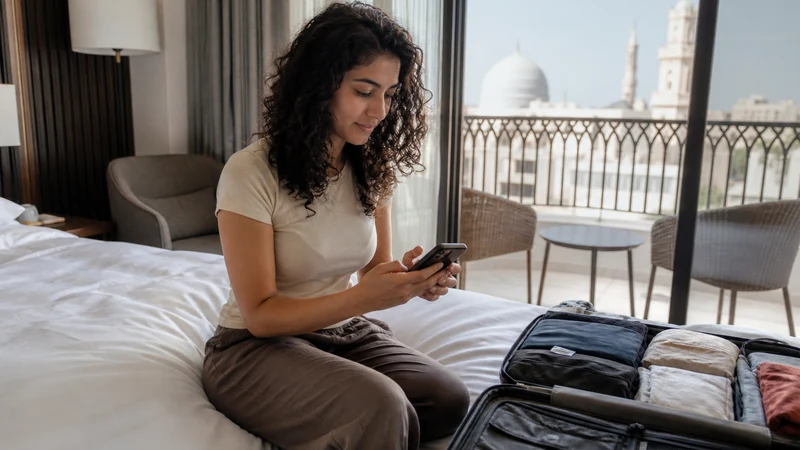

Install an eSIM for Oman before departure when reliable private Wi-Fi, the purchase email and another screen for the QR code are available. This leaves time to confirm that the profile appears correctly without solving setup at the airport.
Installation adds the profile to the phone. It is not necessarily the moment the plan activates, begins validity or connects to an Omani network. Follow the exact product and order instructions for those rules.
NoveSIM Oman plans provide data only. They do not add an Omani telephone number, traditional voice minutes or SMS, although internet apps can use the mobile-data connection.
Quick answer: verify compatibility and unlocked status, connect to private Wi-Fi, add the eSIM with the supplied QR code or manual details, label it Oman, and stop scanning once the new line appears. Keep the profile installed even if it shows no service before arrival.
Top Oman eSIMs

Oman eSIM
Fixed
1 GB, 7 days€ 6.662 GB, 15 days€ 12.423 GB, 30 days€ 17.30Unlimited
Unlimited, 1 day€ 9.32Unlimited, 3 days€ 25.73Unlimited, 5 days€ 42.15
Check the Phone before You Install an eSIM for Oman
The exact handset variant must support eSIM and be unlocked for another provider. A model family can have different regional versions, while a corporate or instalment-plan device may expose the eSIM menu but remain carrier-restricted.
- Find the exact model number, not only the marketing name.
- Look for Add eSIM, Add Mobile Plan or Download SIM in Settings.
- Confirm unlocked status with the original carrier or device information.
- Update the operating system before travel if an update is required.
- Keep sufficient battery and storage for the installation.
Check the handset against the NoveSIM compatible-device list before buying. A QR-code scanner alone does not prove eSIM provisioning support.
Prepare the QR Code without Exposing It
The eSIM QR code is an activation credential, not a public link. Display it on a second device or print it privately so the phone camera can scan it. Avoid posting it in chat, shared documents or screenshots.
If only one device is available, use the supplied manual installation details or the phone’s supported method for opening a QR code from another app, according to the order instructions. Do not use an unofficial QR reader that asks to install a separate configuration profile.
Install the Oman eSIM on iPhone
- Connect the iPhone to dependable Wi-Fi.
- Open Settings → Cellular or Mobile Service.
- Select Add eSIM and choose the QR-code option.
- Scan the private code or enter the supplied details manually.
- Wait for the new line to appear, then label it Oman or Travel.
- Do not scan the code again after the profile is present.
iOS wording varies by version. The separate Oman eSIM iPhone guide covers the arrival settings and Dual-SIM choices after installation.
Install the Oman eSIM on Samsung or Pixel
On Samsung, installation is commonly under Settings → Connections → SIM Manager → Add eSIM. On Google Pixel, look under Settings → Network & internet → SIMs → Add SIM. Other Android phones use different labels.
- Choose the option to download or add an eSIM.
- Scan the QR code or enter the manual activation information.
- Accept the download only when the details match the purchase.
- Wait for the profile to appear in SIM Manager.
- Rename it Oman or Travel before closing Settings.
Do not assume instructions for one Android brand apply exactly to another. Use the Oman eSIM Android guide for device-specific menu context.
Choose Labels before Choosing Data Defaults
A clear label prevents the primary SIM and travel eSIM from being confused after landing. Keep the home line labelled with its carrier or usual number and label the new profile Oman.
During pre-travel installation, do not move mobile data to the Oman line unless the order instructions require activation at home. Keep normal service on the primary line until you are ready to follow the plan’s activation rules.
Separate Installation, Activation and Connection
| Stage | What happens | What it does not prove |
|---|---|---|
| Installation | The eSIM profile appears in the phone | That the validity period has started |
| Activation | The plan becomes eligible under its product rules | That signal exists at every location |
| Connection | The phone registers through an authorised partner | That 5G or a fixed speed is guaranteed |
A travel profile installed outside Oman may display No Service. That can be normal because a supported destination network is not available yet. Read how Oman eSIM activation works before turning the line on early.
Set the Travel Line after Arrival
- Turn on the Oman eSIM.
- Select it as the Mobile Data line.
- Enable Data Roaming on the travel eSIM.
- Keep roaming off on the primary SIM.
- Disable automatic mobile-data switching.
- Leave Network Selection on Automatic for first registration.
If signal appears without internet, use data.esim only when manual APN entry is required. Do not copy a local operator APN into the travel profile.
Resolve Installation Messages Safely
If the phone says the code has already been used, first check whether the profile is already in the SIM list. If it is present, do not scan again. If the device reports that the plan cannot be added, record the exact wording, phone model and software version.
Do not delete a partly configured or installed profile as an early response. Contact NoveSIM Support with the order number and safe screenshots, keeping QR codes and activation details hidden. Remove the eSIM only when Support explicitly instructs you to do so.
Related Articles
FAQ
Should I install my Oman eSIM before flying?
Usually yes, when the order instructions permit it. Reliable private Wi-Fi and time to check the profile make pre-travel installation easier than airport setup.
Does installing the eSIM start its validity?
Not necessarily. Installation, activation and validity rules depend on the purchased product. Follow the live plan information and order instructions.
Why does the installed Oman eSIM show No Service at home?
The phone may be outside the plan’s supported destination network. A correctly installed profile can show no service until it reaches Oman.
Should I delete the profile after an installation error?
No. Check the SIM list and contact NoveSIM Support with the exact error. Delete the eSIM only if Support explicitly instructs you to do so.
Final Recommendation
Install an eSIM for Oman on private Wi-Fi before departure after confirming the exact device is compatible and unlocked.
Protect the QR code, label the new line clearly and stop scanning once the profile appears. Treat installation, activation and connection as separate events.
After arrival, select the travel line for data and enable roaming on it. If anything looks wrong, keep the profile installed and document the exact message for Support.