


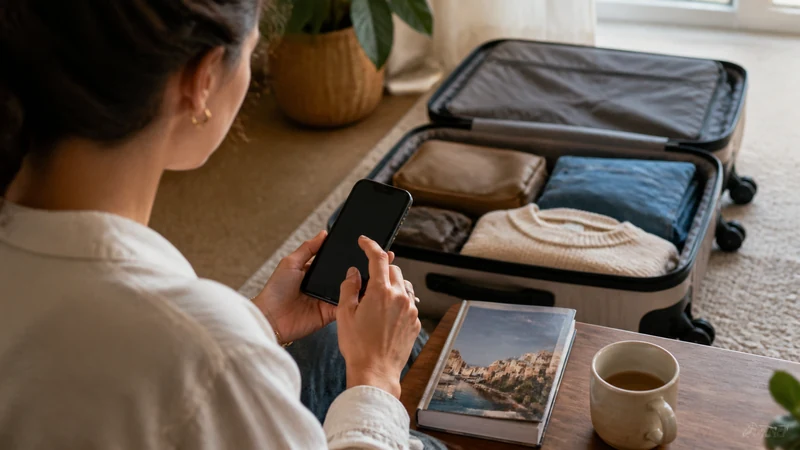

Install your Malta eSIM by adding the supplied profile to a compatible, unlocked phone while you have a reliable internet connection. Installation downloads the profile; it does not by itself prove that mobile data will work in Malta.
Read the purchased plan’s activation rule before scanning the QR code. If validity starts during installation, adding it too early can use travel days. If it starts on a supported network, the phone may not complete its first connection until arrival.
NoveSIM Malta plans are data-only. Installing one adds a mobile-data service, not a Maltese telephone number or ordinary calls and SMS. You do not need to remove your home SIM merely to add a supported second line.
Quick answer: Check compatibility and activation timing, connect to trusted Wi-Fi, open the phone’s Add eSIM menu and use the supplied QR code or manual installation details. Wait until the profile appears in SIM settings, label it Malta and keep it installed. Follow the arrival activation steps separately.
Top eSIMs

Prepare the phone and installation details
Check the exact handset variant, not just its marketing name. The Malta eSIM compatibility guide explains what to look for. A network lock can prevent a compatible phone from accepting another provider’s service; the home operator must resolve that restriction.
- Connect to dependable Wi-Fi and charge the phone.
- Open the installation email and confirm it belongs to the plan you bought.
- Make the QR code available on another screen, or locate the manual details supplied with the order.
- Read the validity, activation and device-use conditions in the selected Malta plan.
Keep the QR code private. Do not send it to a shop assistant or post it in a public troubleshooting thread. An APN is not an installation code: data.esim cannot replace the QR code, SM-DP+ address or activation code.
Add the Malta eSIM profile
- Open the phone’s SIM settings while remaining connected to Wi-Fi.
- On iPhone, look under Settings > Mobile Data or Cellular > Add eSIM > Use QR Code. On Samsung Galaxy, look under Settings > Connections > SIM manager > Add eSIM. On Pixel, use Settings > Network & internet > SIMs > Add SIM > Set up an eSIM.
- Choose the QR-code option and scan the code supplied for this order. If scanning is unavailable, use manual entry only with the installation details supplied by NoveSIM.
- Follow the download prompts and wait for the profile to be added. Do not interrupt the Wi-Fi connection during the download.
- Return to SIM settings and identify the new profile. Give it a recognisable label such as Malta Travel.
- Leave your existing calling line unchanged unless you deliberately want to disable it. Follow the purchased plan’s instructions about keeping the travel line off before departure.
Menu labels differ by software version. The device-specific iPhone guide and Android guide cover the next settings without treating one manufacturer’s menu as universal.
Check that installation actually finished
The important result is a new profile in the SIM list. Saving the QR image or receiving an order confirmation is not the same as downloading that profile. If it appears but shows no service before you reach a supported destination, do not assume installation failed.
Take note of the line’s label and keep the order reference accessible. A profile can be installed while the phone still uses the home SIM for data. Use the separate Malta activation checklist after arrival to select the correct line and test cellular internet.
If the QR code is rejected
First check whether the profile is already present. Repeated scanning will not repair a profile that has already downloaded. If it is absent, confirm the internet connection, the order details and whether you are trying to install on the intended device.
A message about an invalid or already-used code needs support investigation, not an invented replacement code. Keep the exact error message and order reference. Do not delete an installed eSIM unless NoveSIM support instructs you to do so; reinstalling or moving it may require provider assistance.
Related Articles
FAQ
Should I install my Malta eSIM before the flight?
Usually preparation on reliable Wi-Fi is preferable, but check when your purchased plan’s validity begins. Do not install early if its terms would start the allowance before your trip.
How can I scan a QR code displayed on the same phone?
Use another screen or printout, a supported same-device installation method, or the supplied manual details. Available methods vary; do not improvise installation values.
Does an installed profile need signal before I reach Malta?
Not necessarily. A destination plan may need a supported network for its first connection. Check that the profile is present, then follow its activation rule rather than deleting it because it has no service at home.
Can I install the same code on a second phone?
Do not assume the code is reusable or transferable. Ask NoveSIM support about the purchased plan before changing devices, and retain the profile on the original phone.
Final Recommendation
Install the Malta eSIM when its activation timing permits, with the order details and trusted Wi-Fi available. Confirm the downloaded profile in SIM settings before closing the instructions.
Keep installation separate from the arrival data test. A correctly labelled profile makes it easier to activate the Malta line without accidentally changing your home calling service.