


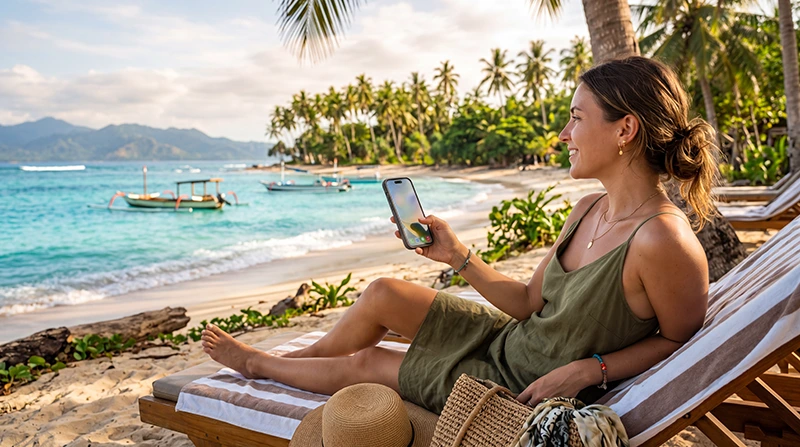

If you are traveling to Indonesia with an iPhone, using an eSIM is one of the easiest ways to get mobile internet without buying a physical SIM card after arrival.
An Indonesia eSIM can help you stay connected in Bali, Jakarta, Lombok, the Gili Islands, Yogyakarta, Komodo and other popular destinations.
Quick answer: you can install an Indonesia eSIM on a compatible iPhone before your trip, then enable it for mobile data when you arrive in Indonesia. Make sure data roaming is enabled on the eSIM profile.
Top Indonesia eSIMs


Can You Use an eSIM in Indonesia on iPhone?
Yes. If your iPhone supports eSIM and is unlocked, you can use an Indonesia eSIM for mobile data while traveling.
This is especially convenient if you want to avoid airport SIM card queues, passport registration, physical SIM swaps or expensive roaming charges from your home operator.
Which iPhones Support eSIM?
Most newer iPhone models support eSIM, including many iPhone XS, XR, 11, 12, 13, 14, 15 and 16 models.
However, eSIM support can depend on the country where the iPhone was purchased and whether the device is carrier-locked.
Before buying an Indonesia eSIM, check that your iPhone has an option such as:
- Settings
- Cellular or Mobile Data
- Add eSIM
If you do not see an option to add an eSIM, your iPhone may not support eSIM, may be restricted, or may need a software update.
Why Use an Indonesia eSIM on iPhone?
An eSIM is useful for iPhone users because it lets you keep your regular SIM active while using a separate travel data plan.
This means you can:
- Use mobile internet in Indonesia
- Keep your normal number for calls or SMS if needed
- Continue using WhatsApp with your existing number
- Avoid swapping physical SIM cards
- Install your travel data plan before departure
How to Install an Indonesia eSIM on iPhone
It is best to install your eSIM before traveling while connected to a stable WiFi network.
Step 1: Open iPhone settings
Go to:
- Settings
- Cellular or Mobile Data
- Add eSIM
Step 2: Scan the QR code
Select the option to use a QR code and scan the eSIM QR code you received after purchase.
If you cannot scan the QR code, you may be able to enter the eSIM details manually, depending on the information provided with your order.
Step 3: Add the eSIM profile
Follow the on-screen instructions until the eSIM profile is added to your iPhone.
You can label it as “Travel”, “Indonesia”, “NoveSIM” or another name that helps you recognize it easily.
Step 4: Keep your main SIM for calls if needed
If you want to keep receiving calls or SMS on your regular number, leave your main SIM active.
For mobile data, choose the Indonesia eSIM when you arrive in Indonesia.
When Should You Activate Your Indonesia eSIM?
You can usually install the eSIM before your trip. The plan normally starts working when your phone connects to a supported network in Indonesia, depending on the plan conditions.
For the best experience, install the eSIM while you are still at home or in your hotel with stable WiFi. Then, when you arrive in Indonesia, turn it on for mobile data.
What to Do When You Arrive in Indonesia
After landing in Indonesia, open your iPhone settings and make sure the eSIM is selected for mobile data.
Arrival checklist for iPhone
- Open Settings
- Go to Cellular or Mobile Data
- Select your Indonesia eSIM for mobile data
- Enable data roaming on the eSIM profile
- Keep your primary SIM roaming off if you want to avoid roaming charges
- Turn airplane mode on and off if the connection does not start immediately
Do You Need to Enable Data Roaming on iPhone?
Yes. For many travel eSIMs, data roaming must be enabled on the eSIM profile in order for mobile data to work correctly.
This does not mean you should enable roaming on your main SIM. The important part is to enable data roaming on the Indonesia eSIM profile.
How to Enable Data Roaming for eSIM on iPhone
To enable data roaming for your Indonesia eSIM:
- Open Settings
- Tap Cellular or Mobile Data
- Select your Indonesia eSIM
- Turn on Data Roaming
After that, make sure the eSIM is selected as your mobile data line.
APN Settings for Indonesia eSIM on iPhone
In most cases, your iPhone should configure the eSIM automatically. If mobile data does not work, you may need to check the APN settings manually.
| Setting | Value |
|---|---|
| APN | data.esim |
| Username | Leave blank |
| Password | Leave blank |
On iPhone, APN settings may appear under Cellular Data Network or Mobile Data Network, depending on your device language and region.
Does WhatsApp Work with an Indonesia eSIM on iPhone?
Yes. WhatsApp usually continues working with your existing number while your eSIM provides mobile data.
You do not need to change your WhatsApp number just because you are using an Indonesia eSIM.
Will an eSIM Affect Your Main iPhone SIM?
No. Adding an eSIM does not remove your main SIM card or change your phone number.
Your iPhone can usually keep your main SIM active while using the Indonesia eSIM for mobile data.
To avoid unexpected roaming charges, make sure mobile data is assigned to the eSIM and not your home SIM.
Can You Use Personal Hotspot with an Indonesia eSIM?
Personal Hotspot may work depending on the eSIM plan, network and device settings.
If hotspot is important for your trip, check the plan details before purchasing. Remote workers and digital nomads should choose a plan with enough data for laptop use, video calls and cloud tools.
How Much Data Do You Need in Indonesia on iPhone?
The right amount of data depends on how you travel and how much you use your phone.
| Usage Type | Recommended Data | Examples |
|---|---|---|
| Light use | 1GB–3GB | Maps, WhatsApp, email, light browsing |
| Regular travel use | 3GB–10GB | Navigation, social media, bookings, translation apps |
| Heavy use | 10GB+ | Video calls, uploads, hotspot, frequent browsing |
| Digital nomad use | Higher data plan or unlimited option | Remote work, meetings, cloud tools, daily hotspot use |
Indonesia eSIM for Bali on iPhone
Bali is one of the most popular destinations in Indonesia, and many iPhone users want internet immediately after landing.
An eSIM can help you use maps, arrange airport pickup, contact your hotel, order transportation, check restaurant locations and stay connected while exploring Canggu, Ubud, Seminyak, Uluwatu, Sanur and other areas.
Indonesia eSIM for Jakarta on iPhone
Jakarta can be busy and difficult to navigate without mobile internet. If you are arriving for business, transit or city travel, an eSIM can help you manage transport, hotel directions, meetings, translation and travel updates.
Indonesia eSIM for Lombok and the Gili Islands on iPhone
If your trip includes Lombok or the Gili Islands, mobile data is useful for ferry schedules, accommodation details, maps and communication with local providers.
Coverage may vary by island and area, so it is always good to download important offline information before moving between remote locations.
What If Your Indonesia eSIM Is Not Working on iPhone?
If your eSIM does not connect after arrival, do not delete the eSIM profile immediately. Try these steps first:
- Make sure the eSIM is turned on
- Set the eSIM as your mobile data line
- Enable data roaming on the eSIM
- Check the APN and use data.esim if needed
- Turn airplane mode on for 30 seconds, then turn it off
- Restart your iPhone
- Try manual network selection if available
If the issue continues, contact support with your order details and screenshots of your mobile data settings.
Indonesia eSIM vs Airport SIM Card for iPhone
You can often find SIM card options at airports in Indonesia, but buying a physical SIM after arrival can involve queues, registration, passport checks and limited tourist packages.
For iPhone users, an eSIM is often more convenient because you can install it before departure and keep your physical SIM slot free.
Internal Travel Internet Guides
If you are planning a trip to Indonesia or Southeast Asia, these guides may also help:
- Best eSIM for Indonesia
- Buy eSIM Indonesia
- Best SIM Card Indonesia
- Best eSIM for Bali
- Internet for Indonesia Island Hopping
- Best eSIM for Southeast Asia
FAQ: Indonesia eSIM for iPhone
Can I use an Indonesia eSIM on iPhone?
Yes, if your iPhone supports eSIM and is unlocked, you can use an Indonesia eSIM for mobile data.
When should I install my Indonesia eSIM?
It is best to install your eSIM before traveling while connected to stable WiFi.
Does the eSIM start immediately after installation?
The plan usually starts working when your phone connects to a supported network in Indonesia, depending on the plan conditions.
Do I need data roaming on iPhone?
Yes. Data roaming should be enabled on the Indonesia eSIM profile for mobile data to work correctly.
Will my normal SIM still work?
Yes. Your regular SIM can stay active for calls or SMS while your Indonesia eSIM is used for mobile data.
Does an Indonesia eSIM include calls or SMS?
Most travel eSIMs are data-only and do not include calls or SMS. You can still use internet-based apps such as WhatsApp, Messenger, email and maps.
Can I use WhatsApp with my normal number?
Yes. WhatsApp usually continues working with your existing number while the eSIM provides mobile data.
What APN should I use for Indonesia eSIM?
If manual APN setup is needed, use data.esim. Leave username and password blank.
Final Recommendation
If you are visiting Indonesia with an iPhone, an eSIM is one of the easiest ways to get mobile internet without buying a physical SIM card after arrival.
It is especially useful for Bali, Jakarta, Lombok, the Gili Islands, Yogyakarta and multi-island travel.
Install your eSIM before departure, enable data roaming on the eSIM profile, set it as your preferred mobile data line, and enjoy a smoother internet experience throughout Indonesia.