


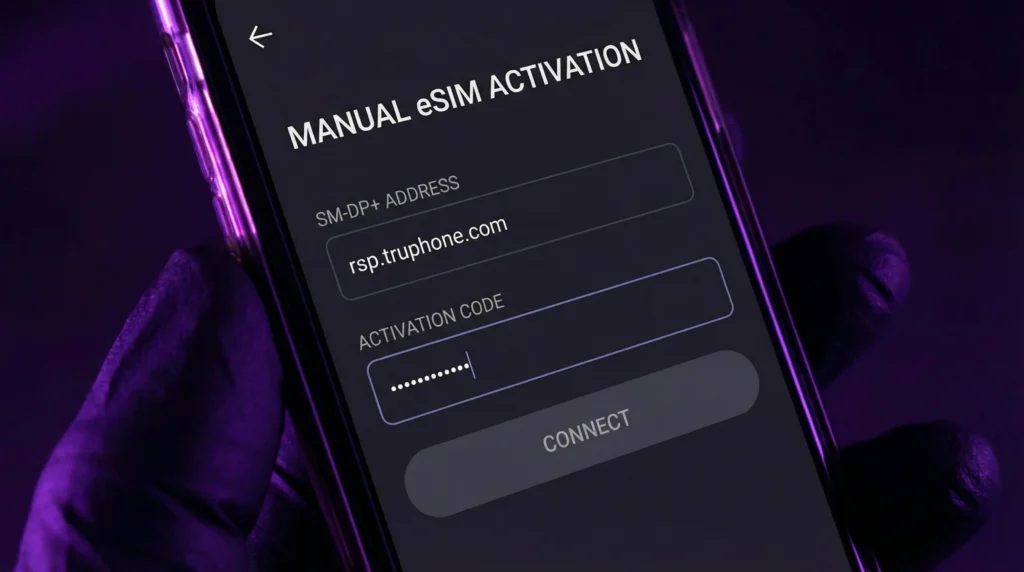
Most travelers install their eSIM by scanning a QR code.
But what if:
- The QR code doesn’t scan?
- You’re using the same phone where the QR is displayed?
- The camera doesn’t focus?
- You need to enter details manually?
In these cases, you can activate your eSIM manually using the SM-DP+ address and activation code.
This guide explains:
- What SM-DP+ means
- When manual activation is needed
- How to activate eSIM manually on iPhone and Android
- Common mistakes to avoid
What is SM-DP+?
SM-DP+ stands for:
Subscription Manager Data Preparation
It is a secure server address used to download your eSIM profile directly to your device.
When activating manually, you usually enter:
- SM-DP+ Address
- Activation Code
- (Optional) Confirmation Code
These details are provided by your eSIM provider after purchase.
When should you use manual activation?
Manual activation is useful when:
- QR code cannot be scanned
- You receive activation details via email
- You’re installing eSIM on the same device where QR is displayed
- Your camera has difficulty reading QR codes
- You prefer direct entry
How to activate eSIM manually on iPhone
- 1. Go to Settings
- 2. Tap Cellular / Mobile Data
- 3. Select Add eSIM
- 4. Choose Enter Details Manually
- 5. Enter the SM-DP+ Address
- 6. Enter the Activation Code
- 7. Tap Next
- 8. Wait for the profile to download
After installation:
- Set Mobile Data = eSIM
- Enable Data Roaming if required
If unsure about SIM configuration: 👉 https://novesim.com/how-to-install-an-esim-on-samsung-phones/
How to activate eSIM manually on Android / Samsung
- 1. Go to Settings → Connections
- 2. Tap SIM Manager
- 3. Select Add Mobile Plan
- 4. Choose Enter Code Manually
- 5. Enter the SM-DP+ address
- 6. Enter the activation code
- 7. Confirm and download
Installation guide: 👉 https://novesim.com/how-does-an-esim-work-step-by-step/
Can I activate eSIM manually without Wi-Fi?
- No. Manual activation still requires an internet connection (Wi-Fi or existing mobile data) to download the eSIM profile from the SM-DP+ server.
Common errors during manual activation
- Incorrect SM-DP+ address -> Make sure there are no extra spaces.
- Typing errors in activation code -> Activation codes are case-sensitive.
- No internet connection -> Ensure stable Wi-Fi during installation.
- Device not eSIM compatible -> Check compatibility first: 👉 https://novesim.com/compatible-devices/
What happens after manual activation?
After successful installation:
- The eSIM profile is securely stored in your device
- You can switch between SIMs anytime
- Activation occurs after connecting to a supported network
Will it work immediately after landing? 👉 https://novesim.com/does-esim-work-immediately-after-landing/
Is manual activation safe?
- Yes. SM-DP+ servers use encrypted provisioning. Your eSIM profile is securely downloaded and cannot be accessed without device authentication.
Security guide: 👉 https://novesim.com/is-esim-safe-to-use-when-traveling/
Need a travel eSIM plan? Browse available destinations here:👉 https://novesim.com/destinations/
Frequently asked questions
What is SM-DP+ in eSIM activation?
SM-DP+ is a secure server address used to download the eSIM profile directly to your device.
Do I need Wi-Fi for manual activation?
Yes. An internet connection is required to download the eSIM profile.
Is manual eSIM activation safe?
Yes. The process uses encrypted carrier provisioning systems.
Can I use manual activation instead of QR code?
Yes. Manual activation works the same way and is often used when QR scanning is not possible.