


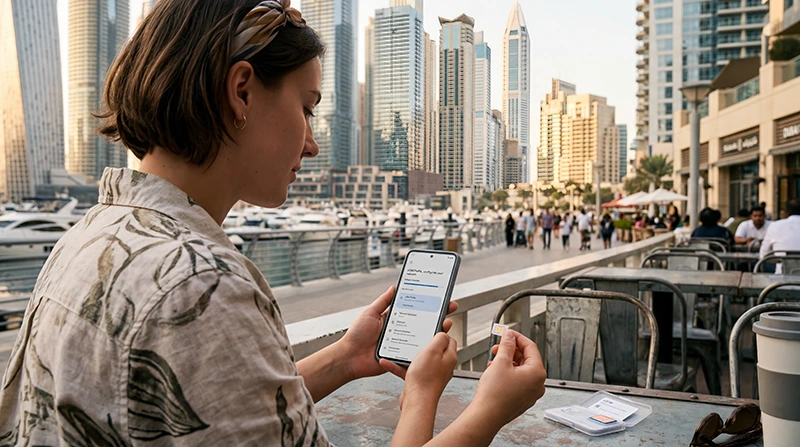

Activating a Dubai eSIM is usually quick and simple, allowing travelers to access mobile internet immediately after arriving in the UAE.
Whether you are landing at Dubai Airport, visiting Dubai Marina, Burj Khalifa, Palm Jumeirah, shopping malls, beaches, luxury hotels, or business districts, reliable mobile internet helps travelers use maps, WhatsApp, taxi apps, bookings, and travel services throughout Dubai.
Quick answer: most Dubai eSIMs are activated by scanning a QR code, selecting the eSIM for mobile data, and enabling Data Roaming after arrival.
Top United Arab Emirates eSIMs

United Arab Emirates eSIM
Fixed
1 GB, 7 days4.00$2 GB, 15 days6.50$3 GB, 30 days8.50$Unlimited
Unlimited, 1 day5.00$Unlimited, 3 days12.50$Unlimited, 5 days20.00$
What You Need Before Activating a Dubai eSIM
Before starting the activation process, make sure you have:
- An eSIM-compatible phone
- A stable WiFi connection
- Your QR code or activation details
- An unlocked device
- Updated phone software if possible
Most modern iPhones and Android devices support eSIM functionality.
How Dubai eSIM Activation Works
Most UAE travel eSIMs activate using a QR code provided after purchase.
Typical activation flow:
- Purchase the UAE eSIM plan.
- Receive the QR code by email.
- Connect the phone to WiFi.
- Scan the QR code.
- Install the eSIM profile.
- Select the eSIM for mobile data.
- Enable Data Roaming.
- Connect to the UAE mobile network after arrival.
NoveSIM UAE eSIMs are activated using a QR code sent instantly after purchase.
How to Activate Dubai eSIM on iPhone
- Open Settings
- Go to Cellular or Mobile Service
- Select Add eSIM
- Choose Use QR Code
- Scan the QR code
- Follow the installation instructions
- Select the eSIM for mobile data
- Enable Data Roaming
Apple confirms that most modern iPhones support QR-code-based eSIM activation.
How to Activate Dubai eSIM on Android
- Open Settings
- Go to SIM Manager or Mobile Networks
- Select Add eSIM or Add Mobile Plan
- Choose Scan QR Code
- Scan the QR code
- Follow the installation prompts
- Select the eSIM for mobile data
- Enable Data Roaming
Android setup menus may vary slightly depending on the phone brand.
Enable Data Roaming
Many UAE eSIMs require Data Roaming to be enabled in order to connect correctly.
On iPhone:
- Open Settings
- Select Cellular or Mobile Service
- Choose the UAE eSIM
- Enable Data Roaming
On Android:
- Open Settings
- Select Mobile Networks or SIM Manager
- Choose the UAE eSIM
- Enable Roaming
Roaming settings are one of the most common causes of activation problems.
Select the eSIM for Mobile Data
Make sure the UAE eSIM is selected as the primary mobile data line.
Your phone may continue using your physical SIM if this setting is not updated.
APN Settings for Dubai eSIM
Most UAE eSIMs configure the APN automatically.
For NoveSIM UAE eSIMs, the APN is usually:
APN: data.esim
If needed:
- Open Mobile Data settings
- Select the UAE eSIM
- Open APN or Mobile Data Network settings
- Enter: data.esim
- Save the settings
- Restart the phone
NoveSIM also recommends using the APN “data.esim” if manual configuration is required.
When Does the Dubai eSIM Activate?
Most travel eSIMs become available immediately after installation but only connect once the device reaches a supported UAE network.
Many eSIMs automatically activate after arriving in the UAE and enabling mobile data.
Main Mobile Networks in UAE
e& (Etisalat)
e& is often considered one of the strongest mobile networks in the UAE.
- Excellent nationwide coverage
- Reliable tourist connectivity
- Strong indoor performance
- Excellent 5G speeds
du
du is also very popular with tourists and urban travelers.
- Strong city coverage
- Reliable urban connectivity
- Good tourist-area performance
- Strong hotel and mall coverage
How Good Is Mobile Internet in Dubai?
Dubai generally offers excellent 4G and 5G coverage throughout tourist and business areas.
Coverage is usually excellent across:
- Dubai Airport
- Dubai Marina
- Downtown Dubai
- Palm Jumeirah
- Luxury hotels
- Shopping malls
- Metro routes
- Major highways
What If the Dubai eSIM Does Not Work?
If the eSIM does not connect after arrival:
- Restart the phone
- Enable Data Roaming
- Check APN settings
- Use Airplane Mode for 30 seconds
- Select the eSIM for mobile data
- Try manual network selection
- Disable VPN temporarily if needed
Manual network selection and roaming settings are among the most common fixes for UAE eSIM issues.
Tips Before Traveling to Dubai
- Install the eSIM before departure
- Save the QR code offline
- Carry a power bank
- Use hotel WiFi during setup if needed
- Download offline maps
- Restart the phone after installation
Related UAE Internet Guides
- Dubai eSIM iPhone
- Dubai eSIM Android
- APN Settings UAE eSIM
- No Internet Dubai eSIM
- Dubai eSIM
- United Arab Emirates eSIM
FAQ: How to Activate Dubai eSIM
How do I activate a Dubai eSIM?
Most Dubai eSIMs are activated by scanning a QR code, selecting the eSIM for mobile data, and enabling Data Roaming.
Do I need WiFi to install the eSIM?
Yes. Most devices require a WiFi connection during eSIM installation.
Should Data Roaming be enabled?
Yes. Many UAE eSIMs require Data Roaming to connect correctly.
What APN should I use for NoveSIM UAE eSIM?
For NoveSIM UAE eSIMs, the APN is usually: data.esim
Does the eSIM activate immediately?
Most travel eSIMs become active after arriving in the UAE and connecting to a supported network.
Can travelers keep their regular SIM active?
Yes. Many smartphones support dual SIM functionality using a physical SIM together with an eSIM.
Final Recommendation
Activating a Dubai eSIM is usually quick and simple when the device supports eSIM, Data Roaming is enabled, and the eSIM is selected for mobile data.
For the smoothest experience, many travelers install the UAE eSIM before departure so they can access maps, WhatsApp, taxi apps, and travel services immediately after landing in Dubai.