


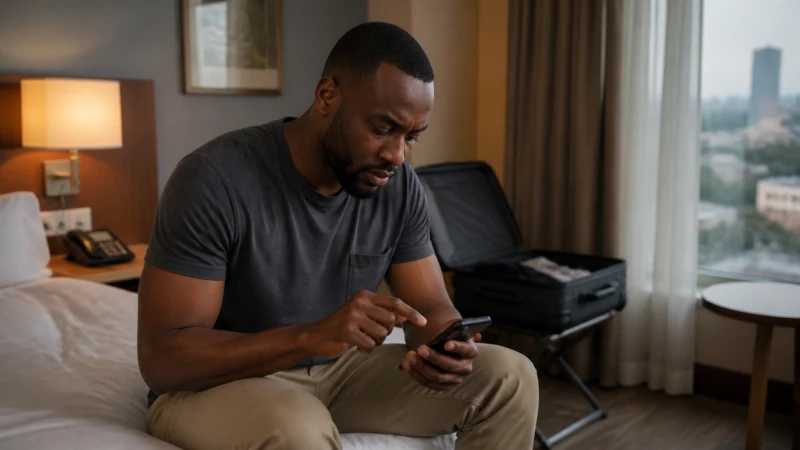

An eSIM that won’t connect is frustrating, especially right after landing in an unfamiliar city, but the good news is that the overwhelming majority of cases trace back to one of a handful of well-understood causes — working through them in order resolves most problems within a few minutes rather than requiring anything technical.
Quick answer: Start by confirming the eSIM is actually activated and set as your data line, then check your APN settings, then try manual network selection, and finally restart your phone — in that order, since activation and data-line settings cause the majority of “not working” reports.
Top Ghana eSIMs

Ghana eSIM
Fixed
1 GB, 7 days€ 9.332 GB, 15 days€ 16.003 GB, 30 days€ 21.33Unlimited
Unlimited, 1 day€ 8.44Unlimited, 3 days€ 22.66Unlimited, 5 days€ 36.43
Step 1: Confirm activation
Installing an eSIM profile and activating it for use are separate steps, and the single most common reason a Ghana eSIM appears “not working” is that it was installed but never actually activated — the activating an eSIM in Ghana guide covers how to check and fix this.
Step 2: Confirm it’s set as your data line
If you have both your home SIM and the Ghana eSIM installed, your phone might still be routing data through your home SIM by default, which looks like the eSIM “not working” when really the phone just isn’t using it. Check your cellular or mobile network settings and confirm the Ghana eSIM is selected for mobile data specifically, not just installed alongside your other line.
Step 3: Check your APN settings
If activation and data-line settings both check out but data still won’t load despite showing signal, your APN settings are the next most likely culprit — the APN settings guide covers what to enter, including the common data.esim value used by many travel eSIM providers.
Step 4: Try manual network selection
If your phone shows weak or no signal on the eSIM despite being in an area that should have coverage, switching from automatic to manual network selection and choosing your eSIM’s specific underlying carrier can resolve registration issues that automatic selection sometimes misses.
Step 5: Restart your phone
A simple restart resolves more connectivity issues than it gets credit for, since it forces your phone to re-register with the network from scratch rather than continuing to work from a stale connection state — worth doing after any of the above changes, even if you’re not sure it will help.
Step 6: Check for a coverage gap
If none of the above fixes anything, you may simply be in an area with no coverage from your eSIM’s underlying network — the rural mobile coverage guide and destination-specific guides like the Mole National Park guide cover where this is more likely, and no amount of settings adjustment fixes a genuine coverage gap.
Step 7: Contact your eSIM provider
If you’ve worked through every step above and data still isn’t working, the issue may be with your specific account or plan rather than anything fixable on your phone — contacting your eSIM provider’s support directly at this point is more productive than continuing to try settings changes on your own.
Preventing this before it happens
Testing your eSIM briefly at home before departure, covered in the installing an eSIM guide, catches most of these issues while you still have easy access to support and aren’t relying on the connection for anything time-sensitive.
FAQ
What’s the most common reason a Ghana eSIM doesn’t work?
It’s installed but not actually activated, or activated but not set as the active data line.
Should I check APN settings first or activation first?
Activation first — it’s the more common issue and quicker to rule out.
Does restarting my phone actually help?
Often yes, since it forces re-registration with the network rather than continuing from a stale state.
What if I’ve tried everything and it still doesn’t work?
Check whether you’re simply in a coverage gap, and if not, contact your eSIM provider’s support directly.
Can a coverage gap look like a settings problem?
Yes, though a genuine coverage gap won’t be fixed by any settings change, unlike activation or APN issues.
Should I test my eSIM before I travel?
Yes, testing at home catches most issues while you still have easy access to support.
Final Recommendation
Work through activation, data-line settings, APN, and network selection in that order before assuming something is fundamentally broken. See the APN settings guide for the specific values to check.