
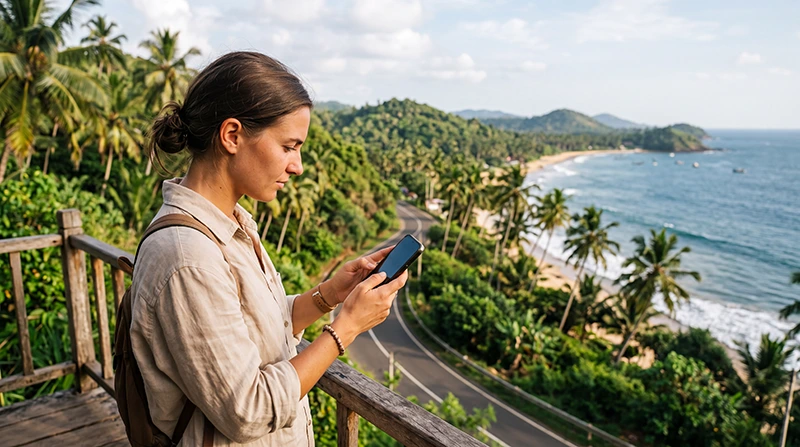

Traveler troubleshooting a Sri Lanka eSIM connection on a smartphone

Sri Lanka eSIM Not Working? Complete Troubleshooting Guide

If your Sri Lanka eSIM is installed but does not connect, the problem is usually related to mobile data selection, Data Roaming, APN settings or network registration.

Most connection issues can be solved directly from your phone settings without deleting or reinstalling the eSIM. This is important because many travel eSIM QR codes can only be installed once.

A Sri Lanka eSIM may show No Service, display signal bars without internet, connect slowly or fail to register immediately after landing. Each problem has a slightly different cause, but the first troubleshooting steps are similar.

Quick answer: enable the Sri Lanka eSIM, select it for Mobile Data, turn on Data Roaming, disable automatic data switching, confirm that the APN is data.esim, activate Airplane Mode for 30 seconds and restart the phone.

Top Sri Lanka eSIMs

First: Do Not Delete the eSIM

Do not remove the eSIM profile while troubleshooting. Deleting it can make the problem more difficult to solve because the original QR code may not allow another installation.

Turning the eSIM off is different from deleting it. You can disable and re-enable the line safely, but avoid options such as:

  • Delete eSIM.
  • Remove Cellular Plan.
  • Erase Mobile Plan.
  • Remove Downloaded SIM.

Keep the profile installed until the connection problem has been identified.

Quick Sri Lanka eSIM Troubleshooting Checklist

Setting Correct Value
Sri Lanka eSIM Enabled
Mobile Data Sri Lanka eSIM
Data Roaming on eSIM On
Data Roaming on primary SIM Off
Automatic Data Switching Off
Network Selection Automatic
Preferred Network Type 5G Auto or 4G/LTE
APN data.esim

1. Confirm That the eSIM Is Installed

Open the SIM or Mobile Network settings and confirm that the Sri Lanka eSIM appears as an available mobile line.

It may be labelled:

  • Sri Lanka.
  • Travel.
  • Secondary.
  • Business.
  • NoveSIM.

If the line is visible, the profile is installed. If it does not appear, the installation may not have completed successfully.

Follow our full guide on how to install a Sri Lanka eSIM if the profile is missing.

2. Make Sure You Are Already in Sri Lanka

A Sri Lanka travel eSIM may not connect before you arrive in the covered destination. Seeing No Service while you are still in your home country does not necessarily mean that the eSIM is faulty.

Complete the mobile data and roaming setup after landing in Sri Lanka. Then wait several minutes for the phone to register with a supported local network.

If you are already in Sri Lanka, continue with the next steps.

3. Enable the Sri Lanka eSIM

The profile may be installed but switched off.

On iPhone

  1. Open Settings.
  2. Select Cellular or Mobile Data.
  3. Tap the Sri Lanka eSIM.
  4. Enable Turn On This Line.

On Samsung

  1. Open Settings.
  2. Select Connections.
  3. Tap SIM Manager.
  4. Enable the Sri Lanka eSIM.

On Google Pixel and Other Android Phones

  1. Open Settings.
  2. Select Network and Internet, Mobile Network or SIMs.
  3. Choose the Sri Lanka eSIM.
  4. Enable Use SIM or the available line switch.

4. Select the eSIM for Mobile Data

Enabling the eSIM is not enough. Your phone must also use it as the preferred Mobile Data line.

If your primary SIM remains selected, the phone may use your home operator or remain offline when roaming on that line is disabled.

On iPhone

  1. Open Settings.
  2. Select Cellular or Mobile Data.
  3. Tap Cellular Data or Mobile Data.
  4. Select the Sri Lanka eSIM.

On Android

  1. Open the SIM Manager or Mobile Network settings.
  2. Find Preferred SIMs or Mobile Data.
  3. Select the Sri Lanka eSIM.

5. Turn On Data Roaming

Data Roaming must normally be enabled on a travel eSIM because it connects through a supported local partner network in Sri Lanka.

This is one of the most common reasons why an installed eSIM shows signal but does not provide internet access.

Use this configuration:

  • Data Roaming on Sri Lanka eSIM: On.
  • Data Roaming on primary SIM: Off.
  • Mobile Data line: Sri Lanka eSIM.

Turning on roaming for the travel eSIM does not create charges outside the prepaid plan. However, roaming on your primary SIM may lead to charges from your home operator.

6. Disable Automatic Data Switching

Automatic Data Switching allows the phone to switch to another SIM when the selected data connection is weak.

During international travel, this can cause the device to use roaming data from your primary SIM. It can also make troubleshooting confusing because the phone may alternate between lines.

The setting may be called:

  • Allow Cellular Data Switching.
  • Automatic Data Switching.
  • Switch Mobile Data Automatically.
  • Backup Data.

Turn it off and keep the Sri Lanka eSIM selected for mobile data.

7. Check the APN Settings

If the phone shows signal bars, 4G, LTE or 5G but websites and applications do not load, the APN may be missing or incorrect.

APN Field Value
Name NoveSIM
APN data.esim
Username Leave blank
Password Leave blank
Authentication None or automatic

Check the APN on iPhone

  1. Open Settings.
  2. Select Cellular or Mobile Data.
  3. Tap the Sri Lanka eSIM.
  4. Open Cellular Data Network or Mobile Data Network.
  5. Enter data.esim in the APN field.
  6. Leave the username and password blank.

The APN menu may not appear on every iPhone. When it is unavailable, the APN is normally managed automatically by the profile.

Check the APN on Android

  1. Open the Mobile Network settings.
  2. Select the Sri Lanka eSIM.
  3. Open Access Point Names.
  4. Add a new APN if required.
  5. Enter data.esim.
  6. Save the APN.
  7. Select it as the active access point.

Read our detailed guide to Sri Lanka eSIM APN settings.

8. Use Airplane Mode for 30 Seconds

Airplane Mode forces the phone to disconnect from all mobile networks and begin a new registration attempt.

  1. Turn Airplane Mode on.
  2. Wait approximately 30 seconds.
  3. Turn Airplane Mode off.
  4. Wait several minutes for signal.

Do not repeatedly turn Airplane Mode on and off too quickly. Allow the phone enough time to register with a supported network.

9. Restart the Phone

A restart refreshes the SIM services, network registration and APN configuration.

Restart the phone after:

  • Changing the APN.
  • Enabling Data Roaming.
  • Changing the preferred data SIM.
  • Switching between 5G and 4G.
  • Manually selecting a network.

10. Keep Network Selection on Automatic

Automatic Network Selection is normally the best setting because it lets the eSIM register with an available supported partner network.

On iPhone:

  1. Open Settings.
  2. Select Cellular or Mobile Data.
  3. Tap the Sri Lanka eSIM.
  4. Select Network Selection.
  5. Enable Automatic.

On Android, open Network Operators or Network Selection and enable automatic selection.

Wait several minutes after changing the setting.

What If Automatic Network Selection Does Not Work?

Manual selection may help when the phone repeatedly fails to register automatically.

  1. Open the network settings for the Sri Lanka eSIM.
  2. Turn Automatic Network Selection off.
  3. Wait for the available networks to appear.
  4. Select a network supported by the eSIM plan.
  5. Wait several minutes for registration.

If the selected network does not connect, try another supported option or return to automatic selection.

Do not select random networks repeatedly. Registration attempts may take time, especially immediately after landing.

What If the eSIM Shows No Service?

No Service means that the phone has not registered with a supported network.

Common causes include:

  • The eSIM is disabled.
  • You are outside the covered destination.
  • Network Selection is incorrect.
  • The phone is carrier-locked.
  • Local signal is temporarily weak.
  • The device does not support the required mobile frequencies.

Try the following:

  1. Move outdoors or closer to a window.
  2. Enable the eSIM line.
  3. Turn on Data Roaming.
  4. Use Airplane Mode for 30 seconds.
  5. Restart the phone.
  6. Keep Network Selection automatic.
  7. Test a supported network manually if necessary.

What If the eSIM Has Signal but No Internet?

If signal bars or a network name appear but mobile data does not work, the eSIM is probably registered but not configured correctly for data.

Check these settings:

  • The Sri Lanka eSIM is selected for Mobile Data.
  • Data Roaming is enabled.
  • The APN is data.esim.
  • Automatic Data Switching is disabled.
  • The plan is valid and has available data.
  • WiFi is off while testing the mobile connection.

After correcting the settings, use Airplane Mode for 30 seconds and test again.

See our dedicated guide to no internet on a Sri Lanka eSIM.

What If the eSIM Is Very Slow?

Slow mobile data can be caused by network congestion, weak signal, local terrain or a Fair Usage Policy.

Try the following:

  • Move outdoors or closer to a window.
  • Switch from 5G to 4G/LTE.
  • Restart the phone.
  • Test another supported network.
  • Pause cloud backups and application updates.
  • Check whether the high-speed allowance has been used.

Coverage may be less consistent in mountain regions, national parks, rural roads and isolated beaches.

Read our guide to a slow eSIM connection in Sri Lanka.

Should You Use 5G or 4G?

5G can provide high speeds in supported locations, but it is not always the most stable option.

Switch to 4G or LTE when:

  • The 5G signal is weak.
  • The connection repeatedly disconnects.
  • Pages take too long to load.
  • The battery drains quickly.
  • You are travelling outside a major city.

A strong 4G connection is usually sufficient for maps, messaging, bookings and social media.

What If the eSIM Worked and Suddenly Stopped?

If the connection worked earlier, check whether anything changed in the phone settings.

Possible causes include:

  • The primary SIM became selected for Mobile Data.
  • Data Roaming was turned off.
  • The phone switched networks.
  • The device entered a low-power or data-saving mode.
  • The high-speed allowance was consumed.
  • The plan reached its expiry date.
  • The phone temporarily lost local coverage.

Repeat the quick troubleshooting checklist and restart the device.

Check the Plan Validity and Data Allowance

An eSIM cannot provide mobile data after the plan expires or the included fixed data has been consumed.

Check:

  • The plan start date.
  • The validity period.
  • The remaining data allowance.
  • Whether a daily high-speed limit applies.
  • Whether the plan covers Sri Lanka.

NoveSIM unlimited plans include 1GB of high-speed data during each 24-hour period. After the allowance is consumed, the connection continues at a reduced speed until the daily allowance resets.

Can a Carrier-Locked Phone Cause the Problem?

Yes. A device may support eSIM technology but remain locked to the operator that originally sold it.

On iPhone, open Settings, General and About. Look for Carrier Lock or Network Provider Lock. The device should display No SIM Restrictions.

Android lock-status menus vary. Contact the original mobile operator if you are unsure.

Read our guide to Sri Lanka eSIM phone compatibility.

Can You Keep Your Primary SIM Active?

Yes. Your primary SIM can remain active for calls and SMS while the travel eSIM provides mobile data.

Function Recommended SIM
Mobile Data Sri Lanka eSIM
Calls Primary SIM
SMS Primary SIM
Data Roaming Sri Lanka eSIM only
Automatic Data Switching Off

Your home operator may still charge for answering or making calls in Sri Lanka.

Does WhatsApp Still Work?

Yes. WhatsApp continues using your existing phone number while the Sri Lanka eSIM supplies mobile data.

You do not need to change your WhatsApp number after installing the eSIM. Once the internet connection is restored, messages and calls should work normally.

Read our guide to using WhatsApp in Sri Lanka.

When Should You Contact Support?

Contact support after completing the main troubleshooting steps and keeping the eSIM installed.

Provide:

  • Your order number.
  • Your phone model.
  • Your current location in Sri Lanka.
  • A screenshot of the SIM settings.
  • A screenshot showing Data Roaming.
  • A screenshot of the APN settings.
  • The network name displayed on the phone.
  • A description of the issue, such as No Service or signal without internet.

Clear screenshots help support identify the problem more quickly. Do not send the full QR code publicly or share it with another person.

Common Mistakes to Avoid

  • Deleting the eSIM during troubleshooting.
  • Leaving the primary SIM selected for Mobile Data.
  • Forgetting to enable Data Roaming.
  • Turning on roaming for the wrong SIM.
  • Leaving Automatic Data Switching enabled.
  • Entering the APN incorrectly.
  • Testing the plan outside Sri Lanka.
  • Switching networks too quickly.
  • Assuming weak rural coverage means the eSIM is faulty.

Related Sri Lanka Guides

FAQ

Why is my Sri Lanka eSIM not working?

The most common causes are incorrect Mobile Data selection, disabled Data Roaming, a missing APN or incomplete network registration.

Should I delete and reinstall the eSIM?

No. Do not delete it while troubleshooting. Many travel eSIM QR codes only support one installation.

Do I need Data Roaming enabled?

Yes. Enable Data Roaming on the Sri Lanka eSIM because it connects through a supported partner network.

What APN should I use?

Use data.esim. Leave the username and password blank.

Why do I have signal but no internet?

The eSIM may not be selected for Mobile Data, Data Roaming may be disabled or the APN may be incorrect.

Why does the eSIM show No Service?

The phone has not registered with a supported network. Enable the line, use Airplane Mode for 30 seconds and keep Network Selection automatic.

Should I select a network manually?

Use manual selection only when automatic registration fails. Select only a network supported by the eSIM plan.

Should I use 5G or 4G?

Use 5G Auto when stable. Switch to 4G or LTE when the 5G signal is weak or inconsistent.

Can I keep my normal SIM active?

Yes. Keep it active for calls and SMS, but select the Sri Lanka eSIM for Mobile Data and disable automatic data switching.

Will WhatsApp still use my normal number?

Yes. WhatsApp continues using your existing number while the eSIM provides the internet connection.

Why is my connection slow after working normally?

You may have reached a high-speed allowance, moved into a weak-signal area or connected to a congested local network.

What screenshots should I send to support?

Send screenshots of the SIM settings, Mobile Data selection, Data Roaming, APN and the network status shown on the phone.

Final Recommendation

If your Sri Lanka eSIM is not working, keep the profile installed and check the settings in the correct order. Enable the eSIM, select it for Mobile Data, turn on Data Roaming and disable automatic data switching.

Confirm that the APN is data.esim, keep Network Selection on Automatic and use Airplane Mode for 30 seconds before restarting the phone.

If the eSIM still does not connect, collect screenshots of the relevant settings and contact support without deleting the profile.

Browse Sri Lanka eSIM plans here.

Scroll to Top