
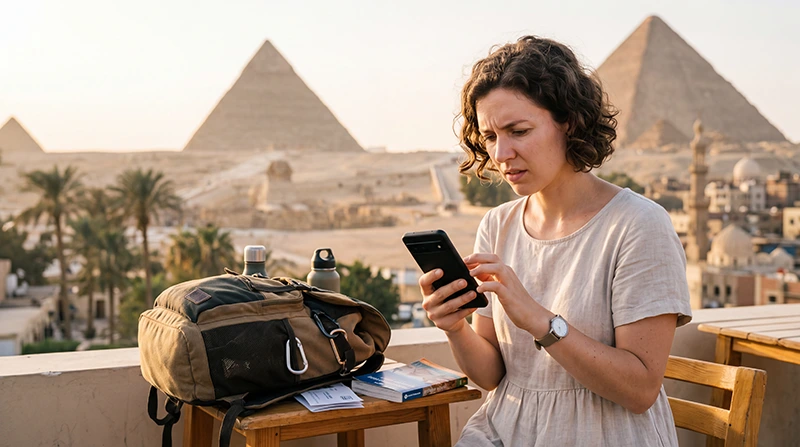

If your Egypt eSIM is not working, the problem is usually related to mobile data settings, Data Roaming, APN configuration, network selection, phone compatibility or weak signal in your current location.
An Egypt eSIM can provide mobile data where supported local mobile network coverage is available. Coverage is usually strong in Cairo, Giza, Alexandria, Luxor, Aswan, Hurghada and Sharm El Sheikh, but signal can vary in remote deserts, oases, boat trips, mountains and long-distance roads.
Quick answer: make sure your Egypt eSIM is turned ON, selected for Mobile Data, Data Roaming is ON for the eSIM, your primary SIM roaming is OFF, Network Selection is Automatic and the APN is set to data.esim if required.
Top Egypt eSIMs
Most Common Reasons Egypt eSIM Is Not Working
| Problem | Likely Cause |
|---|---|
| No internet | Data Roaming is OFF or wrong SIM is selected for Mobile Data |
| No signal | Not in coverage area, eSIM OFF or network selection issue |
| eSIM installed but not connecting | Roaming, APN or network selection settings need adjustment |
| QR code not installing | Phone may not support eSIM, QR already used or no WiFi |
| Slow internet | Weak signal, indoor coverage, congestion or remote location |
| Primary SIM using data | Automatic Data Switching is ON |
Step-by-Step Fix for Egypt eSIM No Internet
- Check that the Egypt eSIM is installed and turned ON.
- Select the Egypt eSIM for Mobile Data.
- Enable Data Roaming on the Egypt eSIM.
- Turn off Data Roaming on your primary SIM.
- Turn off Automatic Data Switching.
- Keep Network Selection on Automatic.
- Restart your phone.
- Turn Airplane Mode on for 30 seconds, then turn it off.
- Set APN to data.esim if manual setup is required.
- Move outdoors or closer to a window if indoor signal is weak.
Recommended Egypt eSIM Settings
| Setting | Recommended Value |
|---|---|
| Mobile Data | Egypt eSIM |
| Calls | Primary SIM |
| SMS | Primary SIM |
| Data Roaming | ON for Egypt eSIM |
| Primary SIM Data Roaming | OFF |
| Automatic Data Switching | OFF |
| Network Selection | Automatic |
| APN | data.esim if required |
APN Settings for Egypt eSIM
Most phones configure APN settings automatically. If your Egypt eSIM is installed but mobile data does not work, enter the APN manually.
| Field | Value |
|---|---|
| APN | data.esim |
| Username | Leave blank |
| Password | Leave blank |
| Authentication | None |
Fix Egypt eSIM on iPhone
- Open Settings.
- Tap Cellular or Mobile Data.
- Select your Egypt eSIM.
- Make sure the eSIM line is ON.
- Turn Data Roaming ON.
- Go back to Mobile Data.
- Select the Egypt eSIM for Mobile Data.
- Turn Allow Mobile Data Switching OFF.
- Keep Network Selection on Automatic.
- Restart your iPhone.
Fix Egypt eSIM on Android
- Open Settings.
- Tap Connections, Network & Internet or SIM Manager.
- Select your Egypt eSIM.
- Make sure the eSIM is turned ON.
- Enable Data Roaming.
- Choose the Egypt eSIM as the preferred SIM for Mobile Data.
- Turn automatic data switching OFF if available.
- Keep Network Selection on Automatic.
- Set APN to data.esim if needed.
- Restart your Android phone.
Should Data Roaming Be On?
Yes. Data Roaming should be ON for the Egypt eSIM. Many travel eSIMs connect through partner networks, so roaming must be enabled on the travel eSIM line.
Keep Data Roaming OFF on your primary SIM if you want to avoid roaming charges from your home carrier.
Why Egypt eSIM Shows No Service
If your Egypt eSIM shows no service before you arrive in Egypt, this may be normal. Many travel eSIMs connect only after the phone reaches a supported country or network.
If you are already in Egypt and the eSIM shows no service, check that the eSIM is ON, Data Roaming is enabled, Network Selection is Automatic and you are in an area with mobile coverage.
Why Egypt eSIM Installs but Internet Does Not Work
- The Egypt eSIM is not selected for Mobile Data.
- Data Roaming is OFF on the eSIM.
- Automatic Data Switching is ON.
- APN settings are missing.
- The phone is connected to an unsupported manual network.
- The signal is weak indoors or in a remote area.
- The phone needs a restart after setup changes.
Why Egypt eSIM QR Code Does Not Install
- The phone does not support eSIM.
- The phone is carrier-locked.
- The phone is not connected to WiFi.
- The QR code has already been used.
- The eSIM was previously installed and deleted.
- The phone software is outdated.
- The eSIM is being installed on the wrong device.
Can You Reinstall an Egypt eSIM?
Usually no. Most travel eSIM QR codes can be installed only once and on one device. If you delete the eSIM after installation, you may not be able to reinstall it.
Do not remove your Egypt eSIM from your phone until your trip is finished.
Can You Move the Egypt eSIM to Another Phone?
Usually no. Most travel eSIM profiles are designed for one-time installation on one device. Install the Egypt eSIM on the phone you plan to use during your trip.
What If You Are Not in Egypt Yet?
If you are not yet in Egypt, your eSIM may not connect to a network. This does not always mean something is wrong. Install the eSIM before departure, then complete the mobile data settings after arrival.
After landing, select the Egypt eSIM for Mobile Data, enable Data Roaming and wait a few minutes for your phone to connect.
Where Egypt eSIM Usually Works Best
| Destination | Expected Coverage |
|---|---|
| Cairo | Excellent |
| Giza | Excellent |
| Alexandria | Excellent |
| Luxor | Excellent |
| Aswan | Very Good to Excellent |
| Hurghada | Excellent |
| Sharm El Sheikh | Excellent |
| Dahab | Very Good |
| Marsa Alam | Good to Very Good |
| Remote deserts and oases | Variable |
What If Internet Is Slow?
Slow internet can happen because of weak signal, indoor coverage, local network congestion, remote location or heavy data usage. Try these steps:
- Move outdoors or closer to a window.
- Turn Airplane Mode on for 30 seconds.
- Restart your phone.
- Keep Network Selection on Automatic.
- Close background apps using data.
- Disable automatic cloud backup.
- Try again in a less crowded area.
Does WhatsApp Work If eSIM Has No Phone Number?
Yes. Most travel eSIM plans are mobile data only and do not include a local phone number, voice calls or SMS. WhatsApp can still work with mobile data or WiFi and remains linked to your existing number.
Can You Use Hotspot After Fixing the eSIM?
Yes. Most smartphones allow hotspot sharing with an eSIM where mobile coverage is available. Hotspot can use data quickly, so choose a larger data plan if you need to connect a laptop, tablet or another traveler’s phone.
When to Contact Support
If you have checked all settings and your Egypt eSIM still does not work, contact support with screenshots from your phone settings.
- Screenshot of the eSIM line settings.
- Screenshot showing Mobile Data selection.
- Screenshot showing Data Roaming is ON for the eSIM.
- Screenshot of APN settings if available.
- Your phone model and software version.
- Your current location in Egypt.
Related Egypt eSIM Guides
- Egypt eSIM
- Install Egypt eSIM
- How to Activate Egypt eSIM
- How to Use eSIM in Egypt
- Egypt eSIM for iPhone
- Egypt eSIM for Android
- Does My Phone Support eSIM in Egypt?
- Egypt eSIM APN Settings
- Best Network in Egypt
FAQ
Why is my Egypt eSIM not working?
The most common reasons are Data Roaming being OFF, the wrong SIM selected for Mobile Data, missing APN settings, manual network selection, weak signal or an incompatible phone.
What APN should I use for Egypt eSIM?
If manual APN setup is required, use data.esim. Leave username and password blank.
Should Data Roaming be on for Egypt eSIM?
Yes. Data Roaming should be ON for the Egypt eSIM and OFF for your primary SIM if you want to avoid roaming charges.
Why does my Egypt eSIM show no service?
If you are not yet in Egypt, this can be normal. If you are already in Egypt, check that the eSIM is ON, Data Roaming is enabled and Network Selection is Automatic.
Can I reinstall my Egypt eSIM?
Usually no. Most travel eSIM QR codes can be installed only once. Do not delete the eSIM until your trip is finished.
Does WhatsApp work with Egypt eSIM?
Yes. WhatsApp works with mobile data or WiFi, and your account remains linked to your existing phone number.
Final Recommendation
If your Egypt eSIM is not working, first check the basic settings: select the Egypt eSIM for Mobile Data, enable Data Roaming, turn off roaming on your primary SIM, keep Network Selection on Automatic and use data.esim as the APN if required.
Restart your phone, turn Airplane Mode on for 30 seconds and move outdoors if signal is weak. If the issue continues, contact support with screenshots of your eSIM, Mobile Data, Data Roaming and APN settings.


