
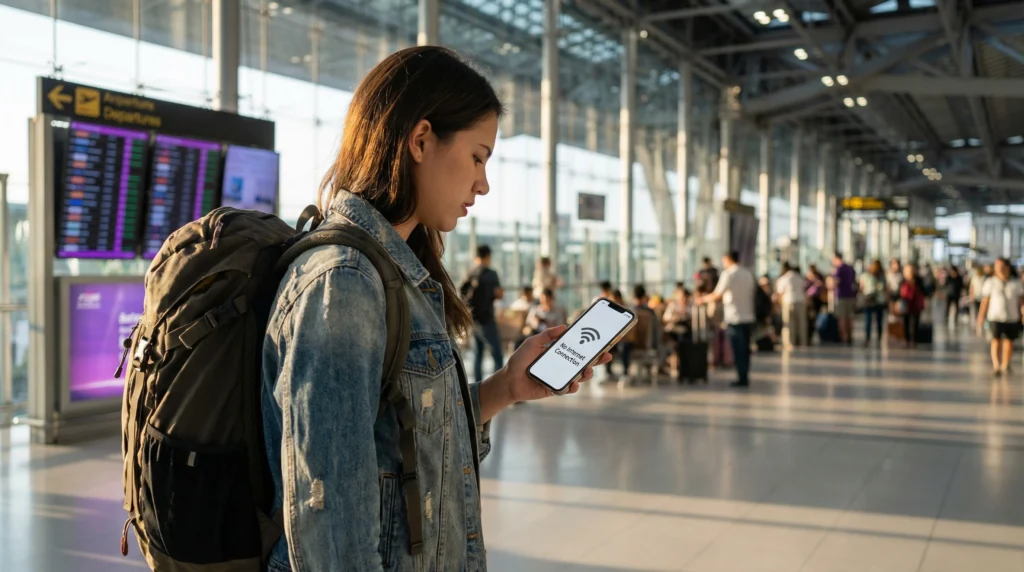

If your eSIM is not working in Australia, do not worry. In most cases, the issue is caused by a phone setting such as Data Roaming, mobile data selection, APN configuration, or automatic SIM switching.
Whether you are in Sydney, Melbourne, Brisbane, Perth, Gold Coast, Cairns, Tasmania, the Whitsundays, or the Great Barrier Reef, these steps can help you get your Australia eSIM connected.
Quick answer: make sure your Australia eSIM is enabled, set it as your mobile data line, turn on Data Roaming for the eSIM, set APN to data.esim if needed, disable automatic data switching, and restart your phone.
Top Australia eSIMs
Why Your eSIM May Not Work in Australia
Most eSIM connection problems happen because the phone is not using the travel eSIM correctly.
- The eSIM is installed but not enabled.
- Mobile data is still assigned to the primary SIM.
- Data Roaming is turned off for the eSIM.
- The APN is missing or incorrect.
- Automatic data switching is using the wrong SIM.
- The phone has not registered on a local network yet.
- The device is not eSIM compatible or is carrier locked.
Step 1: Make Sure the eSIM Is Installed
First, check that the Australia eSIM profile appears in your phone settings.
On iPhone:
Settings → Cellular
On Android:
Settings → Network & Internet → SIMs
On Samsung:
Settings → Connections → SIM Manager
If the eSIM does not appear, it may not have been installed successfully.
Step 2: Enable the Australia eSIM
Your eSIM must be turned on before it can connect to a network.
- Open your SIM settings.
- Select the Australia eSIM.
- Make sure the line is enabled.
- Wait a few minutes for network registration.
Step 3: Set the eSIM for Mobile Data
This is one of the most common issues.
Your phone may still be using your primary SIM for mobile data instead of the Australia eSIM.
Set:
- Mobile Data: Australia eSIM
- Calls: Primary SIM
- SMS: Primary SIM
Step 4: Turn On Data Roaming for the eSIM
Travel eSIMs usually require Data Roaming to be enabled.
Turn Data Roaming ON for the Australia eSIM.
If you want to avoid roaming charges from your home operator, keep Data Roaming OFF on your primary SIM.
Step 5: Check APN Settings
If your eSIM has signal but no internet, the APN may need to be added manually.
| Setting | Value |
|---|---|
| APN | data.esim |
| Username | Leave blank |
| Password | Leave blank |
Step 6: Restart Your Phone
After changing eSIM settings, restart your phone.
This helps the device register again on the local Australian network.
Step 7: Toggle Airplane Mode
If the phone still does not connect:
- Turn Airplane Mode ON.
- Wait 30 seconds.
- Turn Airplane Mode OFF.
- Wait several minutes.
Recommended Australia eSIM Settings
| Setting | Recommended Value |
|---|---|
| Mobile Data | Australia eSIM |
| Data Roaming | ON for the eSIM |
| APN | data.esim |
| Primary SIM | Calls and SMS |
| Automatic Data Switching | OFF |
eSIM Not Working on iPhone in Australia
On iPhone, check:
- The Australia eSIM is turned on.
- Mobile Data is set to the Australia eSIM.
- Data Roaming is enabled for the eSIM.
- Allow Cellular Data Switching is turned off.
- APN is set to data.esim if required.
eSIM Not Working on Android in Australia
On Android, check:
- The Australia eSIM is enabled.
- The eSIM is selected for mobile data.
- Data Roaming is turned on.
- APN is set to data.esim.
- Automatic SIM switching is disabled.
Installed eSIM but No Signal
If your eSIM is installed but shows no signal, try these steps:
- Confirm you are physically in Australia.
- Restart the phone.
- Toggle Airplane Mode.
- Enable the eSIM line.
- Wait several minutes for registration.
- Move to an open area with better coverage.
Signal Available but No Internet
If your phone shows signal but websites do not load, the most likely causes are Data Roaming, APN, or mobile data selection.
- Turn on Data Roaming for the eSIM.
- Set APN to data.esim.
- Make sure the eSIM is selected for mobile data.
- Disable automatic data switching.
- Restart the phone.
Can You Keep Your Primary SIM Active?
Yes.
You can usually keep your primary SIM active for calls and SMS while using your Australia eSIM for mobile data.
For safe setup:
- Primary SIM: calls and SMS
- Primary SIM Data Roaming: OFF
- Australia eSIM: mobile data
- Australia eSIM Data Roaming: ON
Will WhatsApp Work After Fixing the eSIM?
Yes.
WhatsApp remains connected to your existing phone number and works normally once your phone has mobile data.
- Messages
- Voice calls
- Video calls
- Location sharing
- Group chats
- Photo sharing
Common Mistakes to Avoid
- Leaving mobile data assigned to the primary SIM.
- Forgetting to enable Data Roaming on the eSIM.
- Turning on roaming for the primary SIM by mistake.
- Deleting the eSIM profile too early.
- Trying to install the same QR code more than once.
- Not checking whether the phone is unlocked.
Related Australia eSIM Guides
- Australia eSIM
- How to Use eSIM in Australia
- How to Activate Australia eSIM
- Install Australia eSIM
- APN Settings Australia eSIM
- No Internet Australia eSIM
- Why Is My eSIM Slow in Australia?
FAQ: eSIM Not Working Australia
Why is my eSIM not working in Australia?
The most common reasons are Data Roaming being turned off, the wrong SIM being selected for mobile data, incorrect APN settings, or the eSIM line being disabled.
Do I need Data Roaming on for my Australia eSIM?
Yes. Data Roaming should be turned on for the Australia eSIM.
What APN should I use?
Use APN data.esim if your device requires manual APN configuration.
Should I delete and reinstall the eSIM?
No. Do not delete the eSIM unless support instructs you to do so, because many QR codes can only be installed once.
Can I keep my regular SIM active?
Yes. Keep your regular SIM for calls and SMS, and use the Australia eSIM for mobile data.
Final Recommendation
If your eSIM is not working in Australia, first check the basic settings: enable the eSIM, select it for mobile data, turn on Data Roaming, set APN to data.esim, disable automatic data switching, and restart your phone.
In most cases, these steps solve the issue and allow your Australia eSIM to connect properly.


