


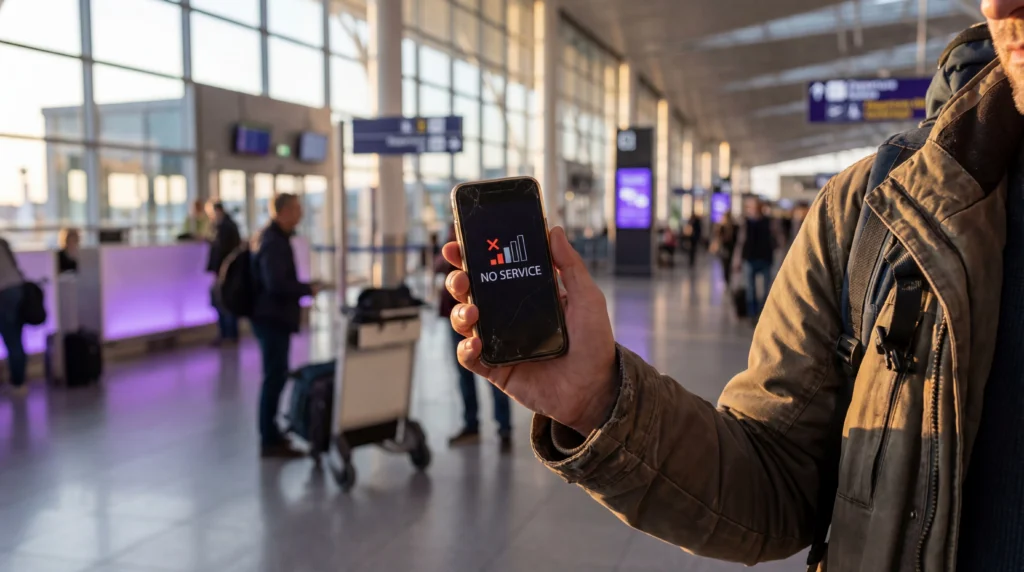

“No Service” means the phone has not registered the eSIM on an available mobile network. It is different from having signal bars but no internet, and it should be diagnosed before changing the APN or deleting the profile.
Quick answer: Confirm that the eSIM profile is installed and enabled, the plan is active and covers your current country, then select the eSIM for Mobile Data and enable Data Roaming on that line when required. Leave Network Selection on Automatic, toggle Airplane Mode once and move to an open location before trying more advanced changes.
Top eSIMs

Identify exactly what the phone displays
Open the phone’s SIM or cellular settings and check whether the travel eSIM appears. If the profile is missing, “No Service” troubleshooting will not help; return to the original installation instructions instead. If the profile is present but switched off, enable the line and wait several minutes for registration.
- No Service or SOS: the line has not registered on a supported network.
- Signal bars but no internet: registration succeeded, but the data configuration, allowance or plan status may be wrong.
- Only one app fails: the mobile connection may work, while an app permission, VPN or DNS setting causes the problem.
Confirm the plan is valid here and now
Check the order or account page for the destination, activation status, validity dates and remaining allowance. A plan for a neighbouring country cannot register merely because the phone can see the same carrier name. A plan that has not activated—or has expired—may also remain at No Service.
If installation and activation are separate, follow the supplied activation rule. Do not repeatedly scan the QR code after the profile already appears on the phone.
Select the travel eSIM correctly
- Open Mobile, Cellular or SIM Manager settings.
- Switch on the travel eSIM.
- Select it as the Mobile Data line.
- Enable Data Roaming for that eSIM when the instructions require it.
- Keep Data Roaming off on the primary SIM.
- Disable automatic mobile-data switching during the test.
NoveSIM travel eSIMs are data-only. The absence of conventional calling or SMS does not prove that the data line has failed; test a normal webpage after network registration.
Refresh network registration safely
Leave Network Selection on Automatic and give the phone several minutes, especially just after landing. Toggle Airplane Mode on for around 20–30 seconds, turn it off and wait again. If the status does not change, perform one normal restart.
Move near a window or outdoors to rule out an indoor coverage problem. Airports, underground platforms, thick walls and remote roads can temporarily prevent registration even when the wider area is covered.
Use manual network selection only as a diagnostic step
If Automatic selection repeatedly fails, open the available network list and compare it with the supported networks shown for the plan. Select only an authorised partner. A visible network can reject the eSIM when it is not included in the product.
Return to Automatic after testing unless NoveSIM Support provides a specific instruction. Manual selection can leave the phone attached to an unsuitable network after you move to another area.
Do not change the APN for a registration failure
The APN controls data after network registration; it normally does not create signal bars or fix No Service. Change it only if the eSIM registers but mobile internet still does not work and the instructions require manual entry.
For a NoveSIM plan that requires a manual APN, enter data.esim and leave username and password blank. Avoid copying a domestic carrier’s APN or settings from another provider.
Check the device and location
The phone must be carrier-unlocked and support eSIM. Imported models can differ even when the marketing name is the same, so verify the exact model number. Also check for operating-system updates before travel when reliable Wi-Fi is available.
Coverage changes with buildings, terrain, congestion and temporary outages. If the eSIM worked earlier, test in another nearby location before assuming the configuration is lost.
What to send NoveSIM Support
Provide the order number, country and city, exact phone model, operating-system version, displayed status and the troubleshooting steps already tried. Safe screenshots of the enabled line, network selection and plan status can help.
Never send or publish the QR code, activation code or full account credentials. Do not delete the installed eSIM unless Support explicitly confirms that removal is necessary, because many profiles cannot be reinstalled from the same QR code.
Related Articles
- Activated eSIM but No Service
- eSIM connected but no internet
- Should Data Roaming be on?
- NoveSIM APN settings
- Check device compatibility
- Contact NoveSIM Support
FAQ
Why does my eSIM say No Service after landing?
The line may still be disabled, waiting for activation or unable to register indoors. Check plan coverage, enable the travel line and its required roaming setting, then refresh registration in an open location.
Should I change the APN when there is no signal?
Usually not. APN settings affect data after network registration. First restore service or signal, then check the APN only if registration succeeds but internet access does not.
Should I select a network manually?
Start with Automatic selection. Manual selection is useful only for testing an authorised partner network and should not be treated as the first universal fix.
Should I delete and reinstall the eSIM?
No. Keep the profile installed and contact NoveSIM Support after reversible checks. Deleting it can make recovery harder and the original QR code may not be reusable.
Final Recommendation
Troubleshoot No Service in a fixed order: confirm the profile and plan, enable the correct line, apply the required roaming setting, refresh Automatic network registration and test in another nearby location.
Reserve APN changes for a registered line without data. Preserve the installed profile and send precise, non-sensitive diagnostics to NoveSIM Support if the phone still cannot join an authorised network.