


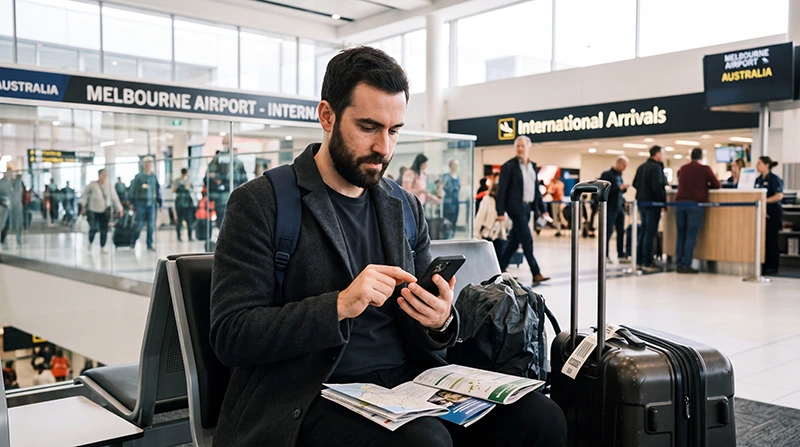

An eSIM at Melbourne Airport can provide data immediately after landing when it has been installed on a compatible unlocked phone before travel. Test it before leaving the terminal so maps and transport information remain available.
Melbourne Airport’s complimentary Wi-Fi is available in T2, T3 and T4, but not currently in the Qantas-operated T1. This makes pre-installation especially useful when the arrival path involves T1.
NoveSIM travel eSIMs are data-only, without an Australian number or traditional calls and SMS. Internet calling and messaging work through data.
Quick answer: Install before departure, enable the Australia profile after landing, choose it for mobile data and follow its roaming instruction. Test the onward route inside the terminal and do not depend on airport Wi-Fi in T1.
Top Australia eSIMs

Australia eSIM
Fixed
1 GB, 7 days€ 2.662 GB, 15 days€ 3.553 GB, 30 days€ 4.88Unlimited
Unlimited, 1 day€ 2.66Unlimited, 3 days€ 5.77Unlimited, 5 days€ 8.43
Asia eSIM
Fixed
1 GB, 7 days€ 4.442 GB, 15 days€ 7.993 GB, 30 days€ 10.65Unlimited
Unlimited, 1 day€ 5.77Unlimited, 3 days€ 15.53Unlimited, 5 days€ 25.29Prepare an eSIM at Melbourne Airport before arrival
- Confirm model compatibility and carrier-unlocked status.
- Check coverage, validity and activation timing.
- Install on trusted Wi-Fi and label the profile.
- Save setup details and the city address offline.
- Retain the home SIM only when needed for calls or SMS.
Use the Australia installation guide before flying.
Connect in the arrival terminal
- Enable the travel profile.
- Select it for mobile data.
- Disable automatic data switching.
- Follow the plan’s roaming instruction.
- Keep network selection automatic.
- Test a webpage and transport route.
Use the correct Wi-Fi fallback
In T2–T4, the official network is Airport Free Wi-Fi; the service is unencrypted. The Melbourne Airport Wi-Fi guide covers terminal access and safety. For physical service, see the Melbourne Airport SIM card guide.
Fix mobile data safely
Recheck the data line and roaming instruction, toggle flight mode and restart. If manual NoveSIM APN entry is required, use data.esim. Do not delete the installed profile unless support instructs you. Continue with Australia eSIM troubleshooting.
Related Articles
FAQ
Should I install before landing in Melbourne?
Yes. Installation on reliable Wi-Fi before travel is more predictable; check what starts validity.
Is free Wi-Fi available in T1?
Melbourne Airport states that its complimentary Wi-Fi is not currently accessible in Qantas-operated T1.
Can I keep my home SIM active?
Yes on many dual-SIM phones, but select the eSIM for data and review home-line roaming costs.
Should I delete a failed eSIM?
No. Keep it installed and contact support after completing the safe checks.
Final Recommendation
Prepare an eSIM at Melbourne Airport before departure and use arrival for a controlled connection test.
Select the correct data line and use data.esim where required.
Save transport details offline, particularly when T1 is part of the journey.