


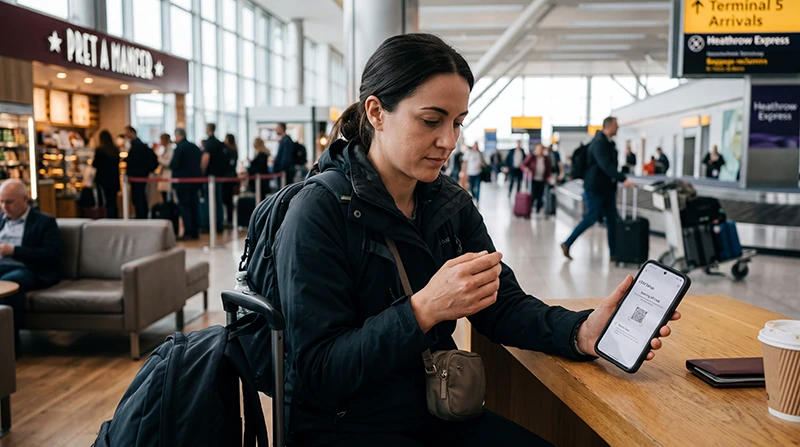

An eSIM at Heathrow Airport can provide mobile data before you begin the journey into London, provided the profile is installed, the plan covers the UK and the phone is unlocked and compatible.
Heathrow offers free Wi-Fi throughout its terminals, so you have a backup connection for checking instructions or contacting Support. Installing before departure is still safer than depending on airport Wi-Fi for the complete setup.
NoveSIM UK travel eSIMs are data-only. They do not include a UK number or conventional calls and SMS, but internet messaging and calling work through data.
Quick answer: Install the UK eSIM before flying, then switch it on after landing, select it for Mobile Data and enable Data Roaming. If you need Wi-Fi, connect to the official _Heathrow Wi-Fi network shown by the airport.
Top United Kingdom eSIMs

United Kingdom eSIM
Fixed
1 GB, 7 days2.50$2 GB, 15 days3.50$3 GB, 30 days5.00$Unlimited
Unlimited, 1 day3.00$Unlimited, 3 days6.50$Unlimited, 5 days10.50$
Europe Extra eSIM
Fixed
1 GB, 7 days2.50$2 GB, 15 days4.00$3 GB, 30 days5.00$Unlimited
Unlimited, 1 day3.00$Unlimited, 3 days6.00$Unlimited, 5 days10.00$Europe+ eSIM
Fixed
1 GB, 7 days3.00$2 GB, 15 days4.50$3 GB, 30 days6.00$Unlimited
Unlimited, 1 day3.00$Unlimited, 3 days7.00$Unlimited, 5 days11.50$Europe Lite eSIM
Fixed
1 GB, 7 days2.50$2 GB, 15 days4.00$3 GB, 30 days5.00$Unlimited
Unlimited, 1 day3.00$Unlimited, 3 days6.00$Unlimited, 5 days10.00$Prepare the eSIM before Your Heathrow Flight
- Confirm that the exact phone model supports eSIM and is unlocked.
- Install the profile on a stable connection when the plan instructions allow it.
- Label the line clearly and keep the order details offline.
- Check the activation rule before enabling the line.
- Download your route from Heathrow to the first destination.
For the full arrival comparison, see the Heathrow Airport internet guide.
Connect after Landing
- Leave Airplane Mode after the aircraft permits mobile use.
- Switch on the UK travel eSIM.
- Select it as the Mobile Data line.
- Enable Data Roaming for the travel eSIM.
- Disable automatic data switching to the home SIM.
- Leave Network Selection on Automatic while registration completes.
Use a simple webpage or map to test data. A conventional call is not a suitable test for a data-only NoveSIM plan.
Using Heathrow’s Free Wi-Fi
Heathrow states that free Wi-Fi is available throughout the airport. Select _Heathrow Wi-Fi and follow the current on-screen instructions. Confirm the name on airport signage before joining a network with a similar label.
The Heathrow Wi-Fi guide covers portal and connection issues. Public Wi-Fi is useful for temporary access, but personal mobile data is more practical once you leave the terminal.
Mobile Data for the Journey into London
Keep the route, accommodation address and booking reference available offline. Mobile data can then handle live changes, messages and onward navigation once the airport Wi-Fi is no longer available.
A physical UK SIM remains an alternative for travellers who need a local number or staffed purchase. Compare that option in the Heathrow SIM card guide.
If the eSIM Does Not Connect
Check the active data line, Data Roaming, plan validity and UK coverage. Refresh registration with Airplane Mode and restart the phone. If the plan requires a manual NoveSIM APN, enter data.esim.
Do not delete the installed eSIM unless NoveSIM Support instructs you to do so. Record the exact phone model, terminal, displayed network state and any error message before asking for help.
Related Articles
- Internet at Heathrow Airport
- Wi-Fi at Heathrow Airport
- SIM Card at Heathrow Airport
- Best eSIM for the UK
- United Kingdom eSIM Plans
FAQ
Can I activate an eSIM at Heathrow Airport?
Yes, if the plan and phone support it, but advance installation is safer. Heathrow’s free Wi-Fi can provide a temporary connection if needed.
What is the official Heathrow Wi-Fi network?
Heathrow currently identifies it as _Heathrow Wi-Fi. Confirm the network name on current airport signage.
Do I need Data Roaming for a UK travel eSIM?
Usually yes. Enable it for the travel eSIM and keep the home SIM from switching into mobile data.
Can I keep my normal SIM active?
Yes, on a compatible dual-SIM phone, but review the home operator’s roaming charges for calls, SMS and voicemail.
Final Recommendation
Prepare the Heathrow eSIM before departure and save the first London route offline.
After landing, use the travel line for data, enable roaming on it and allow the phone time to register automatically.
Use Heathrow’s official free Wi-Fi as a backup, not as the only plan for connectivity beyond the terminal.