


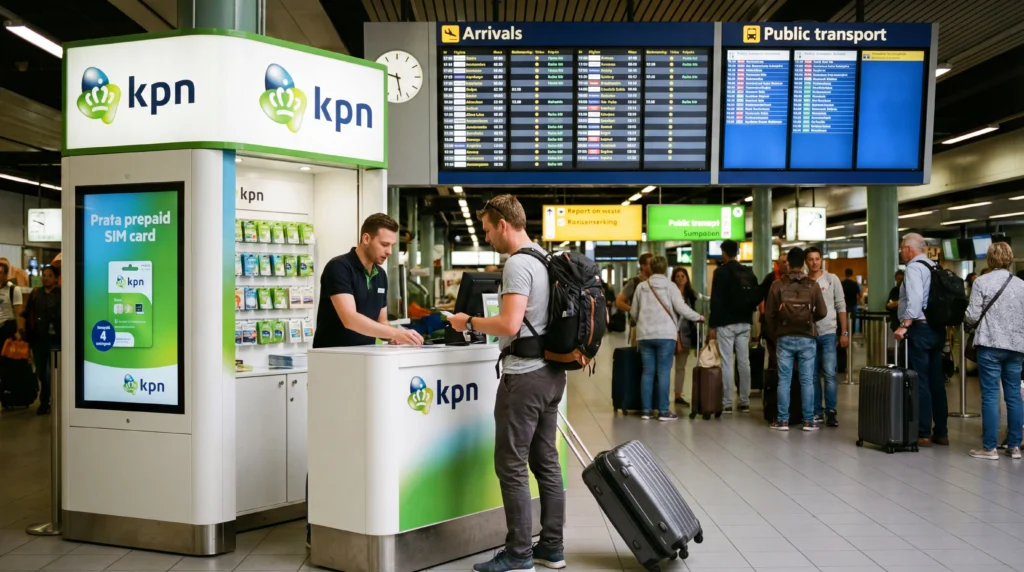

You may be able to arrange a SIM card at Amsterdam Airport Schiphol, but availability depends on the current airport retailers, their opening hours and the products they stock. Check Schiphol’s live shop information before relying on an airport purchase, especially for a late arrival.
An airport SIM can suit a traveller who needs a Dutch number or traditional calls. If the main requirement is mobile data for the train, hotel directions and messages, installing a travel eSIM before departure removes the need to find a suitable package after landing.
NoveSIM travel eSIMs are data-only. They do not include a Dutch telephone number, traditional calls or SMS, although internet calling and messaging applications can use the data connection.
Quick answer: Check Schiphol’s current retailer directory and opening hours before relying on an airport purchase. Confirm allowance, validity, activation, number services and total price, then test the SIM. If you need data only, prepare a travel eSIM before departure and keep airport Wi-Fi as backup.
Top Netherlands eSIMs

Netherlands eSIM
Fixed
1 GB, 7 days€ 2.242 GB, 15 days€ 3.583 GB, 30 days€ 4.48Unlimited
Unlimited, 1 day€ 2.24Unlimited, 3 days€ 5.37Unlimited, 5 days€ 8.06
Europe Extra eSIM
Fixed
1 GB, 7 days€ 2.242 GB, 15 days€ 3.583 GB, 30 days€ 4.48Unlimited
Unlimited, 1 day€ 2.69Unlimited, 3 days€ 5.37Unlimited, 5 days€ 8.95Europe+ eSIM
Fixed
1 GB, 7 days€ 2.692 GB, 15 days€ 4.033 GB, 30 days€ 5.37Unlimited
Unlimited, 1 day€ 2.69Unlimited, 3 days€ 6.27Unlimited, 5 days€ 10.29Where should you check for a SIM card at Amsterdam Airport?
Airport retail arrangements can change, so use Schiphol’s official shop directory rather than an old blog or map screenshot. Check whether the listed retailer is before or after security and whether arriving passengers can reach it. A departure-side shop is not necessarily useful after baggage collection.
Opening hours matter as much as location. A delayed evening flight may arrive after a counter closes, and a retailer may sell international products rather than the exact Dutch prepaid package you expected.
What should you ask before paying?
- Does the package include a Dutch telephone number?
- How much high-speed data is included and when does validity start?
- Is identity verification or online activation required?
- Can the allowance be used elsewhere in the EU, and under what fair-use terms?
- Are hotspot use and 5G included?
- Can a visitor top up without a Dutch payment method?
Ask for the total payable price, not only the advertised data amount. Keep the packaging and activation information until the line has been tested.
Is an airport SIM the same as a travel eSIM?
No. A local prepaid SIM may include a Dutch number and carrier voice service. A NoveSIM eSIM provides data without replacing the physical SIM, which can be useful when the home number must remain available for incoming messages.
The Netherlands SIM versus eSIM guide compares setup, number access and dual-SIM behaviour. Review the Netherlands eSIM selection guide if arrival data is the main priority.
Can Schiphol Wi-Fi help with setup?
Schiphol’s official information states that free Wi-Fi is available throughout the airport in four-hour sessions, after which a traveller can reconnect. Verify the current network name on airport signage before joining it.
Shared airport Wi-Fi is useful for retrieving instructions or contacting support, but avoid sensitive activity on an unverified network. The Schiphol Wi-Fi guide covers the login process and practical fallback steps.
What do you need before leaving the terminal?
Test an ordinary webpage and a map before boarding the train or bus. Save the hotel address, first transport route and booking details offline. Airport Wi-Fi will not remain available throughout the journey into Amsterdam.
If you installed an eSIM in advance, select it as the mobile-data line and enable data roaming on that line when required. Keep roaming off on the home SIM and disable automatic data switching.
What if the new connection does not work?
For a physical SIM, follow the issuing operator’s activation and APN information. For a NoveSIM eSIM, confirm that the plan is valid, the travel line is enabled and selected for data, and data.esim is entered only when manual APN entry is required.
Use the Netherlands eSIM troubleshooting sequence while airport Wi-Fi is available. Do not delete an installed eSIM unless NoveSIM support instructs you to do so.
Related Articles
- Best SIM Card for the Netherlands
- Install a Netherlands eSIM
- Internet on Dutch Trains
- Netherlands Data Planning
FAQ
Can tourists buy a SIM card at Amsterdam Airport?
Airport retail may offer SIM products, but the current seller, stock, location and opening hours should be verified through Schiphol’s official directory before travel.
Is it cheaper to buy a SIM in Amsterdam?
City shops may offer a wider choice, but prices and promotions change. Compare the complete package and activation requirements rather than assuming either location is always cheaper.
Does Schiphol Airport have free Wi-Fi?
Yes. Schiphol currently describes free airport Wi-Fi in four-hour sessions, with the option to reconnect afterward.
Should I install an eSIM before arrival?
Advance installation is convenient for an unlocked compatible phone, provided you follow the plan’s activation timing and do not begin validity too early.
Final Recommendation
Choose a SIM card at Amsterdam Airport when a Dutch number or local prepaid voice service is important and the live retailer details fit your arrival.
For data-only travel, installing an eSIM before departure avoids depending on queues, stock and opening hours at Schiphol.
Whichever option you use, test it before leaving the terminal and keep the first transport instructions available offline.