


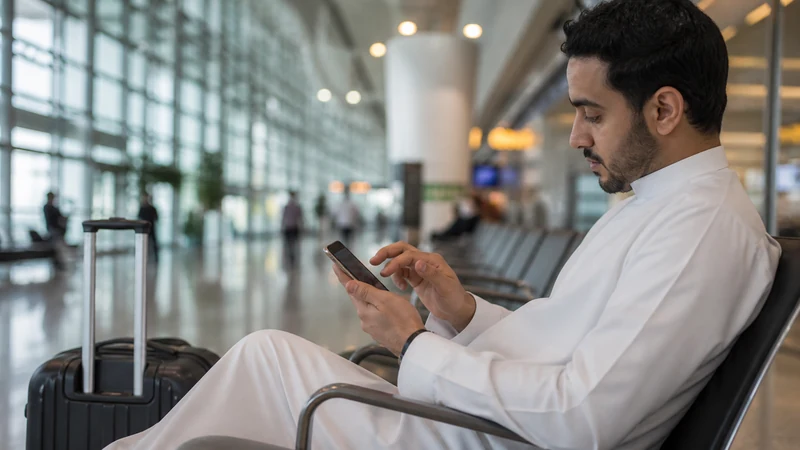

Installing Kuwait eSIM before travel gives you time to confirm that the profile appears correctly, label the line and save the order details while reliable Wi-Fi is available.
The aim is to complete installation without starting unwanted home-carrier roaming or confusing installation with activation. A correctly installed profile may show No Service until the phone reaches a supported network in Kuwait.
For How to Install Kuwait eSIM before Travel, remember that NoveSIM Kuwait travel eSIM plans are data-only. They do not include a local phone number, traditional voice calls or SMS, while internet calling and messaging apps can use the data connection where those services are available.
Quick answer: Install the profile on private Wi-Fi before departure, keep the QR code private, label the line Kuwait Travel and follow the plan-specific activation instructions. Do not scan the QR code again after the profile appears.
Top Kuwait eSIMs


Kuwait Travel Context
Kuwait has extensive modern mobile infrastructure, but indoor construction, congestion, coastal areas and the selected plan still affect real-world service.
The NoveSIM Kuwait page checked on 13 August 2026 lists Viva, National Mobile and Mobile Telecommunications Company, each shown with 5G access. The selected plan, compatible device, exact location and local coverage determine registration and performance.
Check Compatibility and Carrier Lock First
An eSIM menu alone does not prove that a phone can use every travel plan. Confirm the exact model number, regional variant and carrier-lock status before purchase. Corporate handsets and phones bought on instalment contracts deserve particular attention because the operating system may expose eSIM controls even when another provider cannot be added.
On iPhone, look for Add eSIM under Mobile Service and check Carrier Lock in About. On Android, menu names vary between Samsung, Pixel and other manufacturers, so use the model-specific settings and the NoveSIM compatibility list rather than assuming that every device in a product family has identical support.
- Record the exact model and software version before ordering.
- Confirm that the device is unlocked for another provider.
- Update the operating system before travel, not during an urgent airport connection.
- Keep enough free storage and battery for installation.
Use a Safe QR-Code Setup
Treat the activation QR code like a private credential. Open it on a second screen or print it for personal use, then scan it with the phone that will carry the eSIM. Avoid forwarding the code through group chats or leaving a printed copy in public view, because some codes permit only one successful installation.
A stable home or hotel network is preferable to public airport Wi-Fi for this step. If the camera cannot read the code, use the manual activation details supplied with the order instead of repeatedly resizing or rescanning the image. Stop once the Kuwait profile appears in the SIM list.
- Use private, dependable Wi-Fi.
- Keep the order email and manual details available.
- Scan only with the destination phone.
- Never publish screenshots containing the complete QR code.
Label the New Line Clearly
A descriptive label prevents mistakes after landing. Names such as Kuwait Travel or NoveSIM Kuwait are easier to recognise than Secondary or Business when the phone asks which line should handle data, calls or messages. The primary home line should remain visually distinct.
Do not select the travel profile as the default voice line simply because installation offers that option. NoveSIM plans are data-only, so calls and SMS remain associated with the primary SIM and its carrier charges. Select the Kuwait line for mobile data only when the trip begins.
- Use a destination-specific line label.
- Keep the home SIM as the default voice line if needed.
- Disable automatic mobile-data switching.
- Keep home-SIM data roaming off.
Understand Installation versus Activation
Installation downloads the profile to the handset; activation follows the plan rules; network registration occurs only when a supported local signal is available. These three events may happen at different times. A profile installed in another country can therefore show no signal without indicating a fault.
Read the validity wording for the exact package before deciding when to switch the line on. Some plans begin according to a defined activation event, while others follow different instructions. The order details and current product page are authoritative, so do not copy timing advice from another provider or destination.
- Finish profile installation before the travel day.
- Follow the exact activation trigger shown for the order.
- Expect no local network registration outside Kuwait.
- Keep the profile installed even when it shows No Service at home.
Prepare Offline Backups
Installation is only one part of arrival preparation. Save the hotel address, airport transfer instructions, booking references and essential contacts offline. Download the relevant Kuwait City or Salmiya map area before departure so an initial registration delay does not block navigation.
Keep the order number and support route available without depending on the new data line. A screenshot of the eSIM label and settings can help support, but conceal activation codes. A charged power bank is useful because scanning, setup and navigation can consume more battery than expected.
- Download destination maps.
- Save accommodation and transfer details.
- Store the order number separately from the QR code.
- Carry a charging cable or power bank.
Apply the Correct Arrival Settings
After landing, enable the Kuwait line, select it for Mobile Data and turn on Data Roaming for that travel line. Leave Network Selection on Automatic during the first registration and allow several minutes after leaving aircraft mode. The phone may initially use 4G even when 5G is available nearby.
Keep roaming disabled on the primary line and turn off Allow Mobile Data Switching. This prevents the handset from silently using the home carrier if the Kuwait line briefly loses signal. If necessary, restart the phone after confirming the correct data line.
- Kuwait eSIM line: on.
- Mobile Data: Kuwait eSIM.
- Data Roaming: on for the travel line.
- Primary-SIM roaming and data switching: off.
Troubleshoot Without Deleting the Profile
If registration fails, verify the selected data line and roaming setting before changing anything else. Toggle Airplane Mode for 30 seconds, restart the phone and keep automatic network selection enabled for the first test. Move to an open area if the problem occurs deep inside a terminal or building.
When signal appears but data does not pass, check the remaining allowance and enter data.esim only if manual APN configuration is required. Leave username and password blank. Do not delete the eSIM unless NoveSIM Support specifically instructs you to do so, because reinstalling may not be possible with the same code.
- Use reversible checks first.
- Test more than one website or app.
- Use data.esim only for the NoveSIM APN.
- Contact support with model, location and screenshots if needed.
Step-by-Step Kuwait eSIM Installation
- Connect the unlocked, compatible phone to private Wi-Fi.
- Open Add eSIM or Add Mobile Plan in the device settings.
- Scan the supplied QR code or enter the manual activation details.
- Wait until the new profile appears in the SIM list.
- Label it Kuwait Travel and keep it off for mobile data until appropriate.
- Confirm that the primary SIM remains the preferred line for calls and SMS.
- Save offline travel information and retain the order details privately.
Recommended Pre-Departure Settings
| Setting | Before arrival |
|---|---|
| Kuwait eSIM | Installed and clearly labelled |
| Mobile data | Primary line or Wi-Fi until travel |
| Travel-line roaming | Enable when connecting in Kuwait |
| Home-line roaming | Off |
| Data switching | Off |
| APN | data.esim only if manual entry is required |
These values are a preparation baseline, not a substitute for the instructions attached to the purchased plan. Recheck the active data line after every SIM-settings change or software update.
Related Articles
- Kuwait eSIM plans
- Does eSIM work in Kuwait?
- Kuwait eSIM troubleshooting
- Kuwait eSIM APN settings
- Mobile internet in Kuwait
- Best SIM card for Kuwait
- Kuwait dual-SIM settings
- Kuwait hotspot guide
- Kuwait data planning
- Internet at Kuwait International Airport
- Internet at Kuwait International Airport
- eSIM-compatible devices
- How NoveSIM works
- NoveSIM FAQ
- NoveSIM Support
- How to activate Kuwait eSIM
- Kuwait eSIM setup on iPhone
- Kuwait eSIM setup on Android
- Manual network selection in Kuwait
- Slow Kuwait eSIM troubleshooting
- Kuwait eSIM coverage guide
- 5G in Kuwait for tourists
FAQ
Can I install the Kuwait eSIM several days before travel?
Yes, provided the plan instructions allow it. Installation can be completed on reliable Wi-Fi before departure, but follow the exact validity and activation rules shown for the purchased package.
Why does the installed eSIM show No Service at home?
The phone may be outside the supported Kuwait partner network. An installed profile can show No Service before arrival without indicating that installation failed.
Should I delete and rescan the eSIM if it does not connect?
No. Check the active data line, Data Roaming, automatic network selection and APN first. Delete the profile only when NoveSIM Support explicitly instructs you to do so.
What APN should I use?
Use data.esim if manual APN entry is required for the NoveSIM plan. Leave username and password blank.
Final Recommendation
Install the Kuwait eSIM before departure while dependable Wi-Fi, the order details and a second screen are available.
After arrival, select the travel line for mobile data, enable roaming on that line, keep the primary line roaming off and use data.esim only when manual APN entry is necessary.
This preparation reduces rushed airport setup and gives maps, bookings and messaging the best chance of working as soon as local coverage is available.