


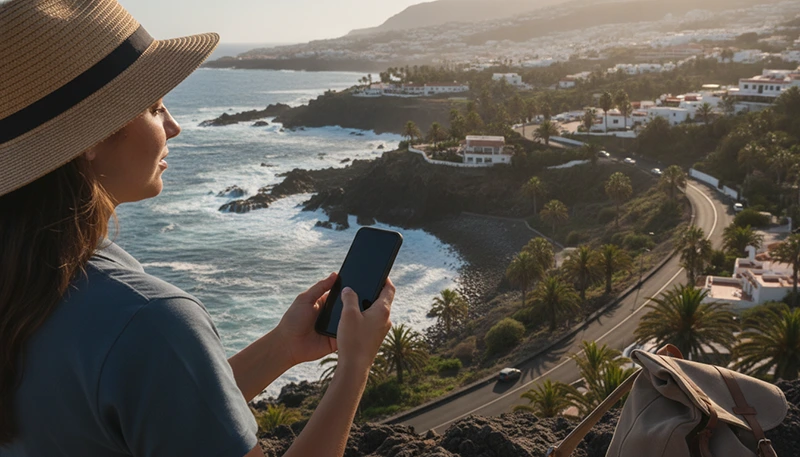

Using an eSIM in the Canary Islands gives you mobile data without replacing your regular SIM card. Once the profile is installed, you can use it for maps, accommodation messages, ferry bookings, transport applications, restaurant searches and internet calls throughout your trip.
The eSIM must be configured correctly after arrival. Installing the profile alone does not always make it the active internet line. You normally need to enable the eSIM, select it for mobile data, turn on Data Roaming and disable automatic switching to your primary SIM.
A compatible Canary Islands or Spain travel eSIM can generally remain active while you move between Tenerife, Gran Canaria, Lanzarote, Fuerteventura and other included islands. You do not normally need to repeat the installation every time you change location.
Quick answer: After arriving in the Canary Islands, enable the travel eSIM, select it as the preferred line for mobile data, turn on Data Roaming and disable automatic data switching. Keep roaming disabled on your primary SIM. If mobile internet does not work, check that the APN is set to data.esim.
Top Canary Islands eSIMs

Canary Islands eSIM
Fixed
1 GB, 7 days€ 1.782 GB, 15 days€ 3.553 GB, 30 days€ 4.44Unlimited
Unlimited, 1 day€ 2.22Unlimited, 3 days€ 4.88Unlimited, 5 days€ 7.99
Europe Extra eSIM
Fixed
1 GB, 7 days€ 2.222 GB, 15 days€ 3.553 GB, 30 days€ 4.44Unlimited
Unlimited, 1 day€ 2.66Unlimited, 3 days€ 5.33Unlimited, 5 days€ 8.88Europe+ eSIM
Fixed
1 GB, 7 days€ 2.662 GB, 15 days€ 3.993 GB, 30 days€ 5.33Unlimited
Unlimited, 1 day€ 2.66Unlimited, 3 days€ 6.21Unlimited, 5 days€ 10.21What Can You Use a Canary Islands eSIM For?
A travel eSIM provides mobile internet directly through your smartphone. NoveSIM plans are data-only, so they do not normally include a local telephone number, traditional voice minutes or SMS.
You can use the eSIM for:
- Google Maps and navigation.
- WhatsApp, Messenger and other internet calls.
- Accommodation communication.
- Ferry and flight bookings.
- Restaurant and attraction searches.
- Taxi and transport applications.
- Email and social media.
- Weather and hiking information.
- Personal Hotspot when supported by the plan.
Your existing WhatsApp number normally remains unchanged because the eSIM only changes the source of your mobile internet.
Before You Start Using the eSIM
Complete the main preparation before departure whenever possible.
- Confirm that your phone supports eSIM.
- Check that the device is carrier-unlocked.
- Install the eSIM using stable WiFi.
- Read the plan activation conditions.
- Label the travel line clearly.
- Save the purchase and support details.
- Keep the eSIM installed until the trip is complete.
You can dial *#06# and look for an EID to help confirm that the device supports eSIM technology.
How to Start Using the eSIM After Arrival
After landing in the Canary Islands, complete these steps:
- Open your phone’s SIM or mobile network settings.
- Enable the travel eSIM.
- Select it as the preferred line for mobile data.
- Enable Data Roaming on the travel eSIM.
- Disable automatic mobile data switching.
- Keep Data Roaming disabled on the primary SIM.
- Turn WiFi off temporarily.
- Wait several minutes for network registration.
- Open a webpage or map to test the connection.
Initial registration may take a few minutes, especially immediately after leaving Airplane Mode.
Correct eSIM Settings
| Setting | Recommended Configuration |
|---|---|
| Travel eSIM | Enabled |
| Preferred Mobile Data Line | NoveSIM or Travel |
| Data Roaming on Travel eSIM | Enabled |
| Data Roaming on Primary SIM | Disabled |
| Automatic Data Switching | Disabled |
| APN | data.esim |
How to Use the eSIM on iPhone
- Open Settings.
- Select Cellular or Mobile Service.
- Select the travel eSIM.
- Enable Turn On This Line.
- Return to the main Cellular menu.
- Select Cellular Data.
- Choose the line labelled NoveSIM, Travel or Canary Islands.
- Disable Allow Cellular Data Switching.
- Open the travel eSIM settings again.
- Enable Data Roaming.
Keep your primary SIM selected as the default voice line if you want to retain your normal number for calls and SMS.
How to Use the eSIM on Samsung
- Open Settings.
- Select Connections.
- Select SIM Manager.
- Enable the travel eSIM.
- Under Preferred SIMs, select Mobile Data.
- Choose the travel eSIM.
- Open Mobile Networks.
- Enable Data Roaming for the travel eSIM.
- Disable automatic data switching when available.
Samsung menu names can vary slightly depending on the Galaxy model and software version.
How to Use the eSIM on Google Pixel
- Open Settings.
- Select Network & Internet.
- Select SIMs.
- Choose the travel eSIM.
- Enable Use SIM.
- Enable Mobile Data.
- Enable Roaming.
- Set the travel profile as the preferred data SIM.
- Disable automatic mobile data switching if shown.
How to Use the eSIM on Other Android Phones
On Motorola, Xiaomi, Honor and other Android devices, look for the eSIM under:
- Connections.
- Mobile Network.
- SIM Management.
- Network & Internet.
- Cellular Network.
The essential setup remains the same: enable the travel profile, select it for mobile data, turn on roaming and disable automatic switching.
Why Data Roaming Must Be Enabled
Travel eSIMs connect through supported partner networks in the destination. For this reason, Data Roaming normally needs to be enabled on the travel profile.
This does not mean that roaming must also be enabled on your regular SIM. Each line has its own settings.
To reduce the risk of unexpected charges:
- Enable roaming only on the travel eSIM.
- Keep primary SIM roaming disabled.
- Select the travel eSIM for mobile data.
- Disable automatic data switching.
How to Set the APN
If the phone shows signal but webpages and applications do not load, the APN may be missing or incorrect.
| APN Field | Value |
|---|---|
| Name | NoveSIM |
| APN | data.esim |
| Username | Leave blank |
| Password | Leave blank |
Leave all other settings unchanged unless different information is specifically provided.
How to Set the APN on iPhone
- Open Settings.
- Select Cellular or Mobile Service.
- Select the travel eSIM.
- Select Cellular Data Network when available.
- Enter data.esim in the APN field.
The menu may not appear when the APN is configured automatically by the profile.
How to Set the APN on Android
- Open the mobile network settings.
- Select the travel eSIM.
- Open Access Point Names.
- Create a new APN.
- Enter NoveSIM as the name.
- Enter data.esim as the APN.
- Save the profile.
- Select the new APN.
How to Keep Your Main SIM Active
Most compatible dual-SIM phones allow your primary line to remain active while the travel eSIM provides mobile internet.
This may allow you to:
- Keep your usual phone number.
- Receive SMS verification codes.
- Receive calls on the regular line.
- Continue using WhatsApp with the same number.
- Use the eSIM only for mobile data.
Your home operator may charge for calls, SMS or other roaming activity. Review its roaming conditions before travelling.
How to Avoid Roaming Charges on the Main SIM
- Select the travel eSIM as the mobile data line.
- Disable Data Roaming on the primary SIM.
- Disable automatic data switching.
- Avoid answering chargeable incoming calls.
- Use WhatsApp or another internet calling application.
- Review your home operator’s roaming prices.
You do not normally need to turn the primary SIM off completely unless you want to prevent all calls and SMS.
Will WhatsApp Keep Your Original Number?
Yes. WhatsApp normally remains connected to the number already registered in the application.
When the app asks whether you want to change the number, keep the existing number unless you intentionally want to update your account.
Messages and internet calls will use mobile data from the travel eSIM.
Can You Make Calls with the eSIM?
NoveSIM travel plans are data-only, so they do not normally include traditional voice calls or SMS.
You can still call through:
- WhatsApp.
- Viber.
- Messenger.
- FaceTime Audio.
- Google Meet.
- Other internet calling services.
You can keep your main SIM active when you need traditional calls or SMS, subject to your home operator’s roaming charges.
Can One eSIM Work Across the Canary Islands?
Yes. When the selected plan includes the full Canary Islands, one eSIM can generally remain active while you visit:
- Tenerife.
- Gran Canaria.
- Lanzarote.
- Fuerteventura.
- La Palma.
- La Gomera.
- El Hierro.
You do not normally need to reinstall or reactivate the profile on every island.
The original data allowance and validity period continue to apply throughout the trip.
Using the eSIM During Ferry Travel
The eSIM may work while the ferry remains close to the coastline. Signal can weaken or disappear farther offshore because mobile networks mainly cover land and coastal areas.
Before boarding:
- Download your ticket.
- Save the arrival address.
- Download offline maps.
- Save accommodation contact details.
- Check onward transport information.
The phone should reconnect automatically as the ferry approaches the next island.
Using the eSIM for Maps and Navigation
Mobile data makes it easier to navigate between airports, resorts, beaches, volcanic attractions and hiking areas.
For more reliable navigation:
- Download offline maps before travelling.
- Save your hotel and airport locations.
- Download routes before visiting remote areas.
- Carry a charged power bank.
- Do not depend entirely on live data in mountains or isolated volcanic terrain.
Using the eSIM for Island Hopping
A single compatible eSIM simplifies travel between islands because the same profile remains installed throughout the itinerary.
It can support:
- Ferry tickets and schedules.
- Domestic flight information.
- Accommodation messages.
- Port and airport transfers.
- Navigation on the next island.
- Weather and activity planning.
Keep automatic network selection enabled unless support or the plan instructions recommend a particular network.
Using Personal Hotspot
Many smartphones can share the travel eSIM connection with a laptop, tablet or another phone when tethering is supported by the plan.
Hotspot use is helpful when:
- Accommodation WiFi stops working.
- You need temporary laptop access.
- You are staying in a campervan.
- You need internet between accommodation changes.
- Another traveller needs a short connection.
Video calls, cloud backups and laptop updates can use mobile data quickly.
How to Use Personal Hotspot on iPhone
- Confirm that the travel eSIM is selected for Cellular Data.
- Open Settings.
- Select Personal Hotspot.
- Enable Allow Others to Join.
- Connect the second device using the displayed password.
How to Use Mobile Hotspot on Android
- Confirm that the travel eSIM is selected for mobile data.
- Open Settings.
- Select Connections or Network & Internet.
- Select Mobile Hotspot and Tethering or Hotspot & Tethering.
- Enable the WiFi hotspot.
How Much Data Do You Need?
| Trip Length | Suggested Data | Typical Use |
|---|---|---|
| Weekend | 1GB–3GB | Maps, messages and basic browsing |
| One week | 3GB–5GB | Navigation, bookings and social media |
| Two weeks | 5GB–10GB | Regular travel use and media uploads |
| One month | 10GB–20GB | Daily mobile use and occasional hotspot |
| Remote work | 20GB or more | Meetings, cloud apps and laptop tethering |
Maps, messaging and email use relatively little data. Streaming, video calls, cloud photo uploads and hotspot use consume much more.
How to Reduce Data Usage
- Download offline maps over WiFi.
- Pause automatic photo backups.
- Disable automatic app updates.
- Use accommodation WiFi for streaming.
- Download music and videos in advance.
- Reduce video quality in social media apps.
- Restrict background data.
- Disconnect unused hotspot devices.
- Monitor mobile data usage in phone settings.
How to Check Your Data Usage
On iPhone:
- Open Settings.
- Select Cellular or Mobile Service.
- Scroll to the application usage section.
- Review which apps are using mobile data.
On Android:
- Open Settings.
- Select Connections or Network & Internet.
- Select Data Usage or App Data Usage.
- Review usage for the travel eSIM.
The phone’s usage counter may not exactly match the provider’s system, but it is useful for monitoring general consumption.
Using an Unlimited-Style Plan
Some unlimited-style plans include a fair usage policy. This may provide a specific amount of high-speed data within each 24-hour period, followed by reduced speed until the allowance resets.
Before relying on an unlimited plan, check:
- The high-speed allowance.
- The reduced speed after the limit.
- The reset period.
- Whether hotspot is supported.
- The total validity period.
An unlimited-style plan may be suitable for smartphone use but may not replace fixed broadband for heavy remote work.
What to Do If the eSIM Shows No Service
- Confirm that you are in a covered destination.
- Check that the travel eSIM is enabled.
- Select it for mobile data.
- Enable Data Roaming.
- Disable automatic data switching.
- Activate Airplane Mode for approximately 30 seconds.
- Turn Airplane Mode off.
- Wait several minutes.
- Restart the phone.
- Move outdoors or toward a populated area.
What to Do If There Is Signal but No Internet
- Turn WiFi off temporarily.
- Confirm that the eSIM is selected for mobile data.
- Check that Data Roaming is enabled.
- Set the APN to data.esim.
- Save and select the APN.
- Activate Airplane Mode for 30 seconds.
- Restart the phone.
- Open a new webpage to test the connection.
What to Do If Mobile Data Is Slow
Mobile speed can vary because of local coverage, congestion, terrain and plan conditions.
- Move outdoors or closer to a town.
- Turn Airplane Mode on and off.
- Restart the device.
- Pause cloud backups and application updates.
- Disconnect unnecessary hotspot devices.
- Check whether the high-speed allowance has been reached.
- Try the connection again in another location.
Mountain areas, ravines, isolated beaches, volcanic parks and offshore ferry routes may have weaker coverage.
Manual Network Selection
Automatic network selection is normally recommended. If the phone does not register after completing the standard troubleshooting steps, manual selection may help.
- Open the travel eSIM settings.
- Find Network Selection or Network Operators.
- Turn off automatic selection.
- Wait for available networks to appear.
- Select a supported network.
- Wait for registration.
Return to automatic selection if the chosen network does not work or before moving to another island.
Do Not Delete the eSIM While Troubleshooting
Do not remove the travel eSIM simply because the connection does not begin immediately. Some QR codes can only be used once.
Deleting the profile may prevent you from installing it again.
Most problems can be resolved by correcting:
- The preferred mobile data line.
- Data Roaming.
- Automatic data switching.
- The APN.
- Network registration.
Can You Move the eSIM to Another Phone?
Travel eSIM transfer is not always supported. A QR code may become unavailable after its first successful installation.
Install the profile on the phone you intend to carry during the trip. Contact support before changing devices, resetting the phone or deleting the eSIM.
Daily eSIM Use Checklist
- Keep the travel eSIM enabled.
- Keep it selected for mobile data.
- Keep Data Roaming enabled on the eSIM.
- Keep primary SIM roaming disabled.
- Keep automatic data switching off.
- Monitor your remaining data.
- Use WiFi for large downloads.
- Carry a power bank on long day trips.
- Download offline maps for remote areas.
- Do not delete the eSIM.
Related Articles
- How to Install a Canary Islands eSIM
- How to Activate a Canary Islands eSIM
- Does My Phone Support eSIM for the Canary Islands?
- Canary Islands eSIM for iPhone
- Canary Islands eSIM for Android
FAQ
How do I use an eSIM after arriving in the Canary Islands?
Enable the travel eSIM, select it for mobile data, turn on Data Roaming and disable automatic data switching.
Do I need to turn on Data Roaming?
Yes. Data Roaming normally needs to be enabled on the travel eSIM so it can connect through supported partner networks.
Should I turn off my main SIM?
You do not normally need to turn it off. Keep it active for calls and SMS, but disable its Data Roaming and automatic data switching.
What APN should I use?
Use data.esim. Leave the username and password blank unless different settings are supplied.
Can I use the eSIM on several Canary Islands?
Yes. A compatible plan can generally remain active across all Canary Islands included in its coverage.
Will WhatsApp keep my original number?
Yes. WhatsApp normally remains linked to your existing registered number while using data from the travel eSIM.
Can I make normal phone calls with the eSIM?
NoveSIM plans are data-only. Use WhatsApp, Viber or another internet calling service, or keep your primary SIM active for traditional calls.
Can I use Personal Hotspot?
Many compatible phones support hotspot through an eSIM, provided tethering is allowed by the selected plan.
Why does the eSIM show signal but no internet?
The wrong line may be selected for data, Data Roaming may be off or the APN may be incorrect. Set the APN to data.esim.
Can I delete and reinstall the eSIM?
Do not delete it unless support specifically advises you to do so. Some QR codes are valid for only one installation.
Final Recommendation
To use a Canary Islands eSIM correctly, enable the travel profile after arrival, select it as the preferred mobile data line and turn on Data Roaming. Keep automatic data switching disabled and leave roaming off on your primary SIM.
For NoveSIM, use data.esim as the APN when manual configuration is required. Keep the profile installed throughout the trip, use WiFi for large downloads and avoid deleting the eSIM while troubleshooting because the QR code may only work once.