


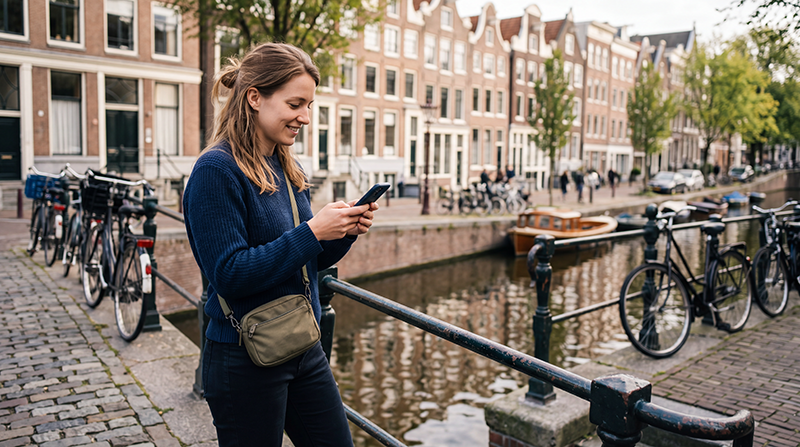

Yes, WhatsApp works normally in the Netherlands. You can use it through hotel WiFi, public WiFi, your home operator’s roaming service or a Netherlands travel eSIM.
WhatsApp uses an internet connection rather than traditional mobile minutes. With working mobile data, you can send messages, share photos, make voice and video calls and use your existing WhatsApp account throughout the Netherlands.
Quick answer: install and activate a Netherlands eSIM, select it for Mobile Data and keep WhatsApp registered to your existing telephone number. You do not need to change your WhatsApp number when switching to a travel eSIM.
Top Netherlands eSIMs

Netherlands eSIM
Fixed
1 GB, 7 days2.50$2 GB, 15 days4.00$3 GB, 30 days5.00$Unlimited
Unlimited, 1 day2.50$Unlimited, 3 days6.00$Unlimited, 5 days9.00$
Europe Extra eSIM
Fixed
1 GB, 7 days2.50$2 GB, 15 days4.00$3 GB, 30 days5.00$Unlimited
Unlimited, 1 day3.00$Unlimited, 3 days6.00$Unlimited, 5 days10.00$Europe+ eSIM
Fixed
1 GB, 7 days3.00$2 GB, 15 days4.50$3 GB, 30 days6.00$Unlimited
Unlimited, 1 day3.00$Unlimited, 3 days7.00$Unlimited, 5 days11.50$Europe Lite eSIM
Fixed
1 GB, 7 days2.50$2 GB, 15 days4.00$3 GB, 30 days5.00$Unlimited
Unlimited, 1 day3.00$Unlimited, 3 days6.00$Unlimited, 5 days10.00$How Does WhatsApp Work in the Netherlands?
WhatsApp requires an active internet connection. It can work through:
- A Netherlands travel eSIM.
- A regional Europe eSIM.
- Your home SIM with international roaming.
- Hotel, café or airport WiFi.
- A local Dutch SIM card.
A travel eSIM is useful because it provides mobile data while allowing you to keep your primary SIM and existing WhatsApp account.
Browse Netherlands eSIM plans.
Will WhatsApp Keep My Existing Number?
Yes. Installing a Netherlands eSIM does not normally change the telephone number registered with WhatsApp.
WhatsApp remains connected to the account already set up on your phone. The travel eSIM only supplies mobile internet.
When WhatsApp asks whether you want to change your number, select the option to keep your existing number. Do not use the Change Number feature unless you intentionally want to transfer your account to another telephone number.
Can I Use WhatsApp with a Data-Only eSIM?
Yes. A data-only eSIM is sufficient for WhatsApp because the application communicates through the internet.
You can use:
- Text and voice messages.
- Photos and document sharing.
- WhatsApp voice calls.
- WhatsApp video calls.
- Group chats.
- Live location sharing.
Most travel eSIMs do not include a Dutch telephone number, conventional calls or standard SMS. This does not prevent WhatsApp from working with your existing account.
How to Use WhatsApp with a Netherlands eSIM
- Install the travel eSIM before departure through reliable WiFi.
- Keep WhatsApp registered to your existing number.
- Enable the Netherlands eSIM after arrival.
- Select it as the preferred SIM for Mobile Data.
- Turn on Data Roaming for the travel eSIM.
- Turn off Data Roaming on your primary SIM.
- Disable Automatic Data Switching.
- Open WhatsApp and test a message.
Read how to use an eSIM in the Netherlands.
Recommended Dual SIM Settings
| Function | Recommended SIM |
|---|---|
| Mobile Data | Netherlands eSIM |
| Traditional Calls | Primary SIM |
| Standard SMS | Primary SIM |
| Verification Codes | Primary SIM |
| Existing account using eSIM data |
Your home operator may charge for traditional calls, sent SMS or answered calls while abroad. Keep Data Roaming disabled on the primary SIM to reduce the risk of unintended data charges.
Can I Receive WhatsApp Calls in the Netherlands?
Yes. WhatsApp voice and video calls work through mobile data or WiFi.
The call quality depends on:
- Mobile signal strength.
- Network congestion.
- Available data speed.
- Whether you are moving between network areas.
- The quality of the other person’s connection.
Switch from unstable 5G to 4G/LTE when WhatsApp calls repeatedly disconnect. A stable LTE connection is usually sufficient for voice and video calls.
How Much Data Does WhatsApp Use?
| WhatsApp Activity | Typical Data Use |
|---|---|
| Text messages | Very low |
| Photos and voice messages | Low to moderate |
| Voice calls | Moderate |
| Video calls | High |
| Large video sharing | High |
Exact usage varies according to call duration, media quality and application settings. Text messaging uses very little data, while video calls and large media files can consume a data allowance quickly.
How to Reduce WhatsApp Data Use
- Open WhatsApp Settings.
- Select Storage and Data.
- Enable reduced data use for calls when available.
- Limit automatic media downloads on mobile data.
- Send large videos through WiFi.
- Avoid long video calls on limited-data plans.
Download important documents, hotel details and tickets before leaving reliable WiFi.
Can I Receive Verification Codes?
A data-only Netherlands eSIM normally cannot receive conventional SMS verification codes because it does not include a telephone number.
You can keep your primary SIM active to receive verification messages on your usual number. Select the travel eSIM for Mobile Data and keep Data Roaming off on the primary line.
WhatsApp usually does not require a new verification code simply because you install a travel eSIM on the same phone.
Will WhatsApp Work on WiFi?
Yes. WhatsApp works through WiFi without using mobile data.
Public WiFi may be less secure or less reliable than a private mobile connection. Avoid sharing sensitive information through unknown networks, and confirm that you are connecting to the official network of the hotel, airport or café.
What If WhatsApp Does Not Work?
First check whether other websites and applications can use mobile data. When nothing loads, the issue is probably the eSIM connection rather than WhatsApp.
- Confirm that the Netherlands eSIM is enabled.
- Select it for Mobile Data.
- Turn on Data Roaming for the travel eSIM.
- Disable Automatic Data Switching.
- Keep Network Selection on Automatic.
- Check that the APN is data.esim.
- Turn Airplane Mode on for 30 seconds.
- Restart the phone and reopen WhatsApp.
Fix a Netherlands eSIM with no internet.
WhatsApp Is Connected but Calls Are Poor
When messages work but calls are unstable:
- Move outdoors or closer to a window.
- Switch from 5G to 4G/LTE.
- Pause cloud backups and app updates.
- Close video streaming applications.
- Disconnect unnecessary hotspot devices.
- Try the call again from another location.
NoveSIM unlimited plans include 1 GB of high-speed data per 24-hour period. After this allowance is used, speed may be reduced until the next daily reset, which can affect video calls and large media transfers.
Should I Delete the eSIM If WhatsApp Does Not Work?
No. Do not delete the eSIM during troubleshooting. Travel eSIM QR codes may be intended for one installation only.
Check the selected data line, Data Roaming, APN and internet connection first. Deleting the eSIM will not normally solve a problem limited to the WhatsApp application.
Related Netherlands eSIM Guides
- Netherlands eSIM Plans
- How to Use an eSIM in the Netherlands
- How to Activate a Netherlands eSIM
- No Internet on a Netherlands eSIM
- Why Is My Netherlands eSIM Slow?
- Netherlands eSIM APN Settings
FAQ
Does WhatsApp work in the Netherlands?
Yes. WhatsApp works through WiFi or mobile data throughout the Netherlands.
Will WhatsApp keep my existing number?
Yes. Installing a travel eSIM does not normally change the number registered with WhatsApp.
Can I use WhatsApp with a data-only eSIM?
Yes. WhatsApp messages and calls use the internet, so a data-only eSIM is sufficient.
Can I make WhatsApp calls in Amsterdam?
Yes. Voice and video calls work through a stable mobile data or WiFi connection.
Can the travel eSIM receive SMS verification codes?
Usually not, because most travel eSIMs are data-only. Keep your primary SIM active to receive codes on your usual number.
Why is WhatsApp not connecting?
Confirm that the travel eSIM is selected for Mobile Data, Data Roaming is enabled and the APN is set to data.esim when required.
Should I change my WhatsApp number?
No. Keep your existing number unless you intentionally want to transfer your account.
Final Recommendation
WhatsApp works normally in the Netherlands through WiFi or a travel eSIM. Keep your existing WhatsApp number and use the Netherlands eSIM only as the source of mobile data.
Select the travel eSIM for Mobile Data, enable Data Roaming and disable Automatic Data Switching. Keep the primary SIM active for verification codes only when you understand your operator’s roaming charges.
When WhatsApp does not connect, test whether other applications have internet access and check the data.esim APN. Do not delete the eSIM during troubleshooting.