


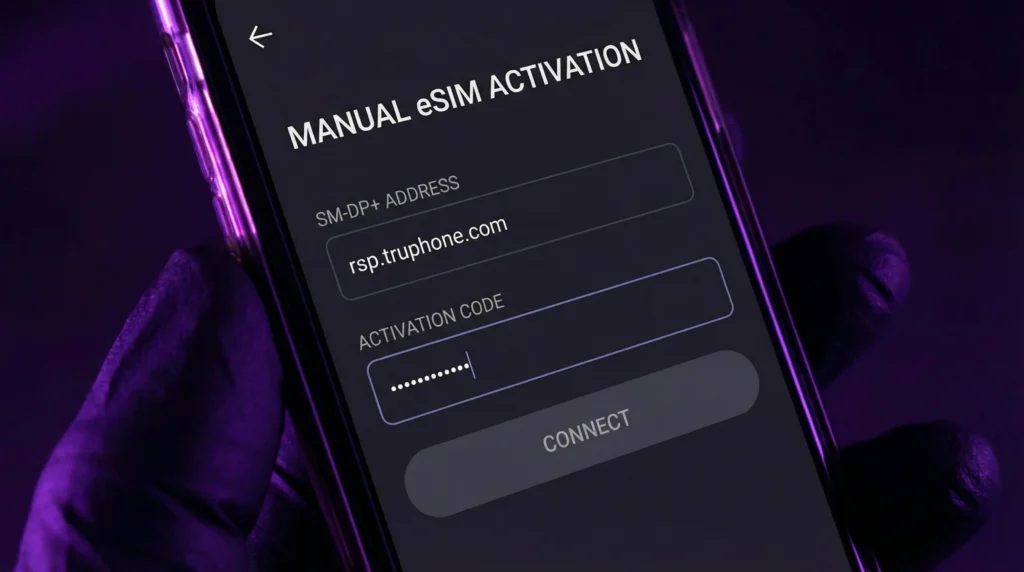

Manual eSIM setup downloads the same profile represented by a provider’s QR code, but the user types the supplied SM-DP+ address and activation code into the phone. It is useful when the QR code cannot be scanned or is displayed on the same device.
Use only the details issued for the purchased eSIM. An SM-DP+ address found in another guide, or a code belonging to another order, cannot activate the correct profile.
The phone must support eSIM, be network-unlocked and have a stable internet connection while it downloads the profile. Manual installation does not bypass compatibility or plan restrictions.
Quick answer: Open the phone’s option to add an eSIM, choose manual entry or activation code, and enter the SM-DP+ address and activation code exactly as supplied. Keep the details private, do not add spaces, and do not delete an existing profile if the attempt fails.
Top eSIMs

What information is required?
The provider may supply an SM-DP+ address, an activation code and, less commonly, a separate confirmation code. These fields have different roles and should not be combined unless the supplied instructions explicitly present one complete activation string.
Copy the characters exactly. Watch for leading or trailing spaces and characters that look similar. Treat the code like a credential: do not post it publicly or share an uncensored screenshot.
Installation and activation are not always the same
Adding the profile installs it on the phone. The data package may begin at installation, at first connection to a supported network or at another event specified in the plan. Read the activation policy before completing setup.
If a profile is already visible in SIM settings, do not try to add it again. Continue with the existing profile or contact support if its status is unclear. The pre-travel installation guide explains when early preparation is appropriate.
Enter eSIM details manually on iPhone
- Connect the iPhone to reliable Wi-Fi.
- Open Settings and select Cellular or Mobile Data.
- Tap Add eSIM or Add Mobile Plan.
- Choose the QR-code option if required to reach the scanner.
- Tap Enter Details Manually.
- Enter the supplied SM-DP+ address and activation code in their matching fields.
- Enter a separate confirmation code only if the provider supplied one and the phone requests it.
- Follow the on-screen prompts until the new plan appears in Cellular settings.
Apple’s wording can vary by iOS version and region. The essential endpoint is the manual-details screen inside Add eSIM, not a general QR-scanner app.
Enter an activation code on Samsung Galaxy
- Connect the Galaxy phone to stable Wi-Fi.
- Open Settings, Connections and SIM Manager.
- Tap Add eSIM.
- Open the QR-code path and choose Enter activation code, or use the equivalent manual option shown by the device.
- Enter the provider’s activation information exactly.
- Allow the phone to download the profile and complete the on-screen setup.
Menu labels differ by Galaxy model and software release. If Add eSIM is absent, verify the exact model and regional variant rather than forcing the code through another menu.
What about Google Pixel and other Android phones?
On a compatible Pixel, the path begins under Settings, Network & internet, SIMs, Add SIM and Set up an eSIM. Continue through the provider or QR setup and use a manual-entry option only when the phone presents one.
Other Android manufacturers use different labels and may accept only a complete activation string rather than separate fields. Follow the provider and manufacturer instructions for that exact device. The installed-eSIM check helps confirm whether a profile has already been added.
Why can a manual activation code fail?
- The phone is not eSIM-compatible or remains carrier-locked.
- The SM-DP+ address or code contains a typing error or extra space.
- The phone has no stable internet connection for the profile download.
- The code has already been used or the profile is already installed.
- The code belongs to a different order or has expired under the provider’s rules.
Do not keep retrying an uncertain code on several devices. Take a screenshot of the error without exposing the full activation details, record the phone model and contact the provider.
Configure the profile after installation
Label the new line clearly. At the correct activation time, enable it, select it for mobile data and turn on Data Roaming when the plan instructions require it. Disable automatic mobile-data switching and home-line roaming to avoid unintended charges.
If a NoveSIM profile requires manual APN entry after installation, use data.esim. APN configuration is separate from the SM-DP+ activation process.
What should you never do during setup?
Do not scan an eSIM code with an ordinary camera or third-party QR app and assume the plan has been installed. Use the phone’s Add eSIM workflow.
Do not delete a profile that already appears on the device merely because it has not connected. First check the plan’s activation timing and contact NoveSIM support. Removal can make recovery harder and may prevent another download.
Related Articles
- Add an eSIM Without a QR Code
- Fix an eSIM QR Code That Is Not Working
- Install an eSIM on Samsung
- What to Do When an eSIM Shows No Service
FAQ
Where do I find the SM-DP+ address?
Use the address supplied with the eSIM order or by the provider’s support team. Do not copy one from an unrelated online guide.
Is the activation code the same as the SM-DP+ address?
No. They identify different parts of the download request, although a provider may package them inside one complete activation string.
Can I reuse a manual eSIM activation code?
Do not assume so. Many profiles or codes are intended for one installation. Contact the provider if the code reports that it has already been used.
Should I delete the eSIM after an activation error?
No. If a profile is already installed, keep it and contact support. Delete it only when the provider explicitly instructs you to do so.
Final Recommendation
Use manual eSIM activation only with the exact SM-DP+ address and code supplied for the order.
Enter the information through the phone’s Add eSIM menu over reliable Wi-Fi, then apply the plan’s activation timing and data settings.
If the code fails or the profile already appears, stop before deleting anything and give support the error, phone model and order details without exposing the full activation credential.