
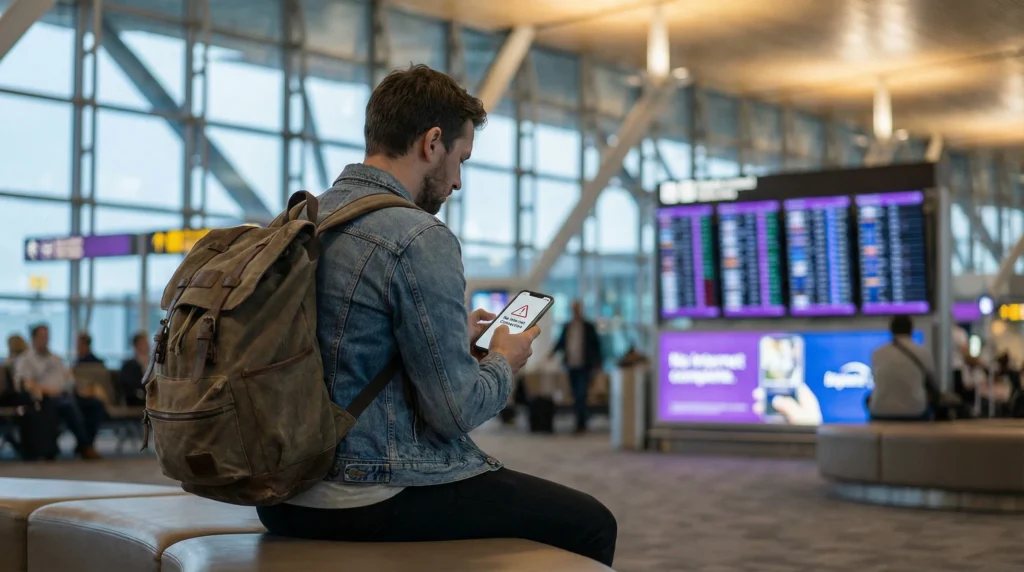

If your eSIM is not working in the USA, the problem is usually related to mobile data settings, data roaming, APN settings, network selection, coverage, or device compatibility.
This guide explains what to check if your USA eSIM is installed but you have no internet, weak signal, no data connection, or apps like Google Maps, Uber, WhatsApp, Safari, and travel apps are not loading.
Quick answer: if your eSIM is not working in the USA, first make sure the eSIM is selected for mobile data, data roaming is enabled for the eSIM, airplane mode is toggled on and off, and the correct APN is entered if required.
Top United States eSIMs
Quick Troubleshooting Checklist
Before changing advanced settings, check these common fixes first:
- Make sure your USA eSIM is installed on your phone
- Make sure the eSIM is selected for mobile data
- Enable data roaming for the eSIM
- Turn airplane mode on for 30 seconds, then turn it off
- Restart your phone
- Check that mobile data is turned on
- Disable automatic mobile data switching if it causes issues
- Check the APN settings if your eSIM provider requires a specific APN
- Try manual network selection
- Move to a place with better coverage
Most Common Reasons Your eSIM Is Not Working in the USA
| Problem | What it means | What to do |
|---|---|---|
| eSIM not selected for mobile data | Your phone may still be using your regular SIM for internet | Select the USA eSIM as the mobile data line |
| Data roaming is off | Many travel eSIMs require roaming to be enabled | Turn on data roaming for the eSIM |
| Wrong APN | The phone may not connect to data correctly | Enter the APN provided with your eSIM instructions |
| Weak coverage | You may be in a low-signal area | Move location or try manual network selection |
| Phone not compatible | Your device may not support eSIM or required network bands | Check eSIM compatibility |
| Plan not active yet | Some plans activate only after connecting to a supported network | Check activation instructions and wait after arrival |
Step 1: Check That Your eSIM Is Installed
First, confirm that the eSIM profile appears in your phone settings.
On iPhone, go to:
- Settings
- Mobile Data or Cellular
- Check if the eSIM appears under SIMs or Cellular Plans
On Android, go to:
- Settings
- Network & Internet or Connections
- SIMs or SIM Manager
- Check if the eSIM appears
If the eSIM does not appear, it may not have been installed correctly, or the QR code may already have been used. Check your installation email and your NoveSIM account order details.
Step 2: Select the eSIM for Mobile Data
One of the most common reasons an eSIM does not work is that it is installed but not selected for mobile data.
On iPhone:
- Open Settings.
- Tap Mobile Data or Cellular.
- Tap Mobile Data.
- Select your USA eSIM as the mobile data line.
On Android:
- Open Settings.
- Go to Connections or Network & Internet.
- Open SIM Manager or SIM settings.
- Select your USA eSIM for mobile data.
Step 3: Enable Data Roaming for the eSIM
Many travel eSIMs need data roaming to be enabled. This does not mean you are using your home SIM roaming if the eSIM is selected for mobile data.
On iPhone:
- Open Settings.
- Tap Mobile Data or Cellular.
- Select your USA eSIM.
- Turn on Data Roaming.
On Android:
- Open Settings.
- Go to Connections or Network & Internet.
- Select your USA eSIM.
- Turn on Data Roaming.
Step 4: Toggle Airplane Mode for 30 Seconds
After selecting the eSIM for mobile data and enabling data roaming, turn airplane mode on for 30 seconds, then turn it off.
This forces the phone to reconnect to the mobile network and often fixes temporary connection issues.
Step 5: Restart Your Phone
If airplane mode does not fix the issue, restart your phone.
A restart can help the device refresh network registration, mobile data routing, eSIM profile status, and network selection.
Step 6: Check APN Settings
Some USA travel eSIMs require a specific APN to access mobile data.
If your installation instructions include an APN, enter it exactly as provided.
On iPhone:
- Open Settings.
- Tap Mobile Data or Cellular.
- Select your USA eSIM.
- Tap Mobile Data Network if available.
- Enter the APN from your eSIM instructions.
On Android:
- Open Settings.
- Go to Connections or Network & Internet.
- Select Mobile Networks.
- Open Access Point Names.
- Add or edit the APN from your eSIM instructions.
- Save and select the APN.
If your NoveSIM installation instructions show a specific APN, use that APN. If no APN is required, do not add random APN settings.
Step 7: Try Manual Network Selection
If the eSIM is not connecting automatically, try selecting a network manually.
On iPhone:
- Open Settings.
- Tap Mobile Data or Cellular.
- Select your USA eSIM.
- Tap Network Selection.
- Turn off Automatic.
- Wait for available networks to appear.
- Select one of the available supported networks.
On Android:
- Open Settings.
- Go to Connections or Network & Internet.
- Open Mobile Networks.
- Tap Network Operators.
- Turn off automatic selection.
- Choose an available supported network.
If one network does not work, try another available network and wait a few minutes after each selection.
Step 8: Check Your Location and Coverage
Mobile coverage in the USA can vary by state, city, route, network, terrain, building, and exact location.
Signal may be weaker in:
- National parks
- Remote highways
- Desert areas
- Mountain regions
- Forests
- Basements
- Large buildings
- Rural areas
If your eSIM works in one location but not another, the issue may be coverage rather than the eSIM itself.
Step 9: Disable Automatic Mobile Data Switching
If you use both your regular SIM and your USA eSIM, automatic mobile data switching may cause confusion.
On iPhone, you can turn off “Allow Mobile Data Switching” so the phone does not switch back to your primary SIM for data.
Use the USA eSIM as your selected mobile data line and keep your regular SIM active only if you need calls or messages on your normal number.
Step 10: Check That Your Phone Supports eSIM
If the eSIM cannot install or does not appear in settings, your phone may not support eSIM, may be carrier-locked, or may not support the required mobile network bands.
Before buying or installing an eSIM, check that:
- Your phone supports eSIM
- Your phone is unlocked
- Your device supports mobile networks used in the USA
- Your phone software is up to date
- Your device allows adding mobile plans
Check if your phone supports eSIM
eSIM Installed but No Internet in the USA
If your eSIM is installed but there is no internet, the most likely causes are mobile data selection, data roaming, APN settings, or network selection.
Try this order:
- Select the USA eSIM for mobile data.
- Enable data roaming for the eSIM.
- Turn airplane mode on for 30 seconds and off again.
- Restart your phone.
- Check APN settings.
- Try manual network selection.
- Move to an area with better signal.
eSIM Has Signal but Data Is Not Working
If your phone shows signal bars but apps do not load, this usually means the phone is connected to a network but mobile data is not configured correctly.
Check:
- The eSIM is selected for mobile data
- Data roaming is enabled
- The APN is correct if required
- Mobile data is turned on
- You are not connected to a broken WiFi network
- Your plan is active and has remaining data if it is not unlimited
eSIM Not Working on iPhone in the USA
For iPhone users, check these settings:
- Settings → Mobile Data → Mobile Data line is set to the USA eSIM
- Settings → Mobile Data → select the eSIM → Data Roaming is on
- Settings → Mobile Data → Allow Mobile Data Switching is off if needed
- Airplane mode has been toggled on and off
- The iPhone has been restarted
- APN is entered if your instructions require it
- Manual network selection has been tested
eSIM Not Working on Android in the USA
For Android users, menu names can vary by brand, but the same checks apply.
- SIM Manager shows the eSIM as active
- The USA eSIM is selected for mobile data
- Data roaming is enabled for the eSIM
- Mobile data is turned on
- APN is entered if required
- Airplane mode has been toggled on and off
- The phone has been restarted
- Manual network selection has been tested
Apps Not Working Even Though eSIM Is Connected
If some apps do not work but your eSIM appears connected, check whether your phone is accidentally using WiFi with no internet, whether VPN is blocking traffic, or whether the app needs location permissions.
Try:
- Turn WiFi off temporarily and test mobile data
- Disable VPN temporarily
- Test a website in your browser
- Open Google Maps and search for a location
- Check app permissions if navigation or rideshare apps fail
Can an eSIM Stop Working Because of Coverage?
Yes. If you travel through rural highways, national parks, mountains, forests, deserts, or remote areas, mobile coverage may drop or become weak.
This does not always mean the eSIM is broken. It may simply mean there is limited network coverage in your current area.
For USA road trips and national park visits, always download offline maps before traveling through remote areas.
Related USA Travel Internet Guides
- Best Internet Option for USA Travel
- Unlimited Data eSIM for USA Travel
- Best Unlimited eSIM for USA Travel
- Best Pocket WiFi Alternative for USA Travel
- eSIM vs SIM Card in the USA
- Using Google Maps in the USA
- Internet for USA Road Trips
- eSIM for National Parks in the USA
- Best Apps for USA Travel
- eSIM Compatible Devices
FAQ: eSIM Not Working in the USA
Why is my eSIM not working in the USA?
Your eSIM may not be working because it is not selected for mobile data, data roaming is off, APN settings are missing, the network has not connected correctly, coverage is weak, or your phone is not compatible.
Why does my eSIM show signal but no internet?
If your eSIM shows signal but no internet, check that the eSIM is selected for mobile data, data roaming is enabled, mobile data is on, and the APN is correct if required.
Should data roaming be on for a USA eSIM?
Yes, many travel eSIMs require data roaming to be enabled. Make sure roaming is enabled for the eSIM, not your regular SIM, if you want to use the eSIM for mobile data.
What should I do first if my USA eSIM has no internet?
First select the eSIM for mobile data, enable data roaming, turn airplane mode on for 30 seconds and off again, and restart your phone.
Do I need APN settings for a USA eSIM?
Some eSIMs require APN settings and some do not. If your installation instructions include an APN, enter it exactly as provided.
Why is my eSIM not working in national parks?
Many national parks have limited mobile coverage, especially in remote areas, canyons, forests, mountains, and deserts. Download offline maps before entering remote park areas.
Can restarting my phone fix eSIM problems?
Yes. Restarting your phone can refresh network registration, mobile data routing, eSIM status, and connection settings.
What if my eSIM still does not work?
If your eSIM still does not work after checking mobile data, data roaming, APN, airplane mode, restart, and manual network selection, contact support and share your device model, location, screenshots of mobile data settings, and whether the eSIM shows signal.
Final Recommendation
If your eSIM is not working in the USA, start with the most common fixes: select the eSIM for mobile data, enable data roaming, toggle airplane mode for 30 seconds, restart your phone, check APN settings, and try manual network selection.
For most USA eSIM issues, the problem is a phone setting, network selection issue, or temporary coverage limitation rather than a broken eSIM.


